



Quickly Extracting Products with Negative Stock from the Stock Transactions Report
If product balances show zero even though the client sold or withdrew them without enough stock, there were most likely transactions that pushed the stock below zero at some point, known as negative stock. This guide explains the fastest way to get only the names of the products whose stock went below zero, using the Detailed Stock Transactions For Each Product report, an Excel file and two formulas.
Steps to find products with negative stock withdrawals
First: Export the Detailed Stock Transactions report
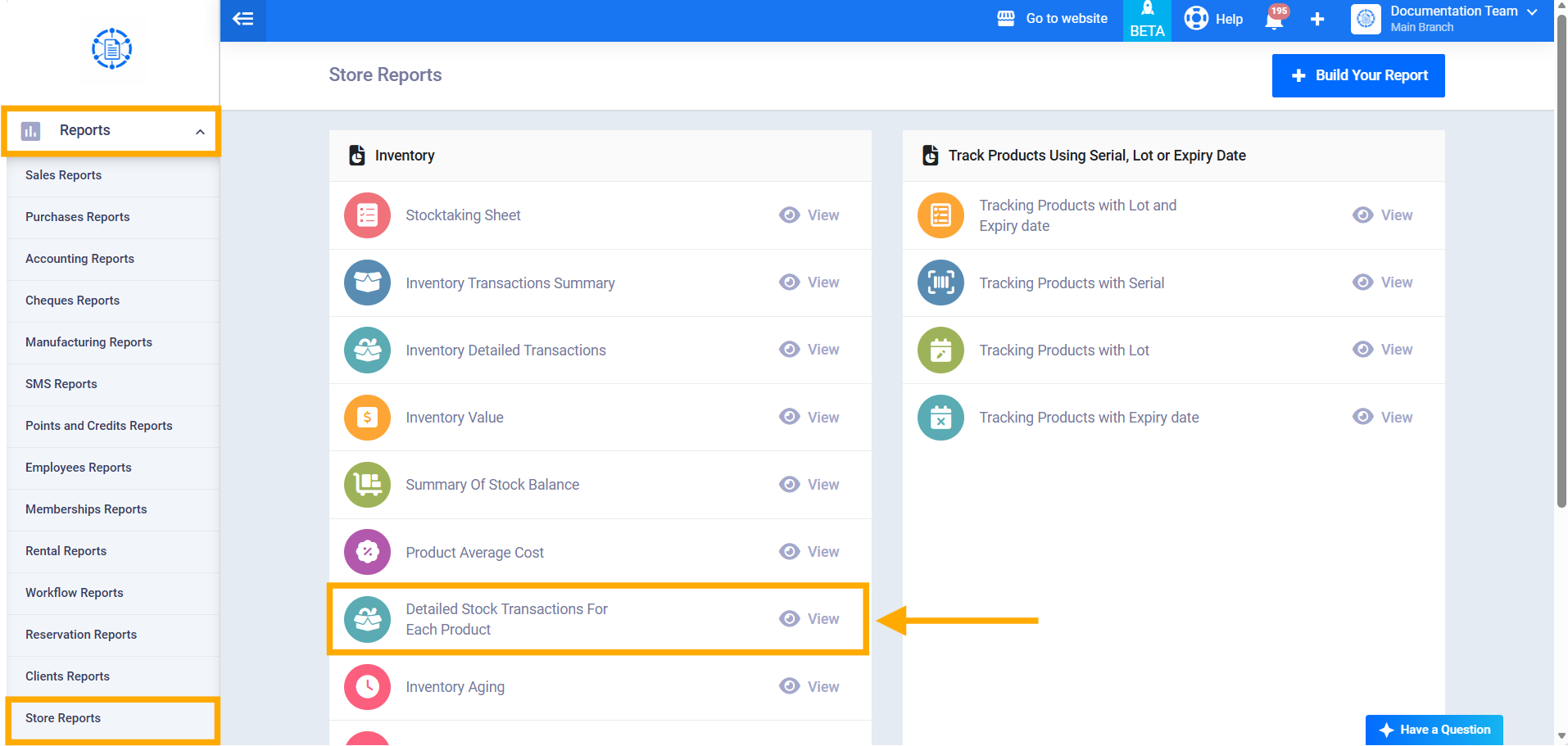
- Go to Reports → Store Reports, and choose Detailed Stock Transactions For Each Product.
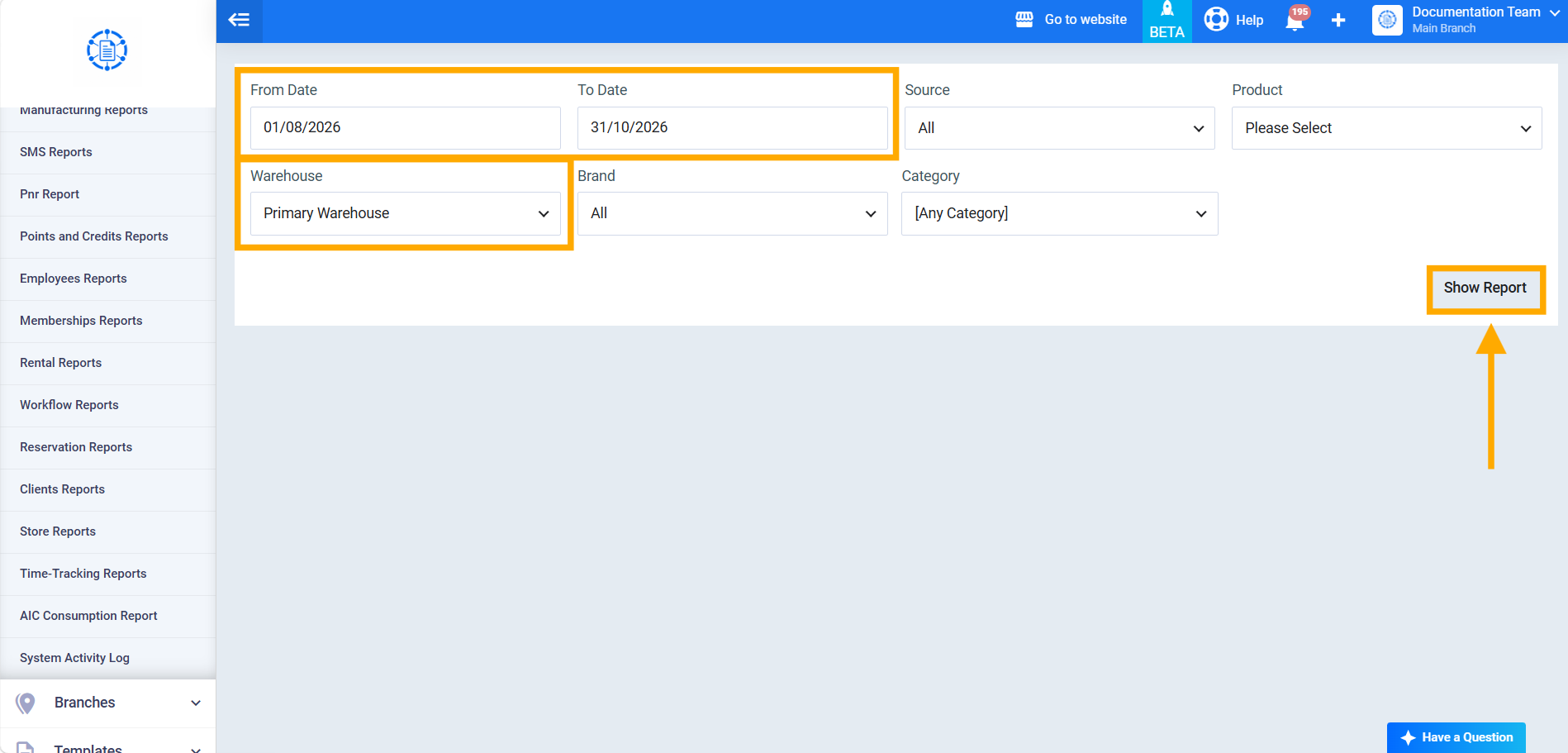
- Set From Date and To Date for the period you want to check, choose the Warehouse if you want to check one warehouse only, then show the report.
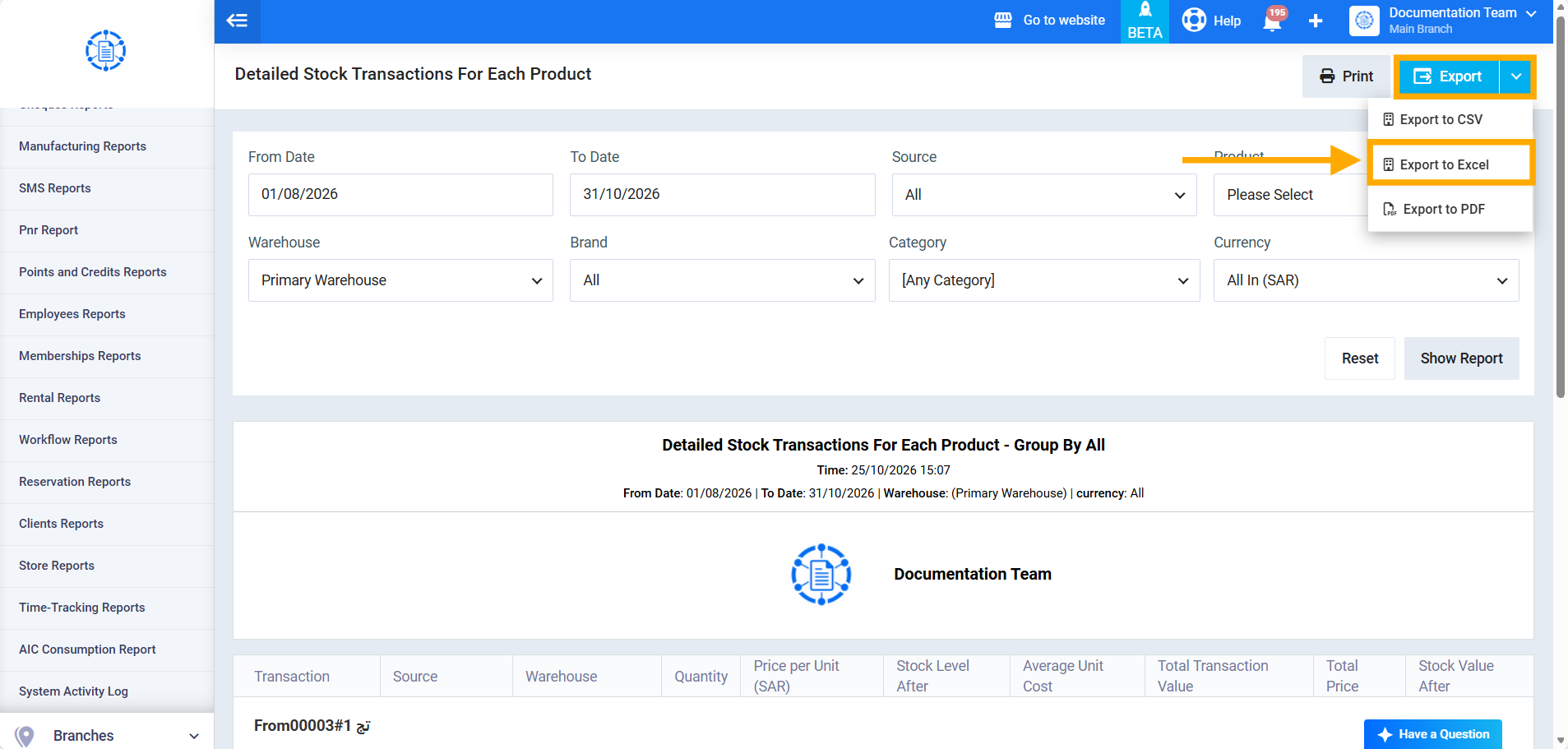
- Click Export → Export to Excel, and open the downloaded file.
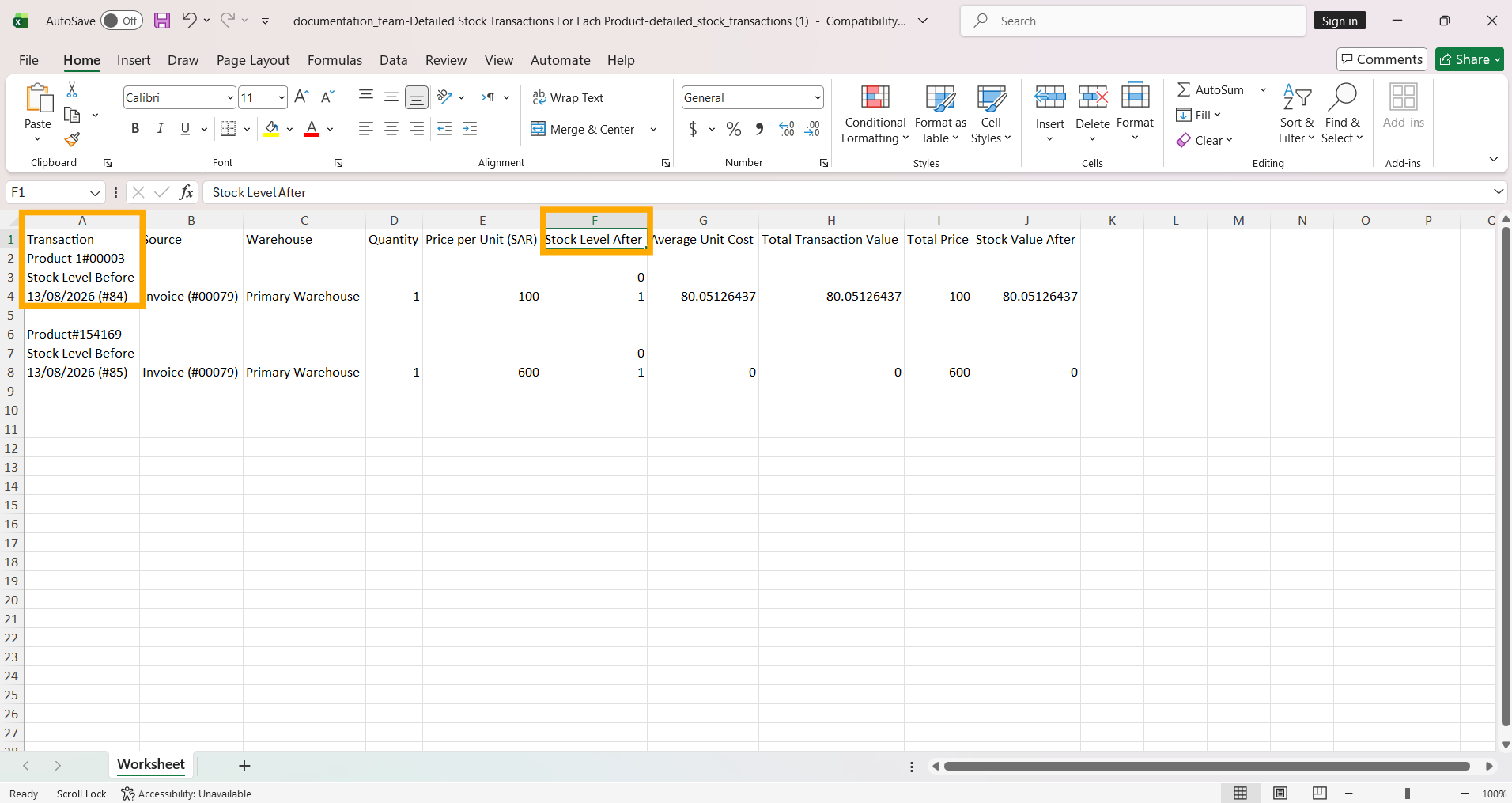
In the file, each product’s transactions appear under its name: a row with the product name in column A and the rest of the row empty, then a Stock Level Before row, then the transaction rows. The negative values appear in column F, Stock Level After.
Second: Add the product name to every transaction
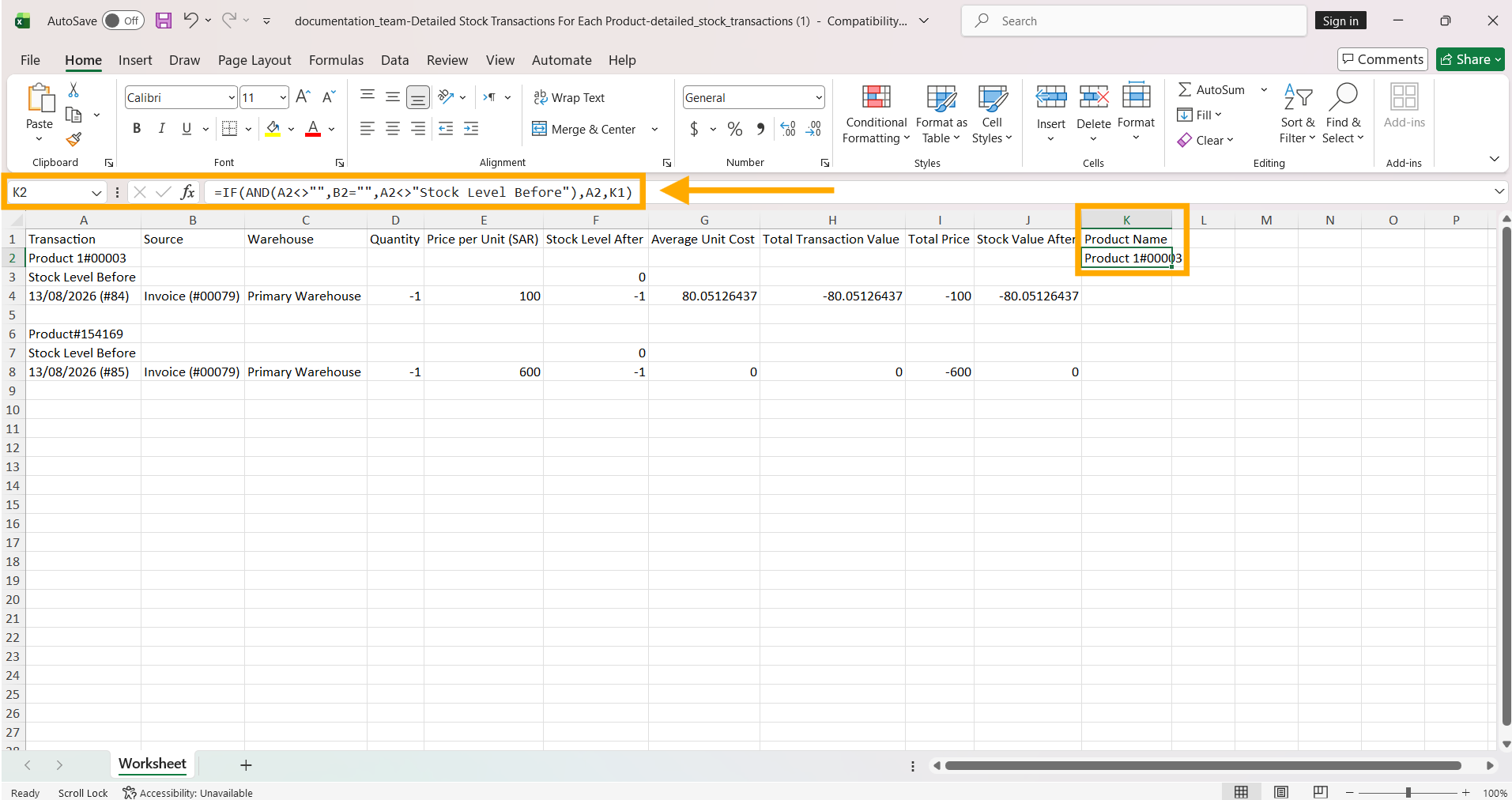
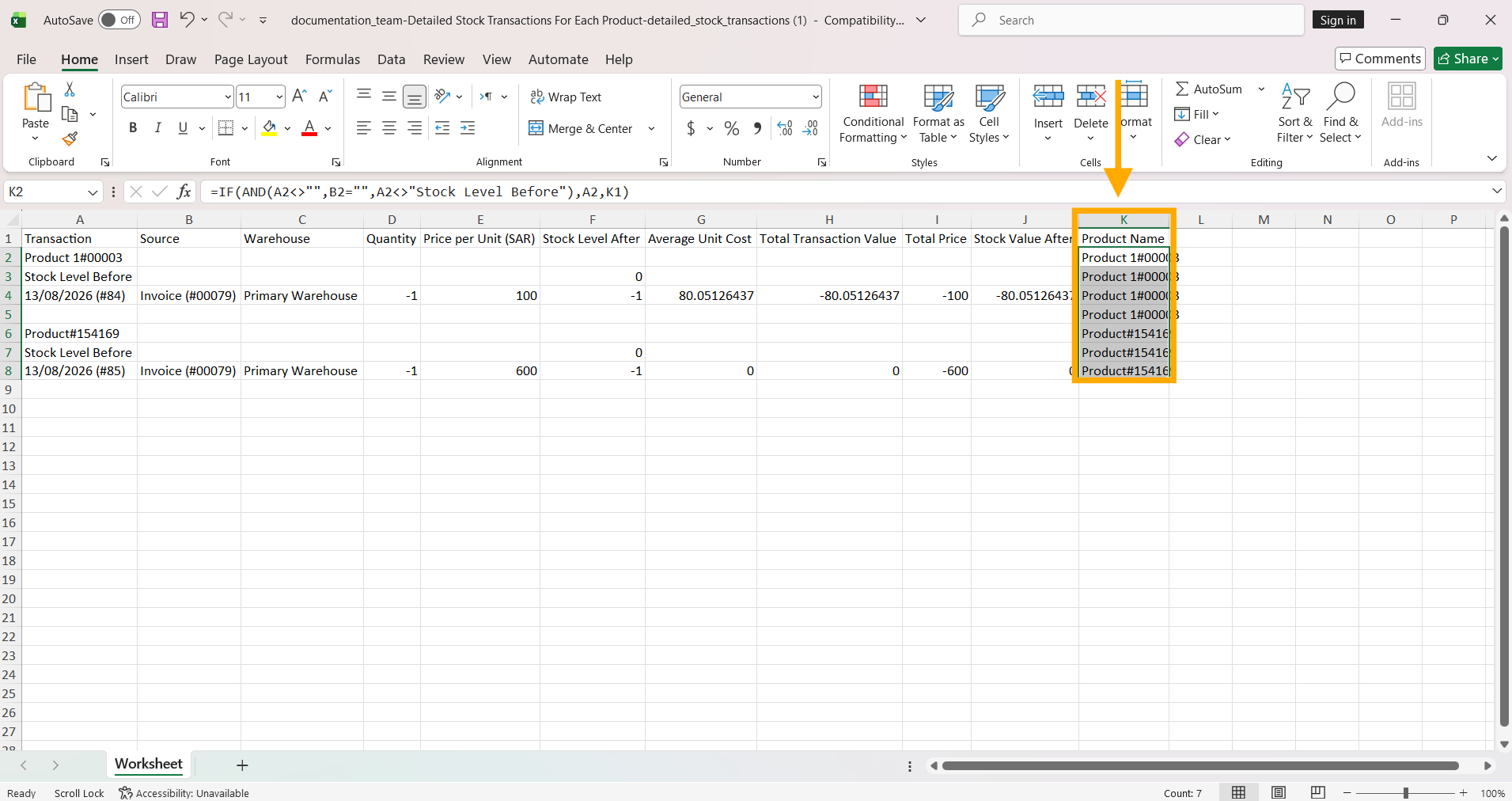
- In cell K1, type: Product Name.
- In cell K2, type the following formula, and press Enter:
=IF(AND(A2<>"",B2="",A2<>"Stock Level Before"),A2,K1)
The formula takes the product name from the name row, and copies it to every transaction below it until a new product starts.
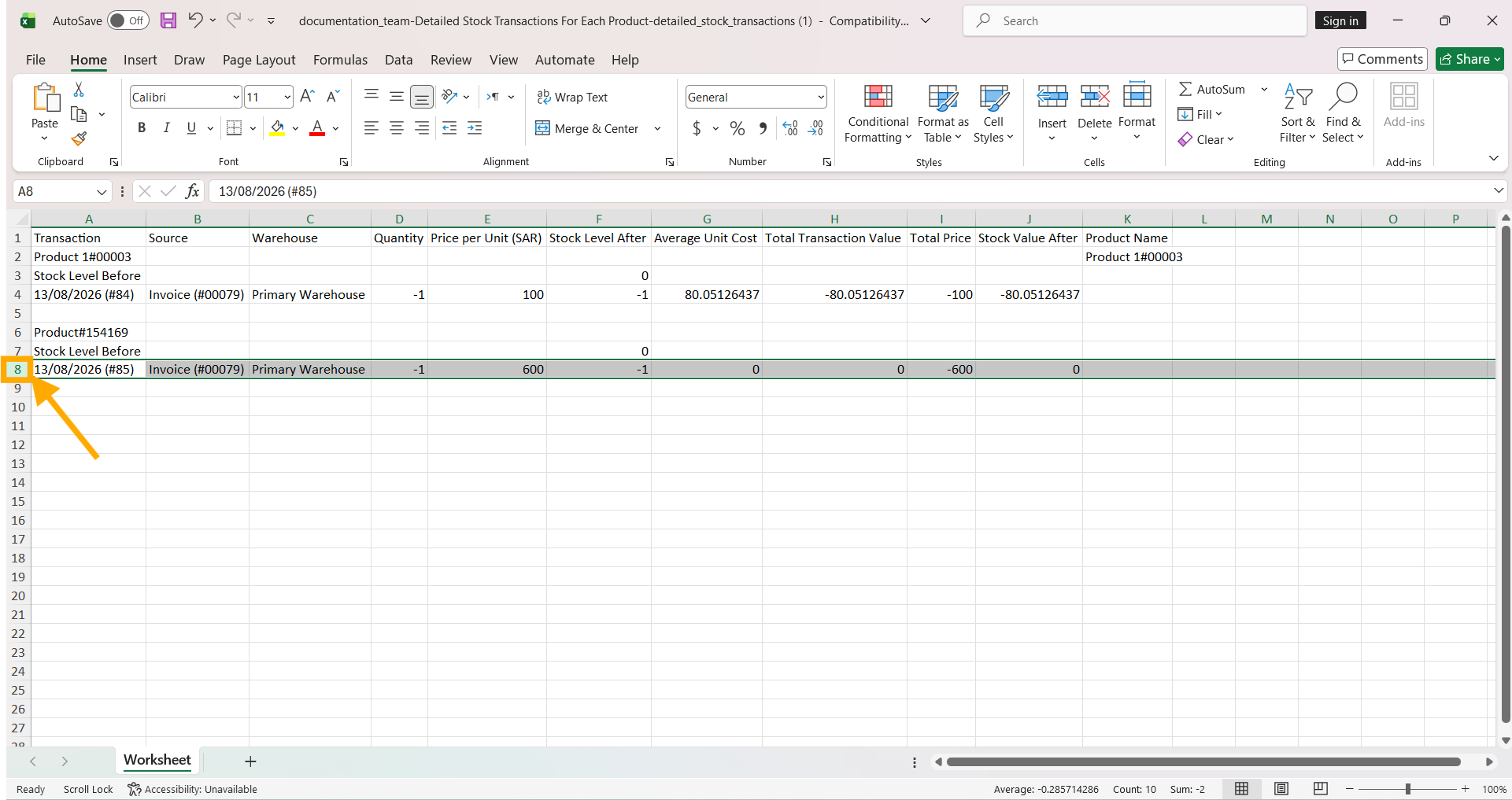
- Find the number of the last row with data in the file, for example 8.
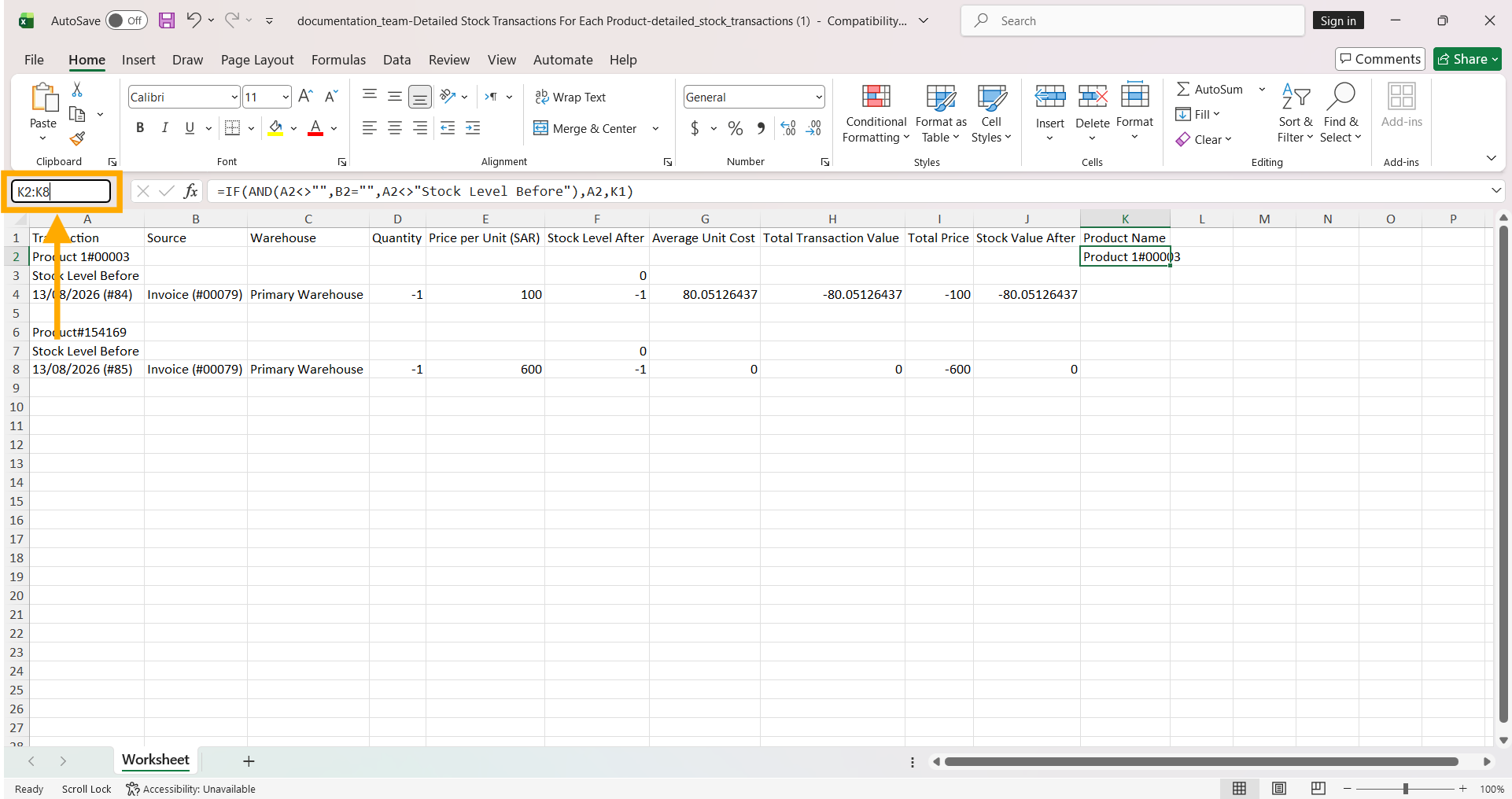
- Click in the Name Box next to the formula bar, type K2:K8, then press Enter to select the whole range.
- Press Ctrl + D to copy the formula to all the selected cells; the product name appears next to every transaction.
Third: Extract the list of products with negative stock
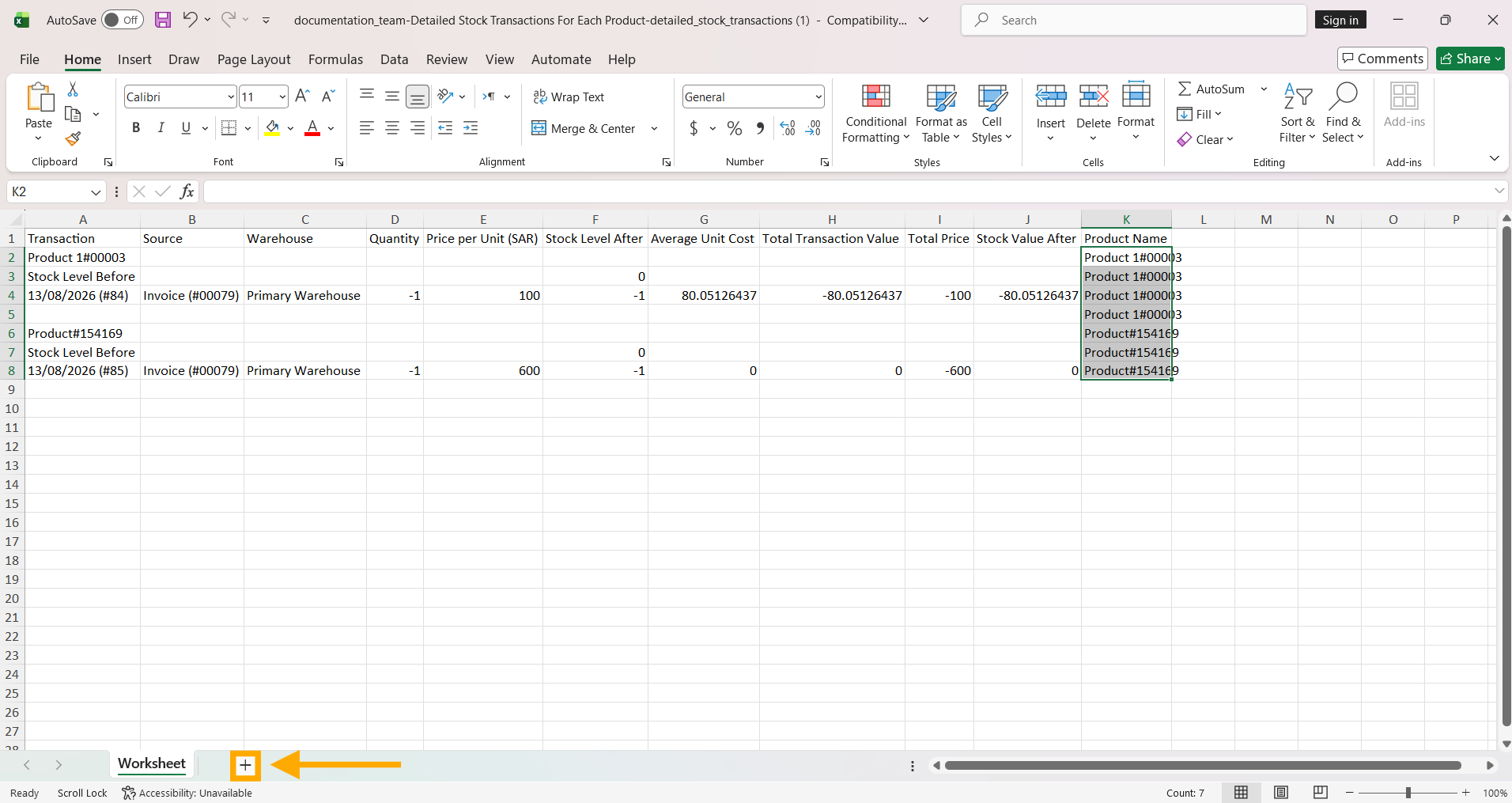
- Add a new sheet (New Sheet) in the same file.
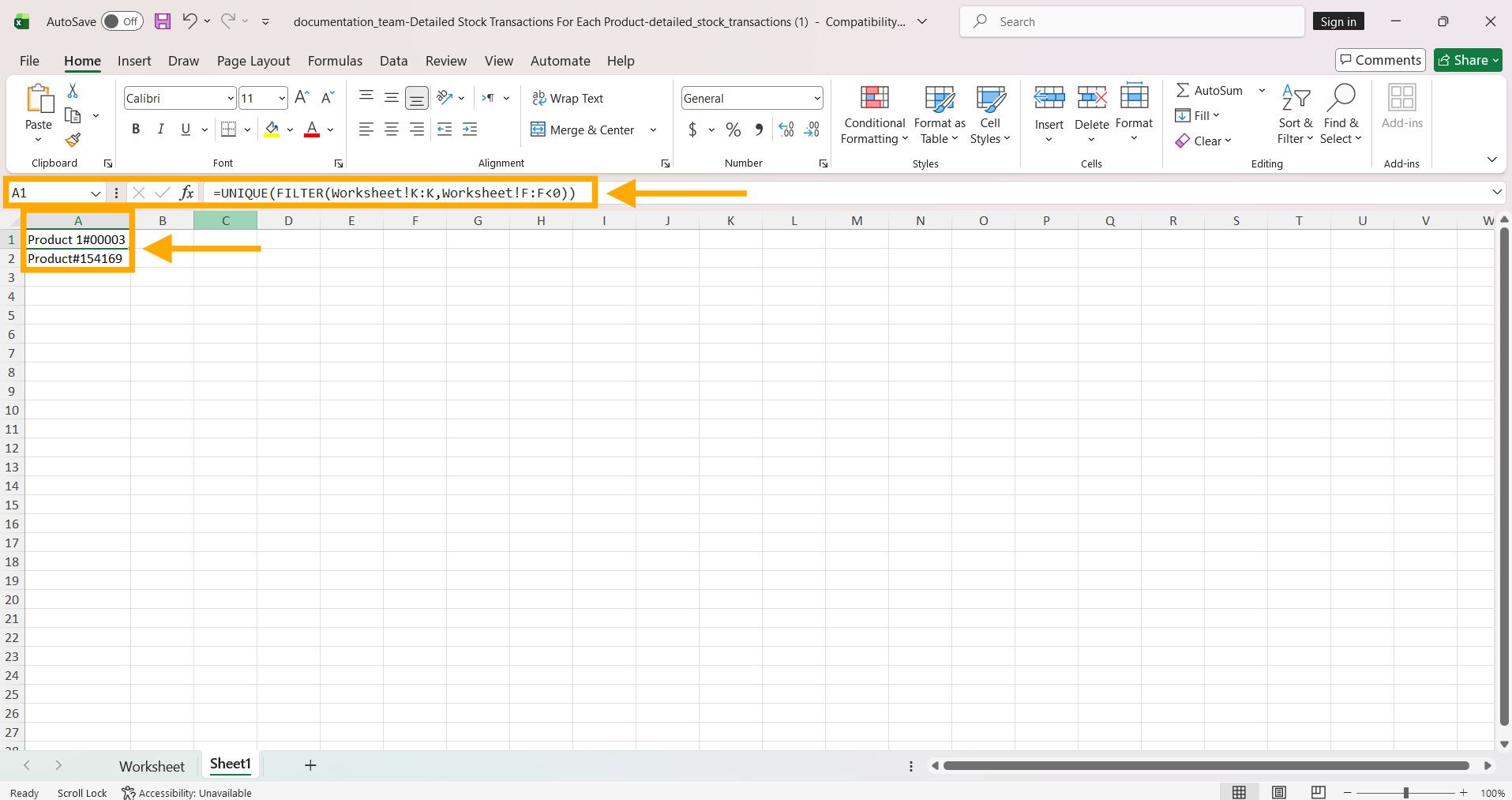
- In cell A1, type the following formula, replacing Worksheet with the name of your data sheet, and press Enter:
=UNIQUE(FILTER(Worksheet!K:K,Worksheet!F:F<0))
The formula collects the product names from column K for every transaction where Stock Level After became less than zero, and shows each product only once.
Fourth: Check the product in the system
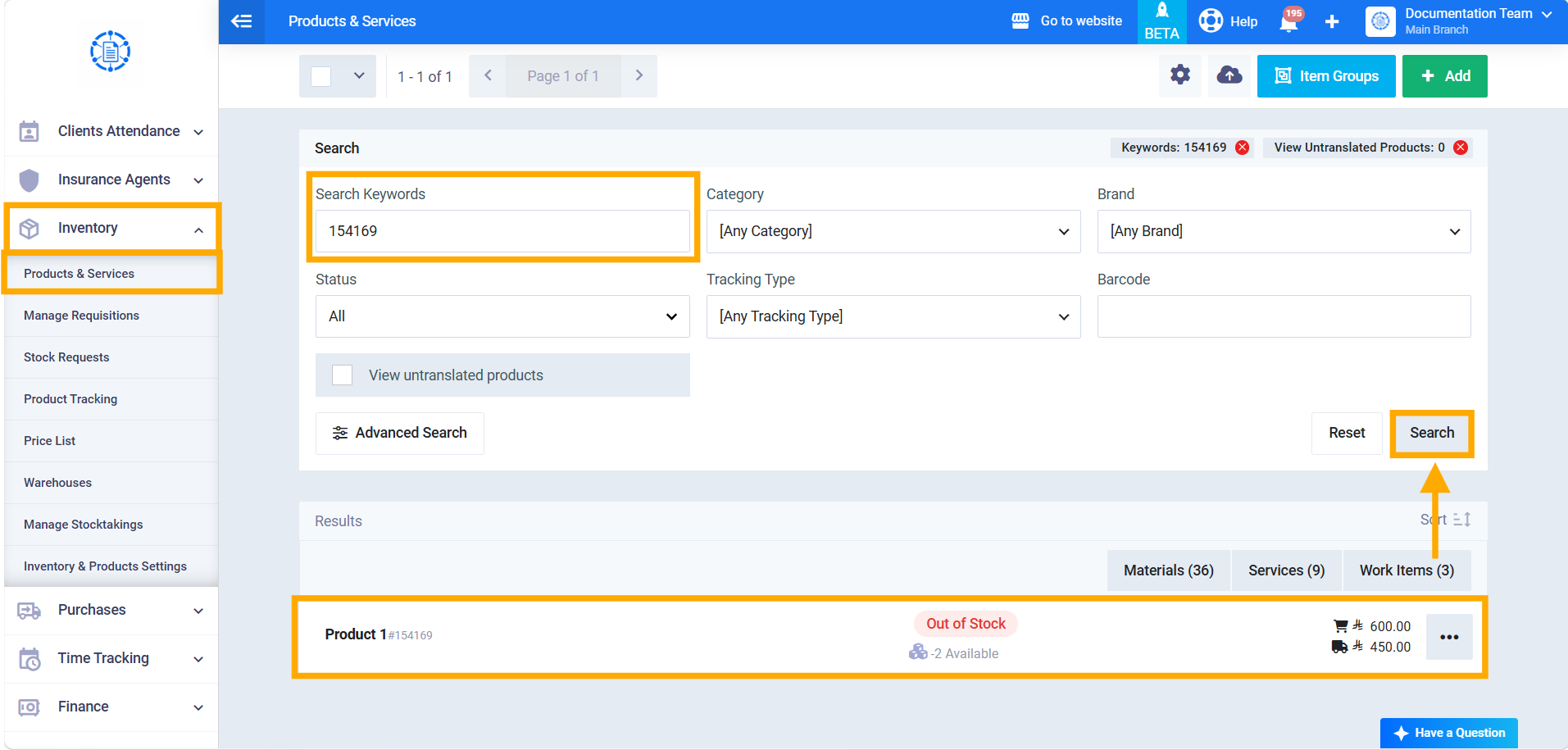
- Go to Inventory → Products & Services, and search for one of the products in the list by name or code.
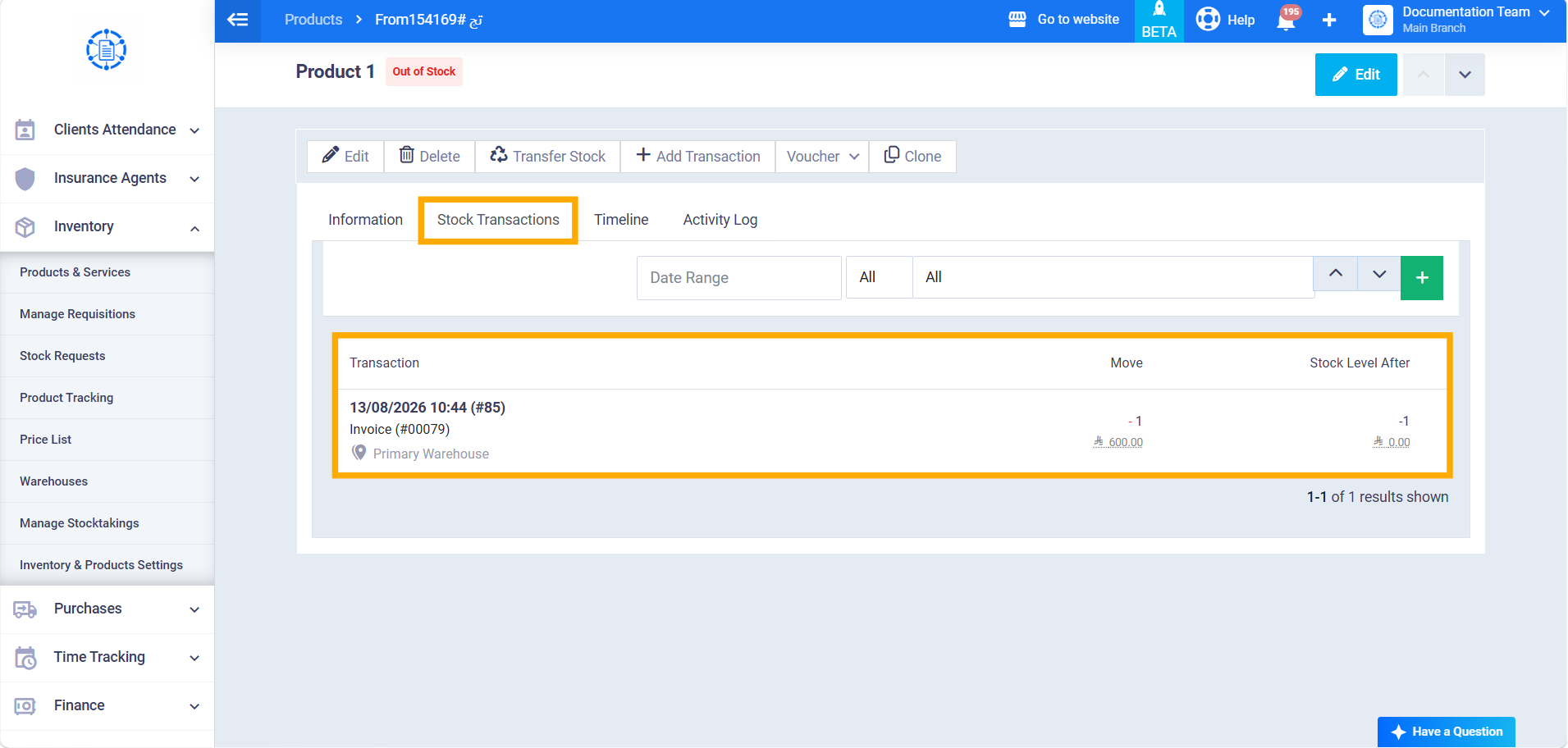
- Open the product page, then the Stock Transactions tab; you’ll find the transaction after which the stock went below zero.