Enabling a Secondary Language for Product Names and Descriptions
The system allows you to activate a secondary language for your account and enter translated values for product names and descriptions. Once enabled, all sales and purchase transaction documents display product names and descriptions in both languages together, making it easier to deal with bilingual clients and suppliers.
Before You Begin
Only the Owner role can enable or disable this feature. Other roles will see the resulting fields and document outputs, but cannot control this setting themselves.
Step 1: Enabling the Secondary Language Option
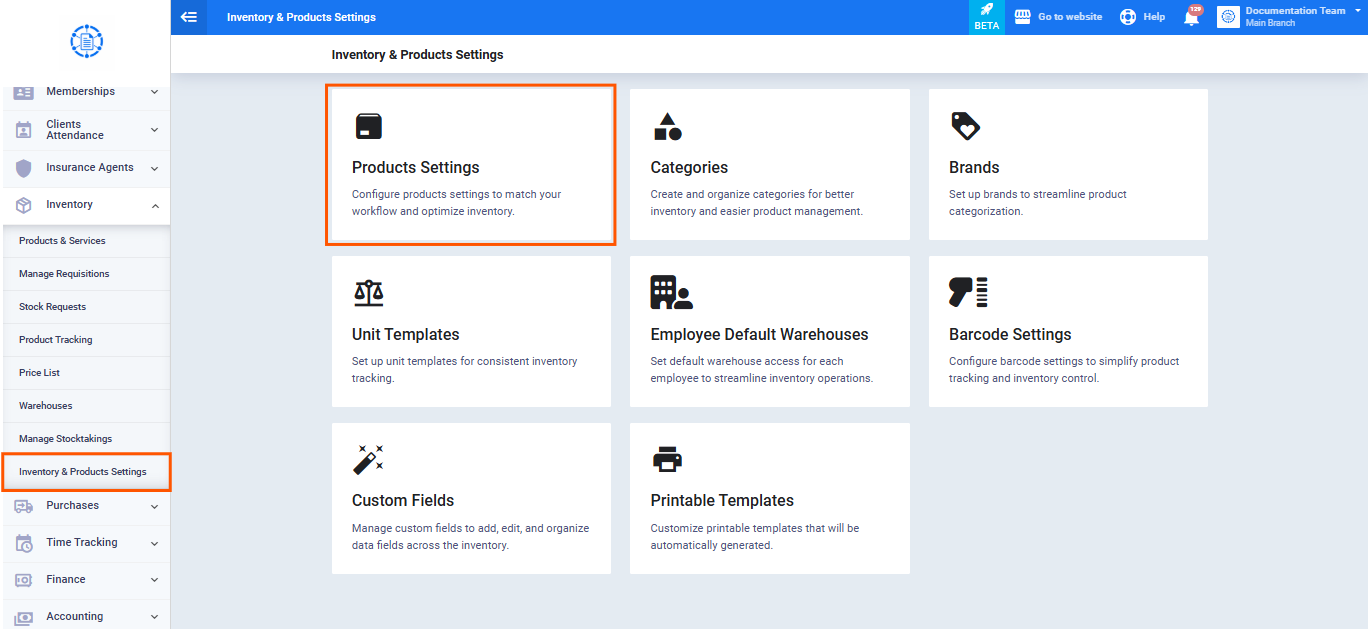
- From the main menu, go to the “Inventory” section.
- Click “Inventory & Products Settings.“
- Open the “Products Settings” tab.
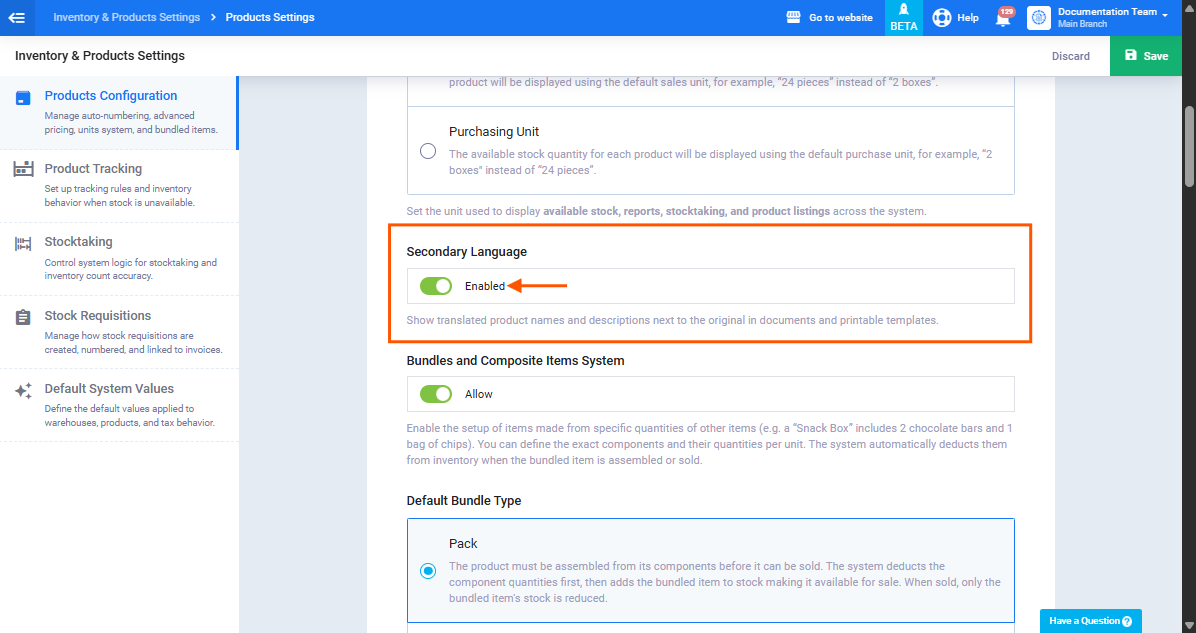
- Scroll down until you find the “Secondary Language” toggle.
- Turn it on — it will read “Enabled.” The line below explains its function: “Show translated product names and descriptions next to the original in documents and printable templates.“
- Click “Save” at the top right of the page.
Step 2: Translating a Product's Name and Description
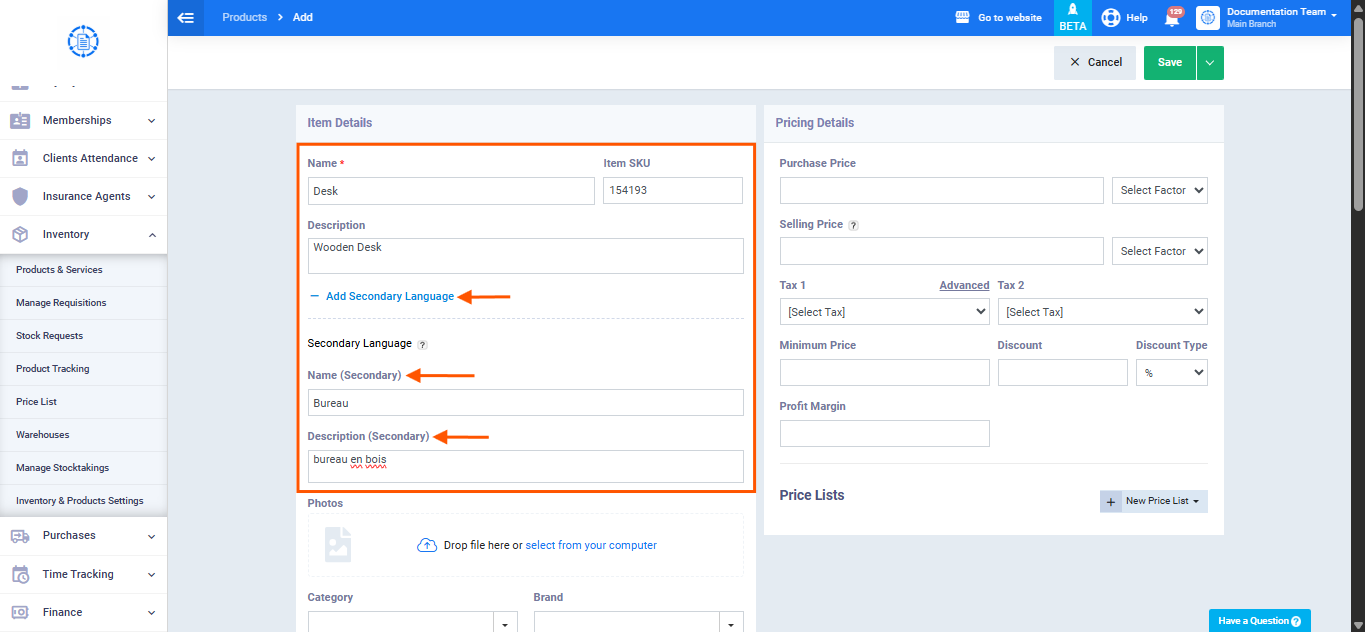
- Open an existing product from “Products & Services,” or start a new one by clicking “Add.”
- Directly below the “Description” field, you’ll find a link labeled “+ Add Secondary Language.” Click it to reveal the translation fields.
- Enter the translated product name in the “Name (Secondary)” field.
- Enter the translated description in the “Description (Secondary)” field.
- Click “Save.”
Step 3: Finding Untranslated Products
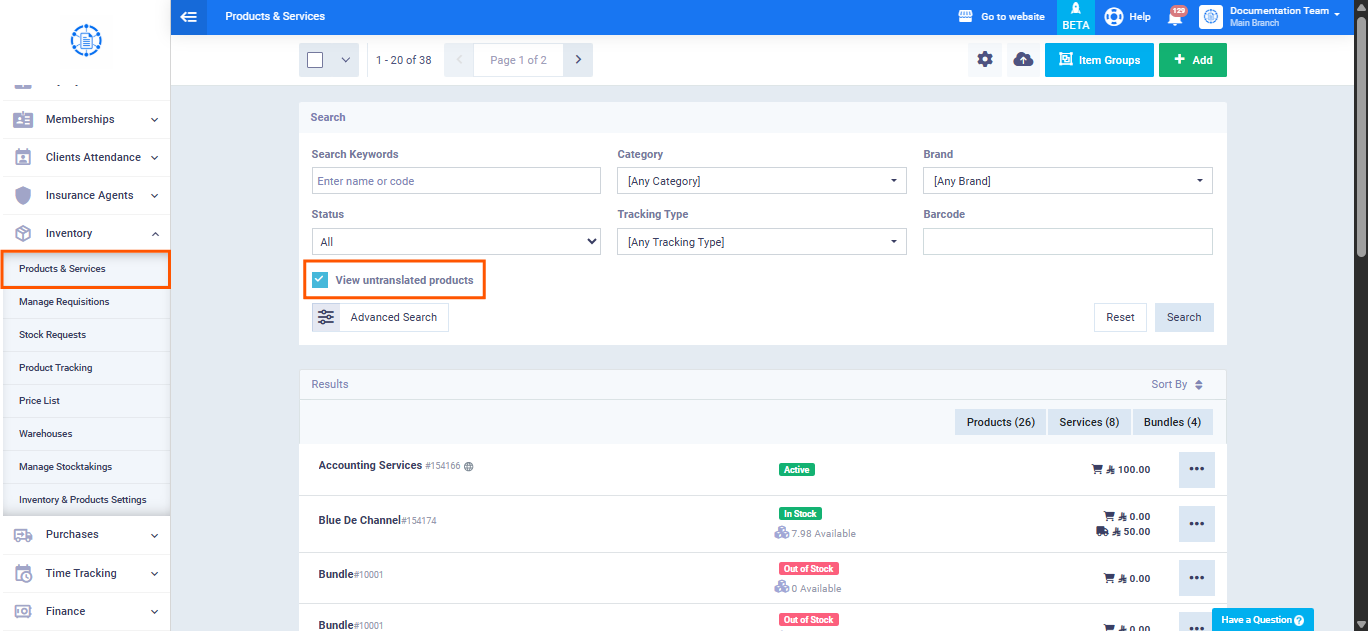
To help you keep track of products that haven’t been translated yet, a new checkbox is available on the “Products & Services” page, next to “Advanced Search“: “View untranslated products.” Selecting this option and clicking “Search” shows all products where the secondary name or description field is empty, making it easier for you to complete translations across your entire catalog.
How Product Names and Descriptions Appear on Documents
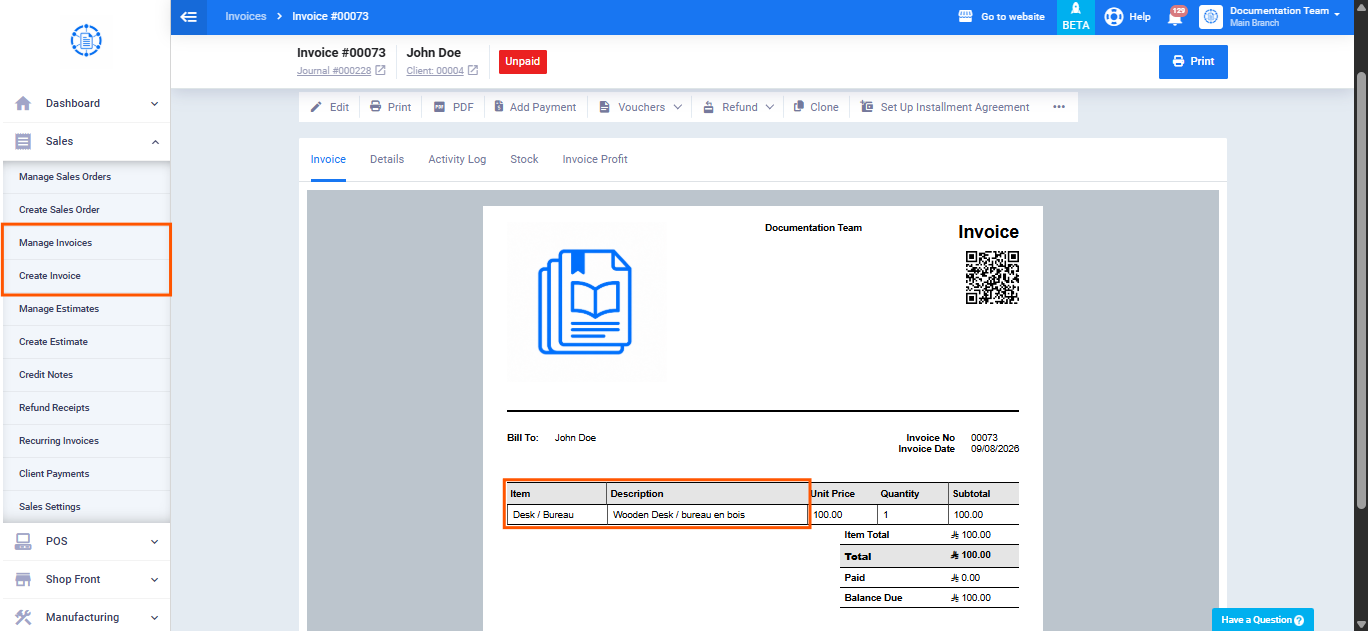
Wherever a product’s name or description appears on a document, it follows this format:
Original / Translated (e.g., “Desk/ Bureau“)
You’ll notice this on:
- Every sales document (Estimates, Sales Orders, Invoices, Refund Receipts, Credit Notes, POS Orders, Shopfront Invoices, Delivery Notes, and more).
- Every purchase document (Purchase Orders, Purchase Invoices, Purchase Returns, Debit Notes, and more).
- Both the live on-screen view and the final printed or exported version.
- POS product listings and the shopping cart, on both web and mobile.
Finding Products by Their Translated Name
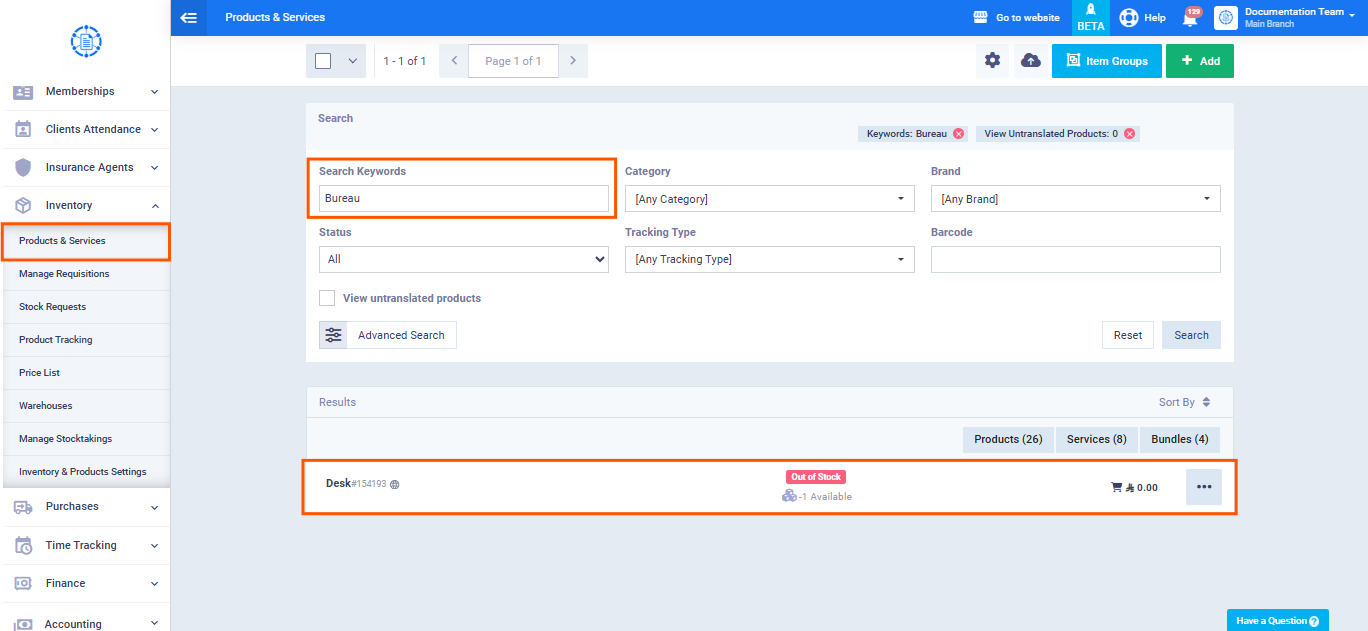
Translations aren’t just for display, they’re searchable too. Type a product’s secondary-language name into any search field across the system, and it will appear exactly as if you’d searched by the original name. The same applies to stocktaking, which recognizes products by either language.
Printable Template Variables
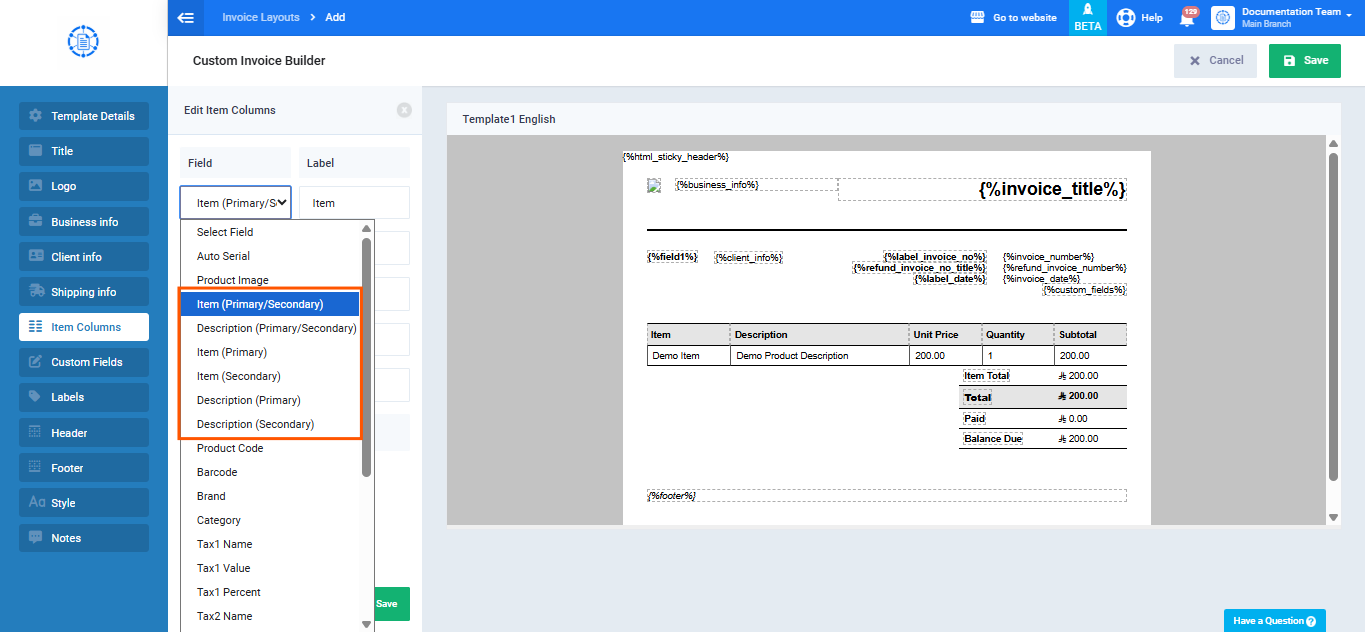
If you design your own templates, here are a few variables worth knowing:
- Item (primary/secondary) and Description (primary/secondary): handle everything automatically — they’ll display both languages together once this feature is enabled, with no adjustment needed on your part.
- Item (Primary) and Description (Primary): give you the original text only, in case you want to style or position it separately.
- Item (Secondary) and Description (Secondary): do the same for the translated text alone.
Disabling the Secondary Language
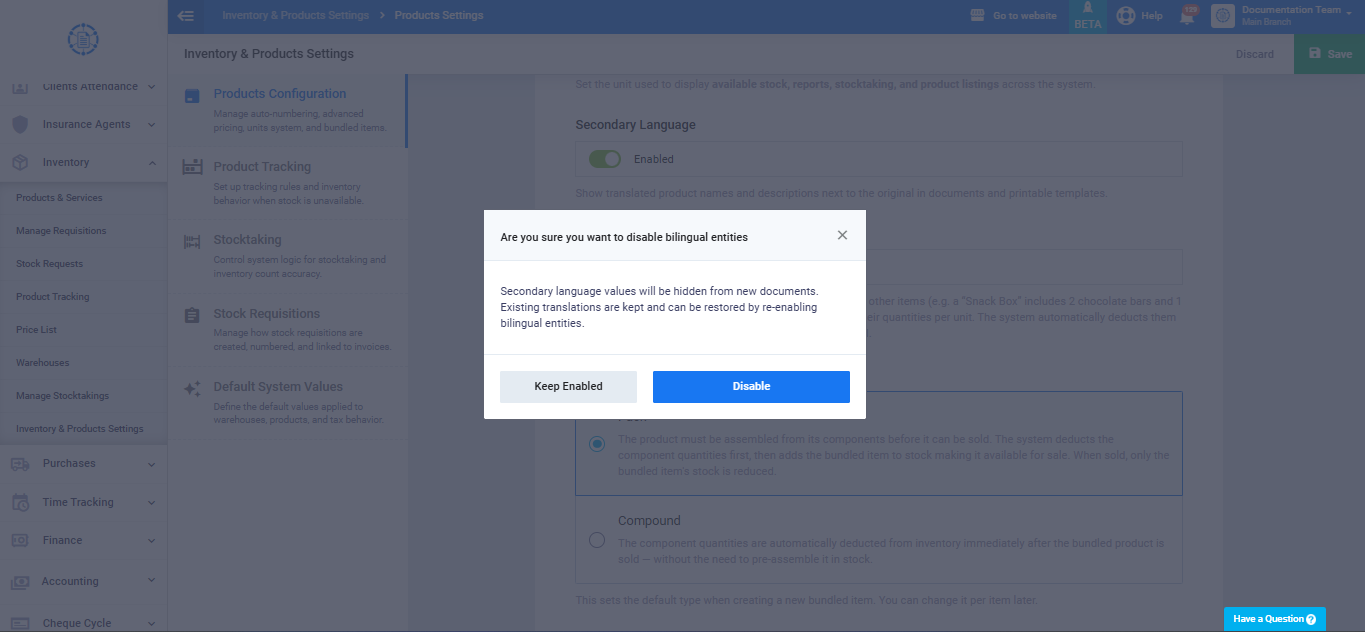
You can disable this feature at any time from the same toggle in “Inventory & Products Settings” → “Products Settings.” Upon saving, a confirmation dialog appears:
“Show translated product names and descriptions next to the original in documents and printable templates.”
As a result:
- The “Add Secondary Language” link and its fields are hidden from the product create/edit form (without deleting their stored values).
- New documents display the primary value only.
- Previously saved documents remain unchanged.