


How to Settle an Employee Custody by Paying a Purchase Invoice
The system allows you to settle an employee’s custody by paying an outstanding purchase invoice directly from the settlement screen, without the need to create manual journal entries. This article explains how to settle an employee custody through the payment of a purchase invoice.
Steps to Settle an Employee Custody by Paying a Purchase Invoice
Step 1: Access the Employee Custody
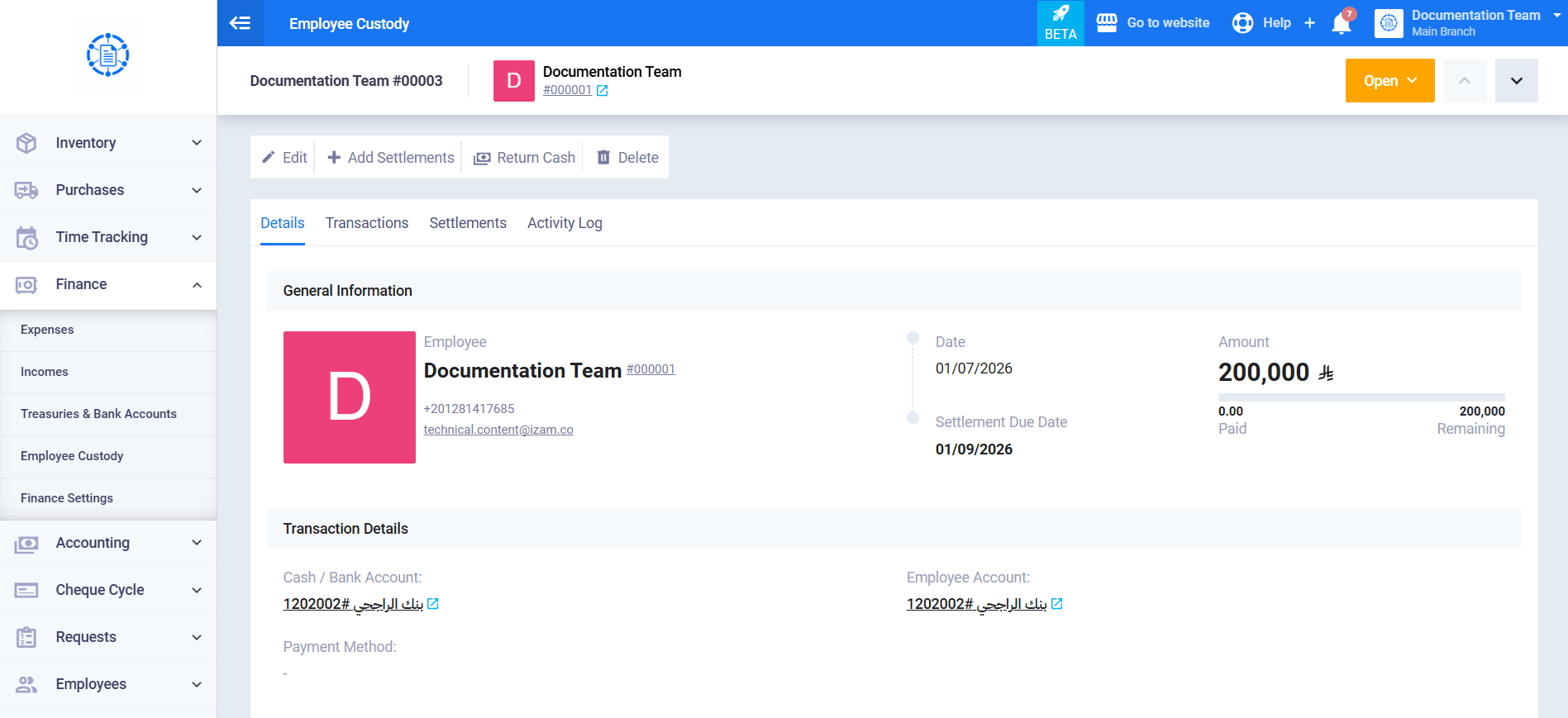
From the main menu, click Finance, select Employee Custody, then open the required employee custody and click Add Settlements.
Step 2: Add a New Settlement Line
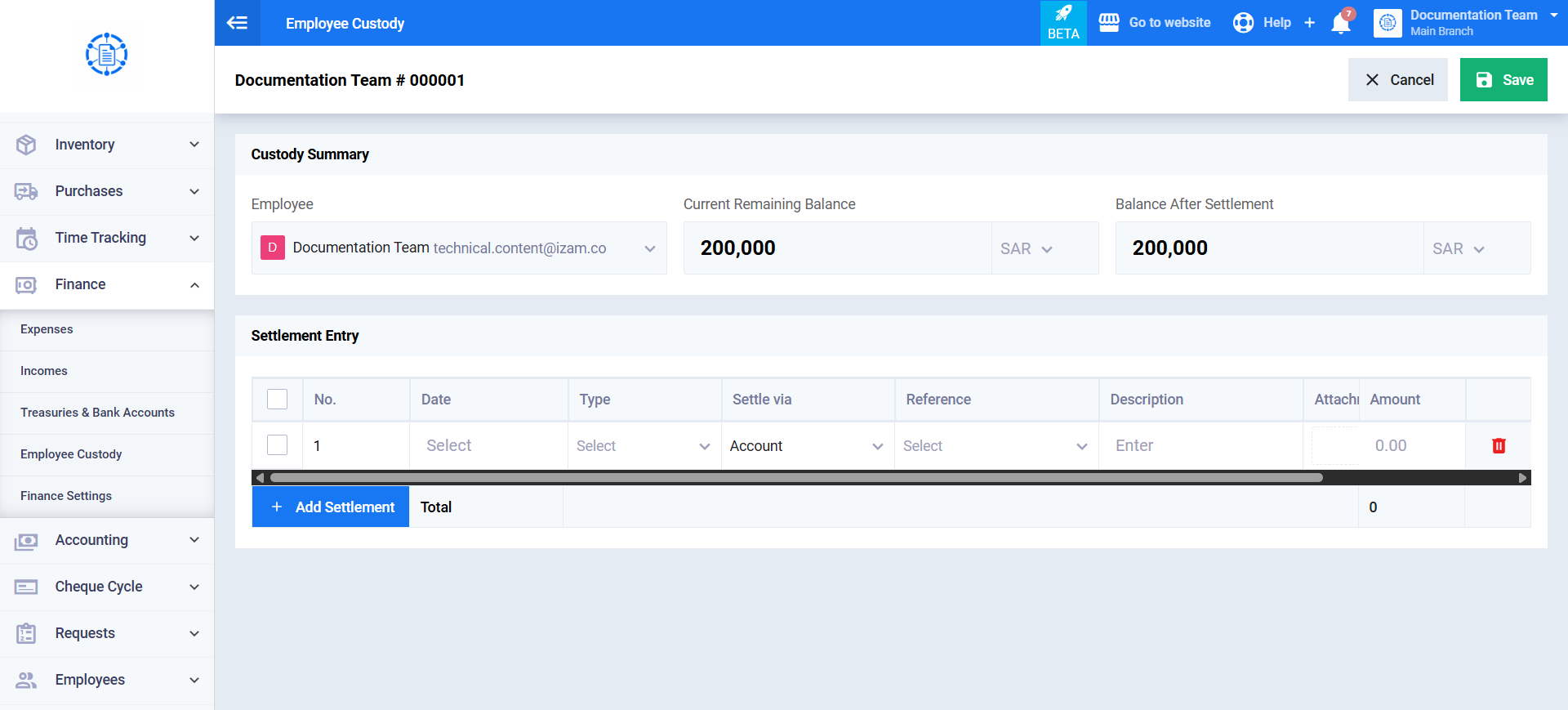
From the settlement table on the custody screen, add a new settlement line.
Step 3: Select “Purchase Invoice” from the “Settle via” List
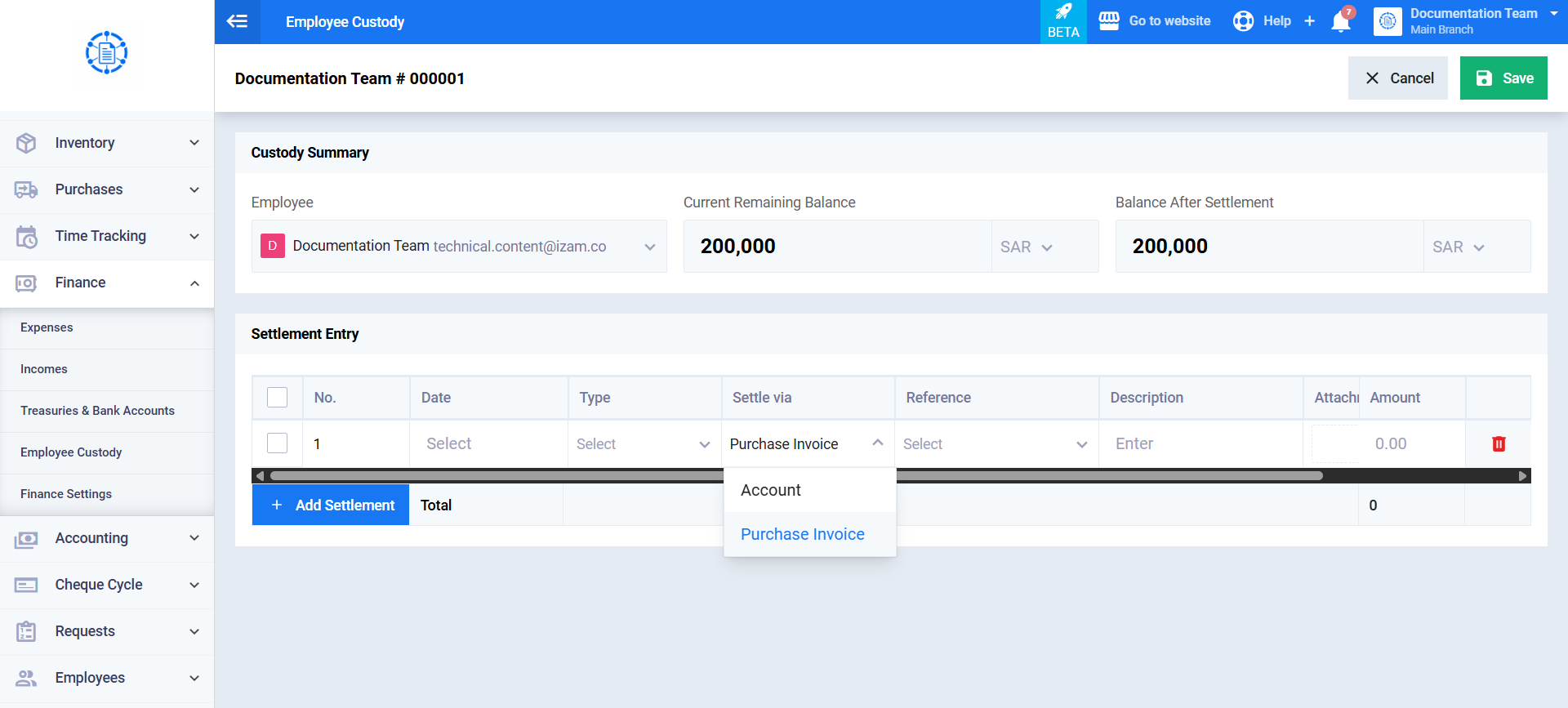
From the Settle via column for the line, select Purchase Invoice instead of the default Account option.
Step 4: Select the Invoice
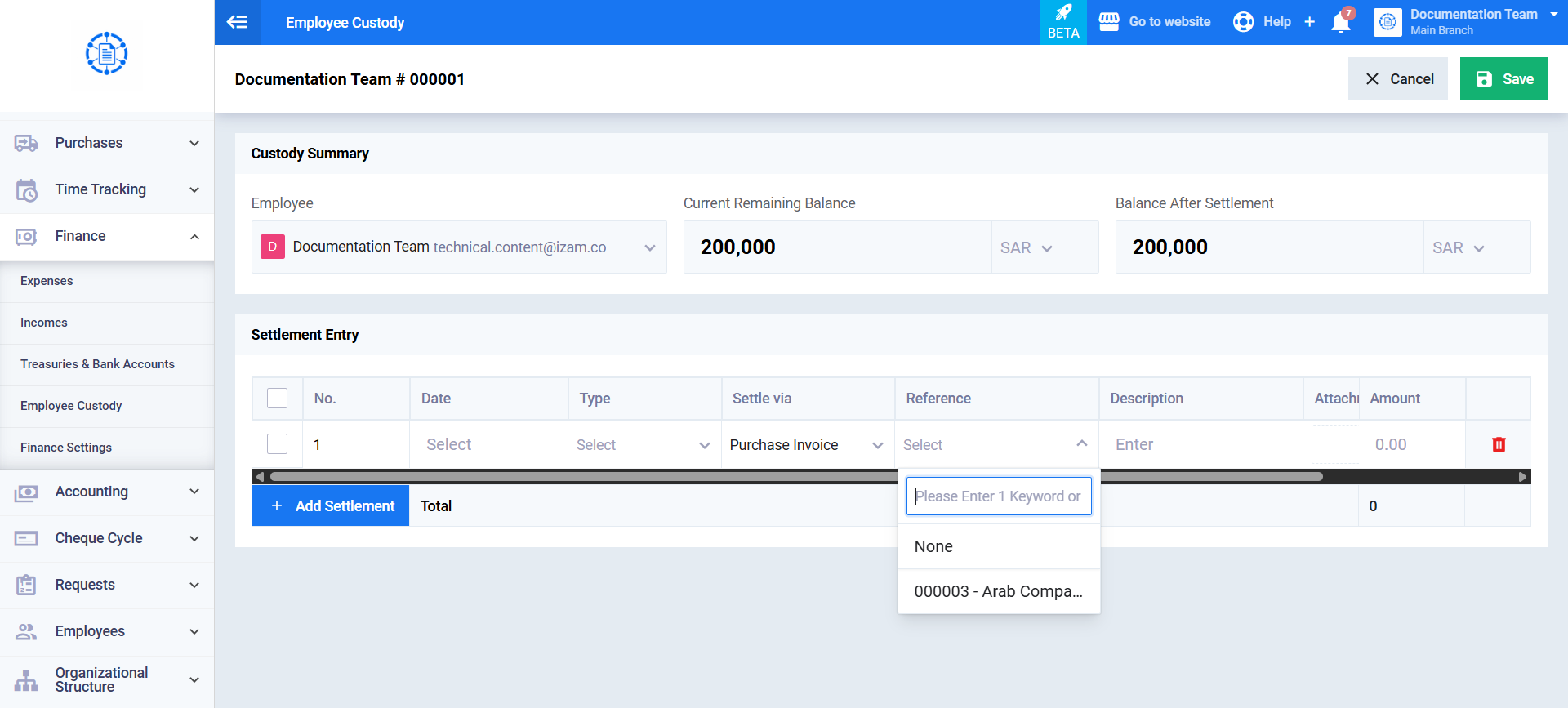
The Reference column changes to a dropdown list displaying only unpaid or partially paid purchase invoices (invoice number and supplier name). Search by invoice number or supplier name and select the required invoice. Below the selected invoice, the text “Remaining: [Amount] [Currency]” appears, indicating its outstanding balance.
Step 5: Enter the Settlement Amount
Enter the amount in the Amount field for the line. The amount must not exceed the outstanding balance of the selected invoice, and the total of all settlement lines in the same session must not exceed the remaining custody balance.
Step 6: Save the Settlement
Review the entered information, then click Save.
After saving, a success notification appears stating: “Settlement saved successfully.” The Current Remaining Balance and Balance After Settlement values for the custody are automatically updated on the screen.