


Guide to Creating an Invoice Template from an Image Using AI
You can create an invoice print template that matches the design of an invoice you have, by attaching an image of the invoice in the Assistant inside the Custom Invoice Builder and asking it to create a template with the same design. The Assistant edits the same open design and the result appears directly in the preview. You then complete it manually if needed and save it. This tutorial explains the steps to create an invoice template from an image and save it.
Table of Contents
Before you start
- Prepare a clear image of the invoice in PNG or JPG format.
- Make sure you have enough AI balance (AIC), because each request you send to the Assistant uses this balance.
Steps to create an invoice template from an image
First: Open the Custom Invoice Builder
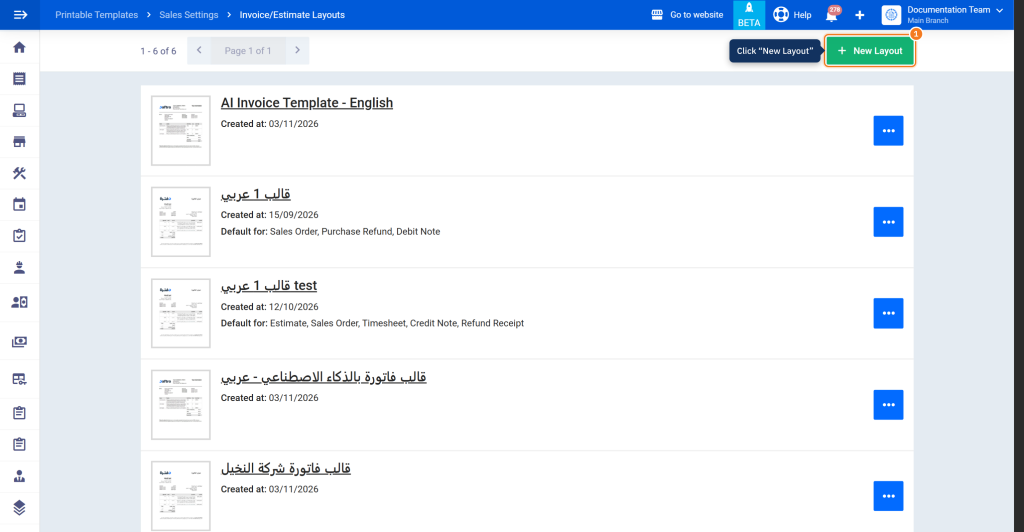
- From the main menu, click Templates, then Printable Templates, then the Invoices & Estimates card, and click New Layout.
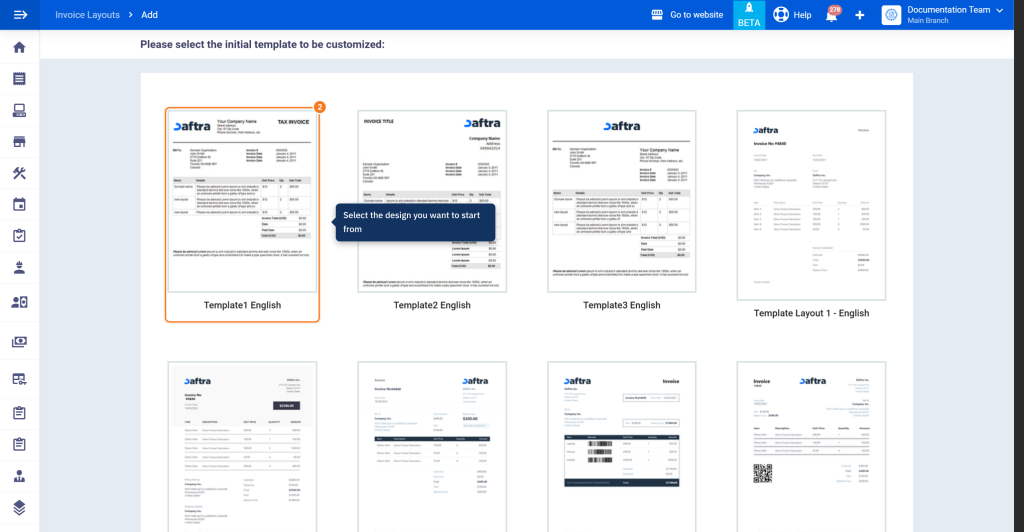
- From Please select the initial template to be customized: click the design you want to start from.
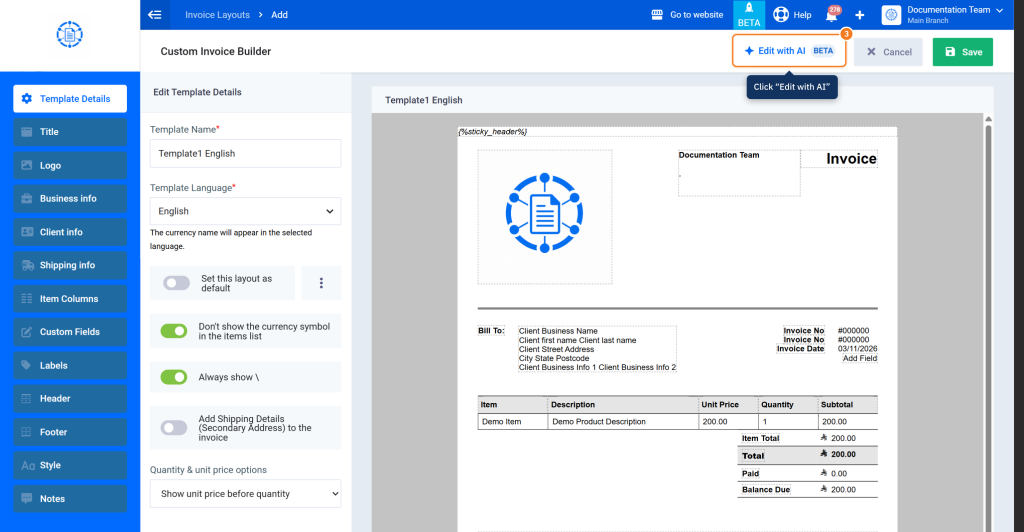
- The Custom Invoice Builder screen opens. Click Edit with AI at the top of the screen.
Second: Attach the invoice image and type your request
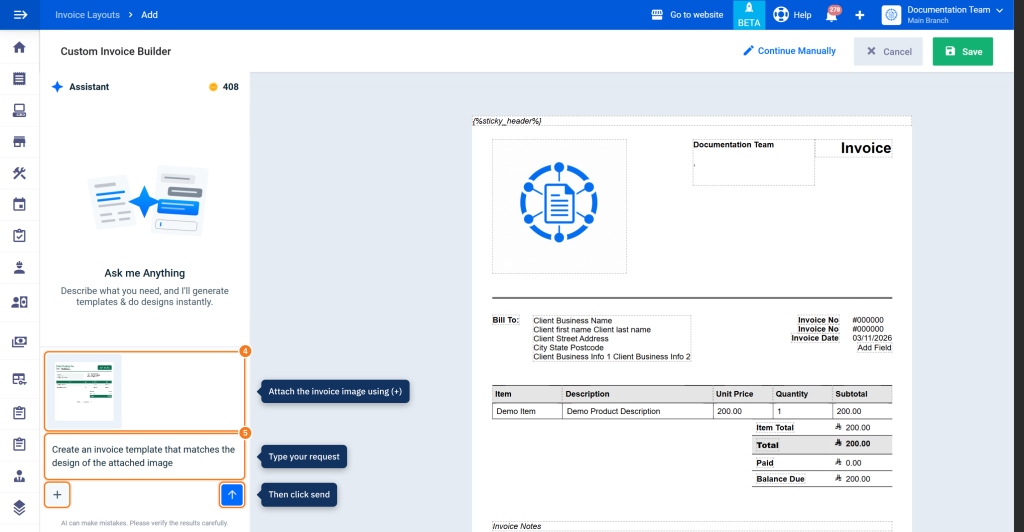
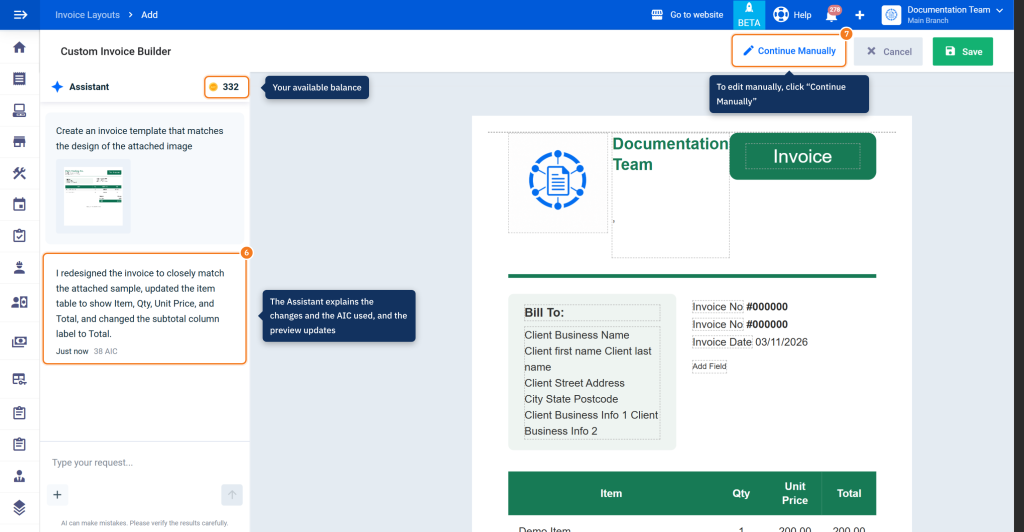
- The Assistant panel appears next to the template preview. Click the Add attachment button (+) and select the invoice image. The image appears above the request box.
- Type your request in the Type your request… box, for example: “Create an invoice template that matches the design of the attached image”, then click the send button (arrow).
Third: Review the template and complete it manually
- Wait until the Assistant finishes building the template. Its reply appears below your request explaining the changes it made, along with the number of AIC used, your balance next to the Assistant decreases, and the preview updates with the new design. To change any part, type a new request and send it.
- To complete editing manually, click Continue Manually. You return to the Custom Invoice Builder with the changes made by the Assistant.
Fourth: Save the template
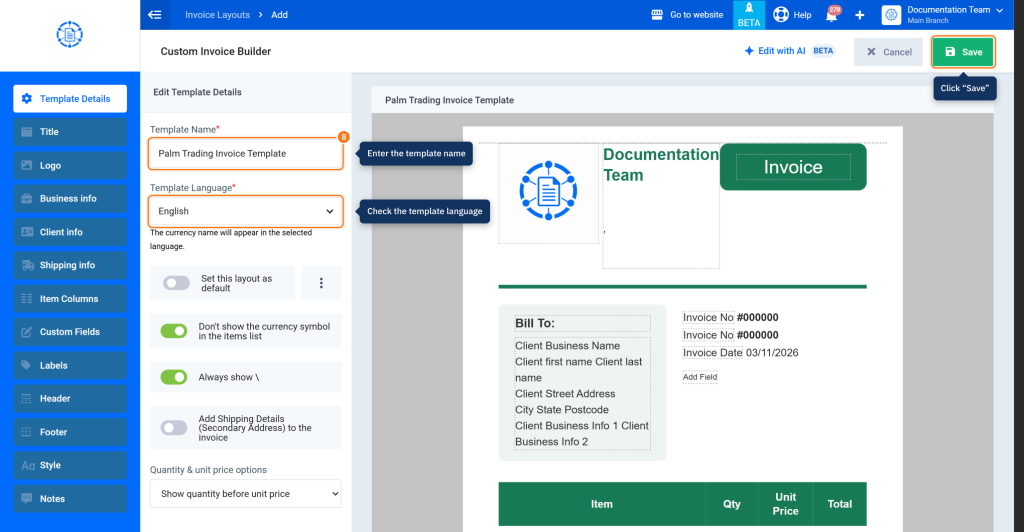
- Enter the template name in Template Name, check the Template Language, then click Save.
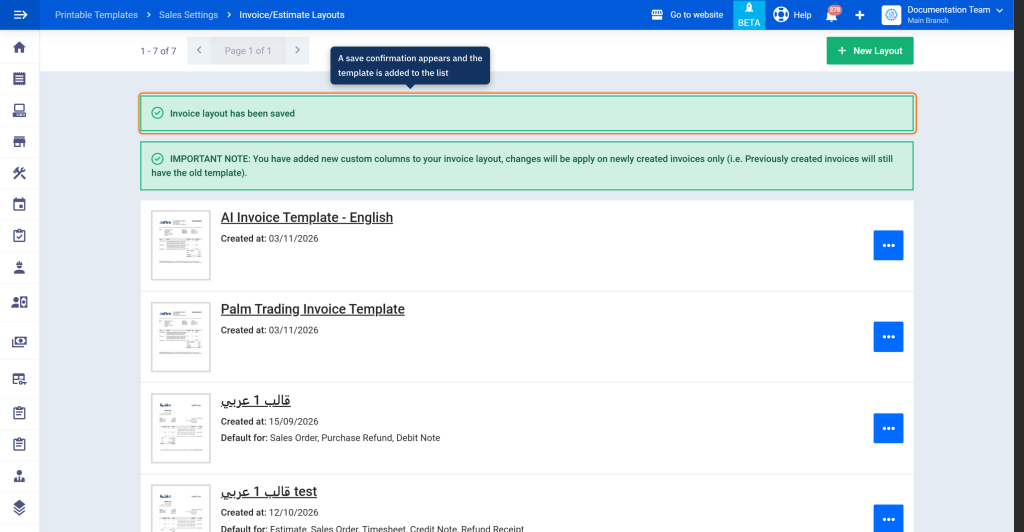
- The message Invoice layout has been saved appears and the template appears in the layouts list.
How it works
- The Assistant edits the same design open in the Custom Invoice Builder and doesn’t create a separate template, so its changes appear when you click Continue Manually.
- Your previous chat appears when you go back to the Assistant from Edit with AI on the same screen.
- The number of AIC used by the request appears below each reply, and the balance shown next to the Assistant decreases by the same amount.
- The reminder AI can make mistakes. Please verify the results carefully. appears at the bottom of the Assistant panel, so review the template before saving it.
FAQs
What file types can I attach in the Assistant?
The allowed files are PNG, JPG, CSV, and PDF.
Can I edit an existing invoice template with AI?
Yes. Click the options button (…) next to the template, then Edit, then Edit with AI.
Can I edit the template manually after creating it with AI?
Yes. Click Continue Manually to return to the Custom Invoice Builder with the changes made by the Assistant.
How do I know how much AI balance I used?
Your balance appears next to the Assistant title, and the number of AIC used by the request appears below each reply.
Why didn't data from the image appear in the template?
The data may not be supported for this document type, and the Assistant explains that in its reply. Review the reply and ask for a suitable alternative.