


Adding Sales Representatives’ Names Using Custom Fields
Adding sales representatives’ names to your invoices lets you link every sale to the rep responsible for it and follow your sales team’s performance. With Invoice Custom Fields, you can create a dropdown field that lists your reps, choose the rep on each invoice, show the rep’s name on the printed invoice, and search and filter by rep in the invoices list and sales reports.
Before you begin
- You have permission to edit Sales Settings to create the custom field.
- You have permission to edit Printable Templates if you want to show the rep’s name on the printed invoice.
- Prepare a list of your sales reps’ names as you want them to appear on invoices and reports.
Create the Sales Representative field
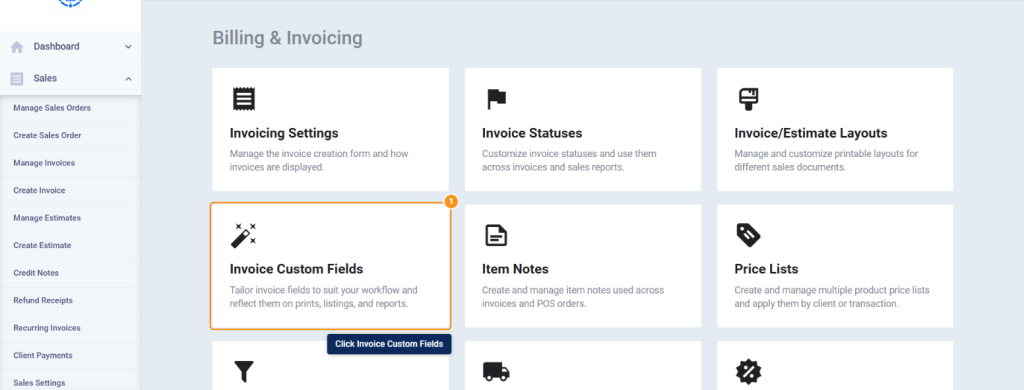
- From the main menu, go to Sales, then Sales Settings, and click the Invoice Custom Fields card.
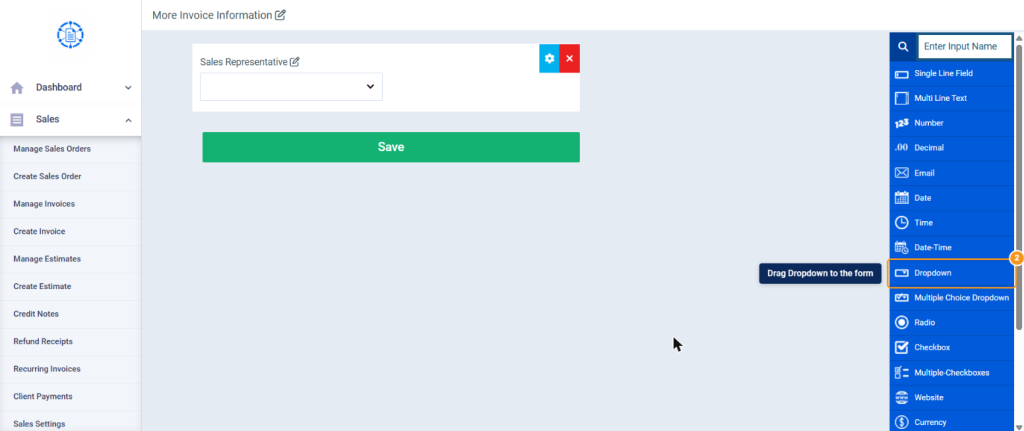
- Drag the Dropdown field type from the field list and drop it on the form.
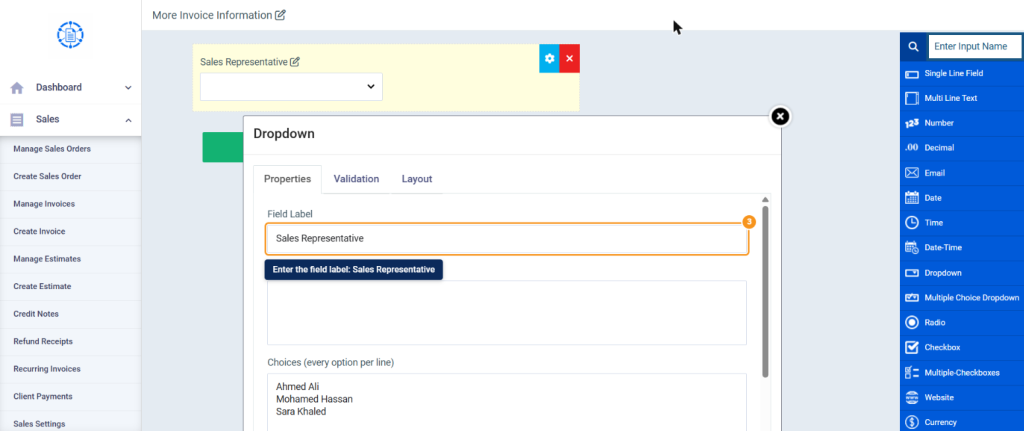
- In the Properties tab, enter Sales Representative in the Field Label box.
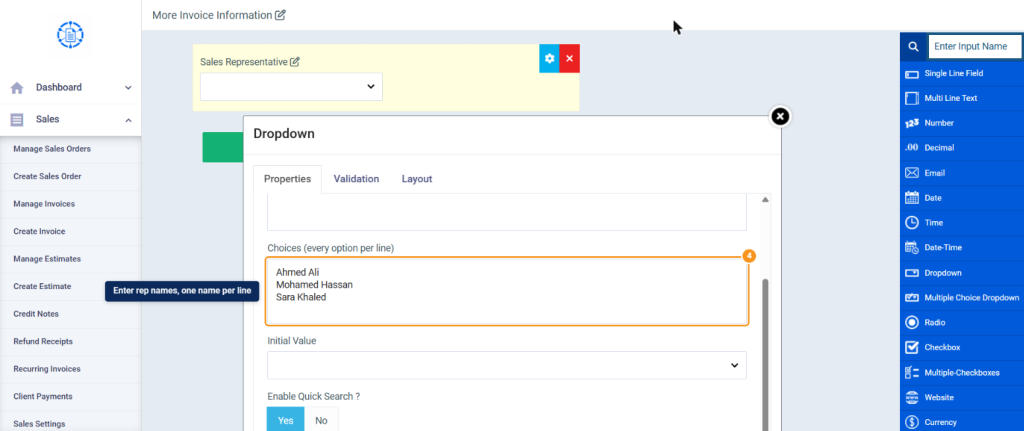
- In the Choices (every option per line) box, enter your sales reps’ names, one name per line.
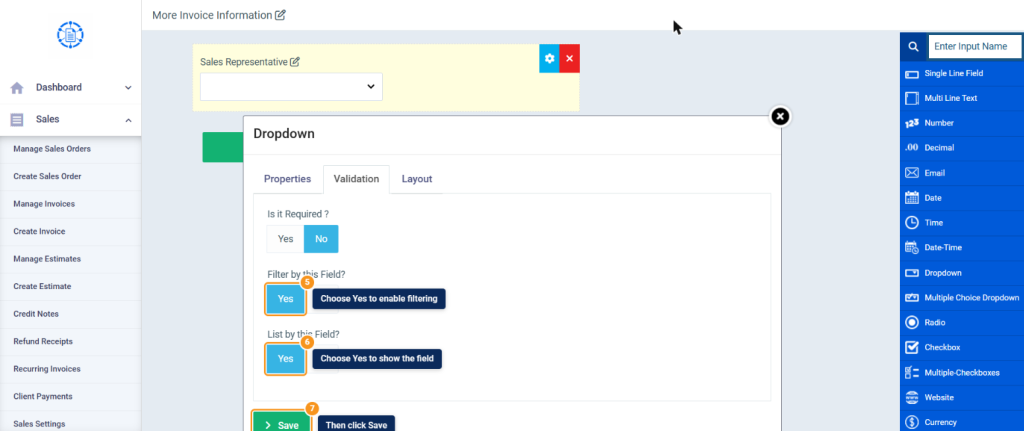
- Open the Validation tab, set Filter by this Field? and List by this Field? to Yes, then click Save to close the field window.
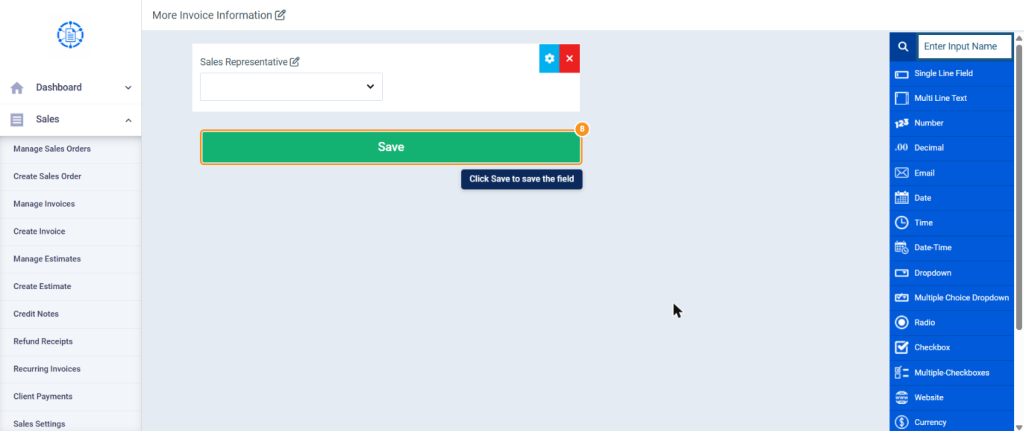
- Click Save to save the invoice custom fields.
Show the rep name on the printed invoice
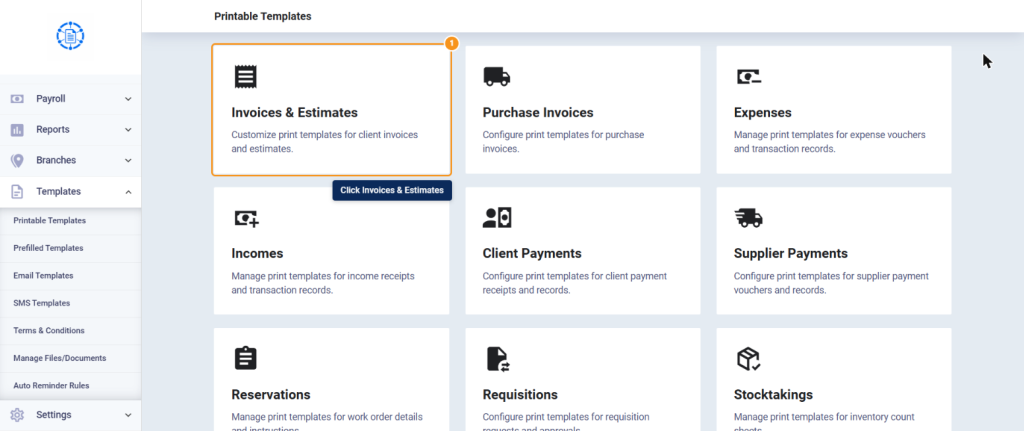
- From the main menu, go to Templates, then Printable Templates, and click the Invoices & Estimates card.
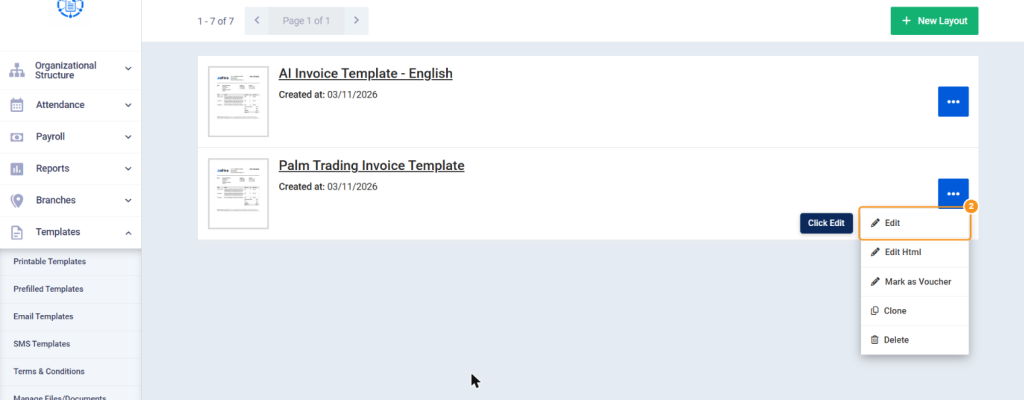
- From the Invoice/Estimate Layouts list, click the three-dot button next to the template you use, then click Edit.
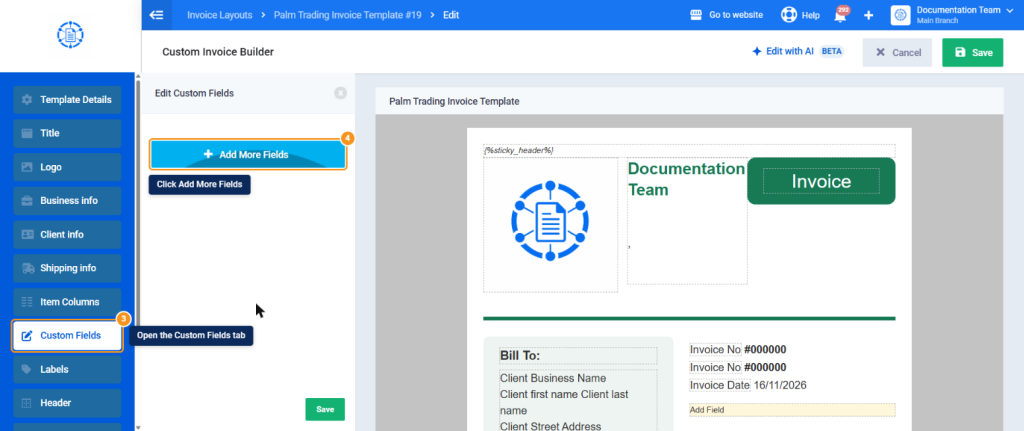
- From the side menu of the Custom Invoice Builder, click Custom Fields, then click Add More Fields and choose Custom Field.
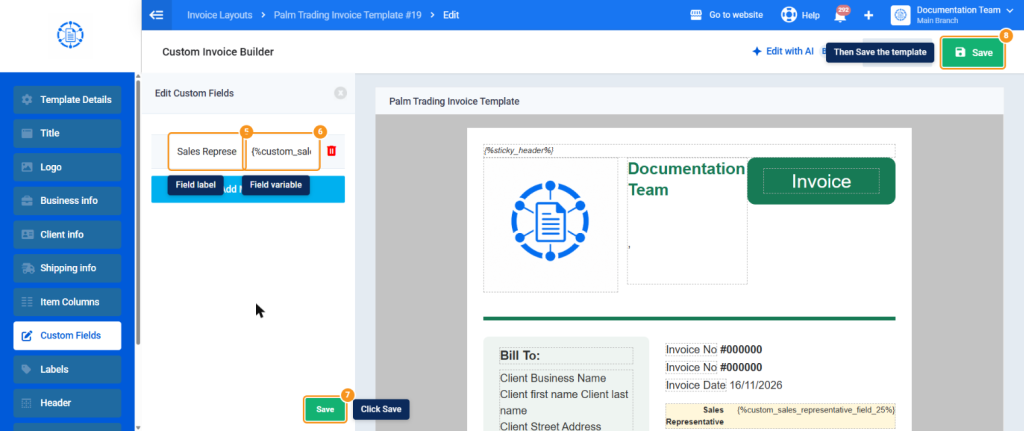
- In the first box, enter the label as you want it to appear on the invoice: Sales Representative. In the second box, paste the field variable. Click Save under the list, then click Save at the top of the page to save the template.
Choose the rep when creating an invoice
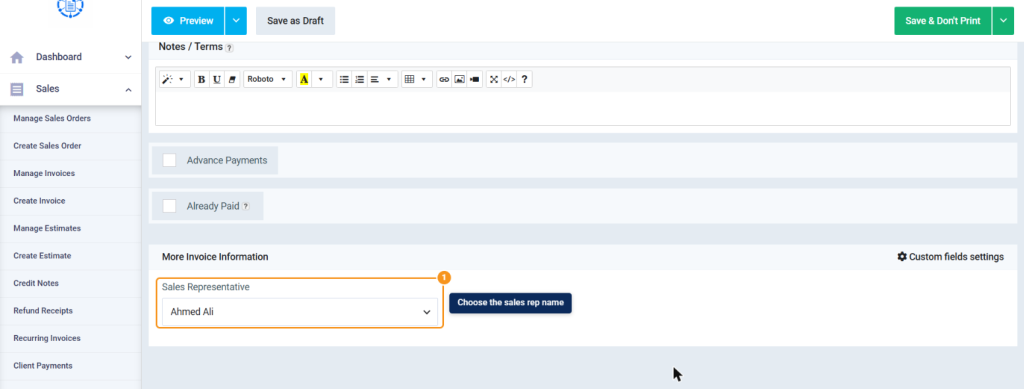
- From the main menu, go to Sales, click Create Invoice, and after entering the invoice details, choose the rep from the Sales Representative field in the More Invoice Information section at the bottom of the page, then save the invoice.
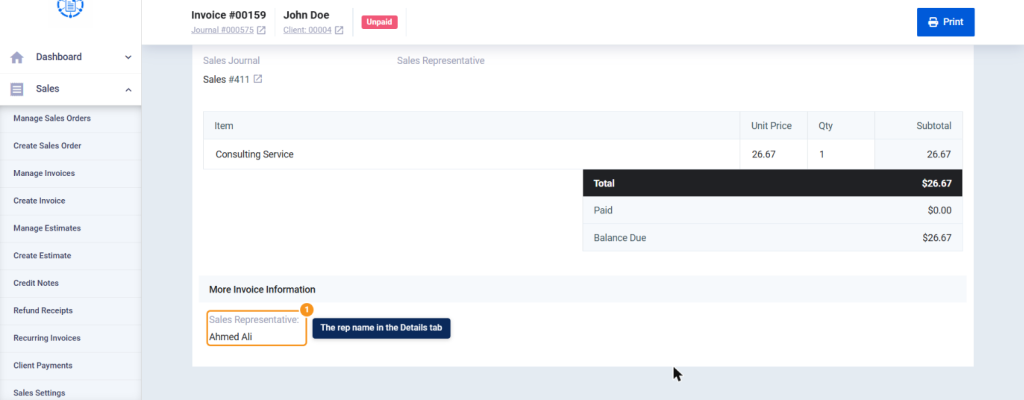
- After saving, the rep’s name appears in the Details tab of the invoice page, under More Invoice Information.
- If you added the field variable to the print template, the rep’s name also appears on the printed invoice.
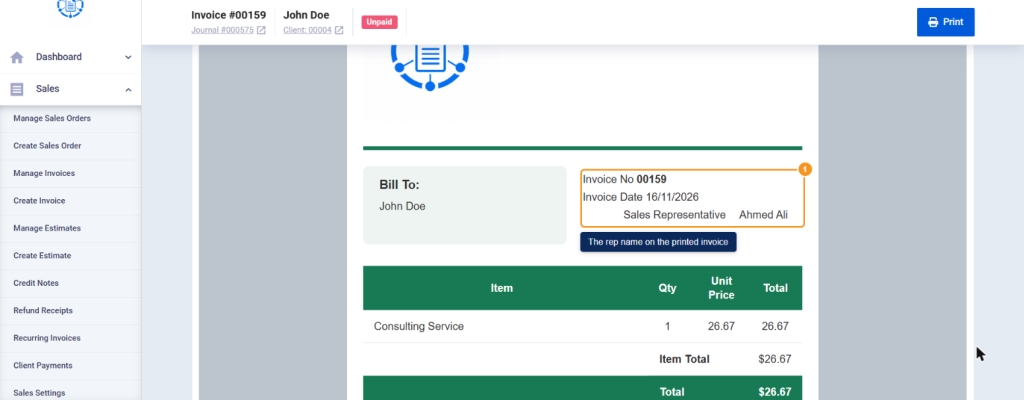
Filter invoices and reports by rep
First: In the invoices list
- Go to Sales, then Manage Invoices, click Advanced Search, choose the rep from the Sales Representative field, and click Search.
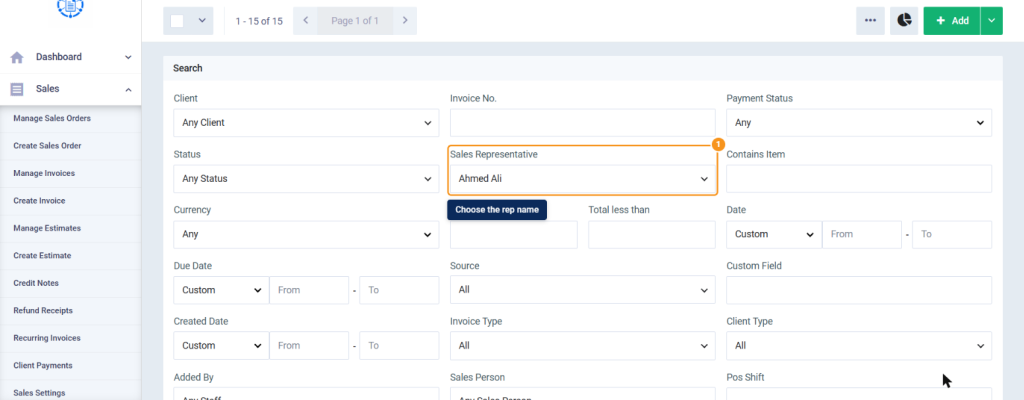
- Only the invoices of the selected rep appear, and the applied filter shows at the top of the search section. To remove it, click the remove icon next to it or click Reset.
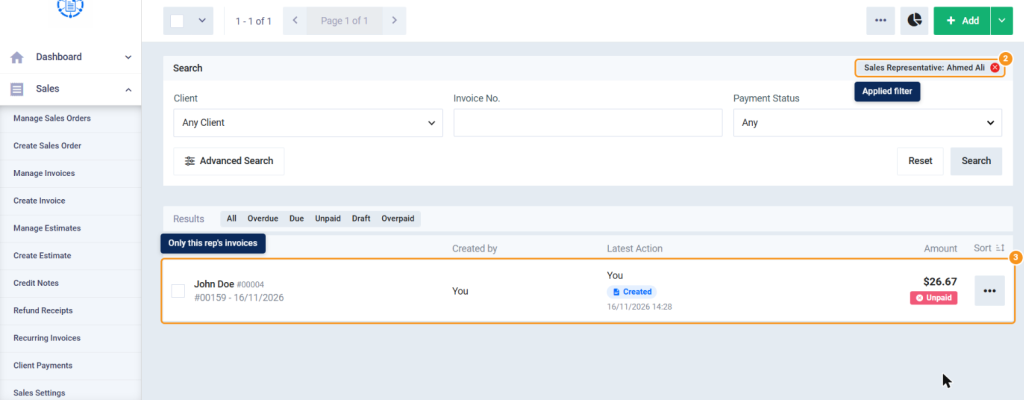
Second: In sales reports
- Go to Reports, then Sales Reports, open the report you need (such as Sales by Client), choose the rep from the Sales Representative field, and click Show Report.
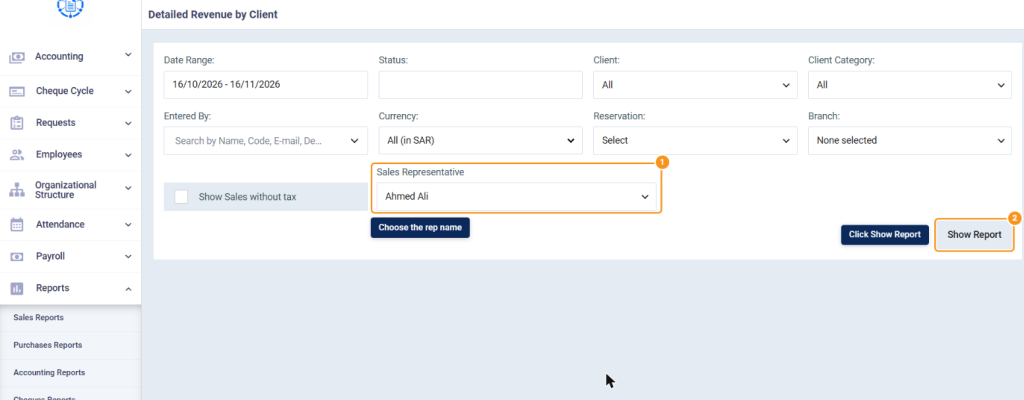
Common problems and solutions
| Problem | Solution |
|---|---|
| The Sales Representative field doesn’t appear in Advanced Search or report filters. | Open the field from Invoice Custom Fields, set Filter by this Field? to Yes in the Validation tab, then save. |
| The rep’s name doesn’t appear on the printed invoice. | Make sure you added the field variable to the template the invoice uses, and that you copied the correct variable from the Placeholders list, then save the template. |
| The variable appears as text on the printed invoice instead of the rep’s name. | Make sure the variable is complete, with its braces and percent signs and no spaces, exactly as it appears in the Placeholders list. |
| A new rep’s name doesn’t appear in the dropdown when creating an invoice. | Add the name on a new line in the field’s choices, then save the invoice custom fields. |
FAQs
Can I make choosing a rep mandatory on every invoice?
Yes. Open the field from Invoice Custom Fields and set Is it Required ? to Yes in the Validation tab. The invoice can’t be saved without choosing a rep.
What's the difference between this field and the Sales Person field?
Sales Person is a built-in invoice field that lists employees registered in the system. The Sales Representative field in this tutorial is a custom field whose names you enter yourself, which suits reps who don’t have system accounts.
Are existing invoices affected when I add the field?
No. The field is empty on existing invoices, and you can edit any invoice to choose its rep.