


Guide to connecting Claude, ChatGPT or Gemini to your Enerpize account through the AI MCP Connector
This guide covers granting the Copilot permissions, then connecting Claude, ChatGPT or Gemini to your Enerpize account and checking the connection works.
Before you start
- The Copilot app is on in every account and needs no activation; the owner decides who uses it by granting the Copilot permissions on roles. Without one, the connector page says MCP is not enabled for your role.
- Claude: works on every Claude plan; the free plan can add one custom connector. On Team and Enterprise the owner adds it first.
- ChatGPT: web only. Business, Enterprise and Edu can read and write after an administrator enables developer mode, and on Business the administrator adds it; Pro is read-only; Plus and Free cannot use Copilot.
- Gemini: on the web, with a personal Google account, in the United States, for users aged 18 and over. In Gemini Enterprise an administrator adds Enerpize once for everyone.
- Modules currently available: Sales, Inventory, Clients & CRM, Accounting, Purchasing, Work Orders & Workflow, and Finance.
Grant the Copilot permissions (account owner)
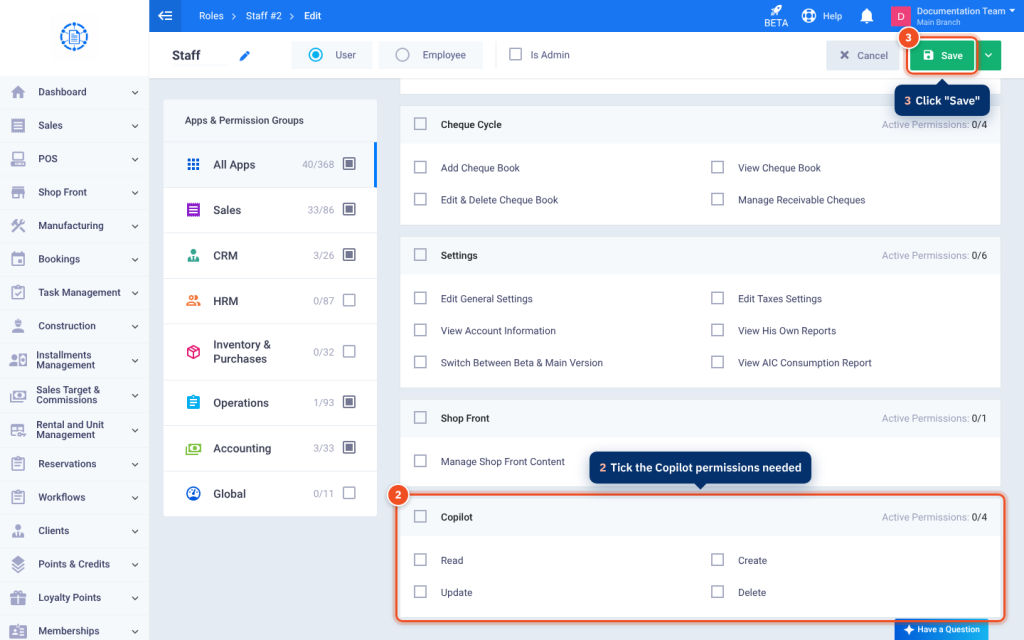
- Open Roles and edit the role.
- Tick the Copilot permissions needed (Copilot: Read, Copilot: Create, Copilot: Update and Copilot: Delete). Create, Update and Delete include Read automatically.
- Save the role.
Copy the connection address
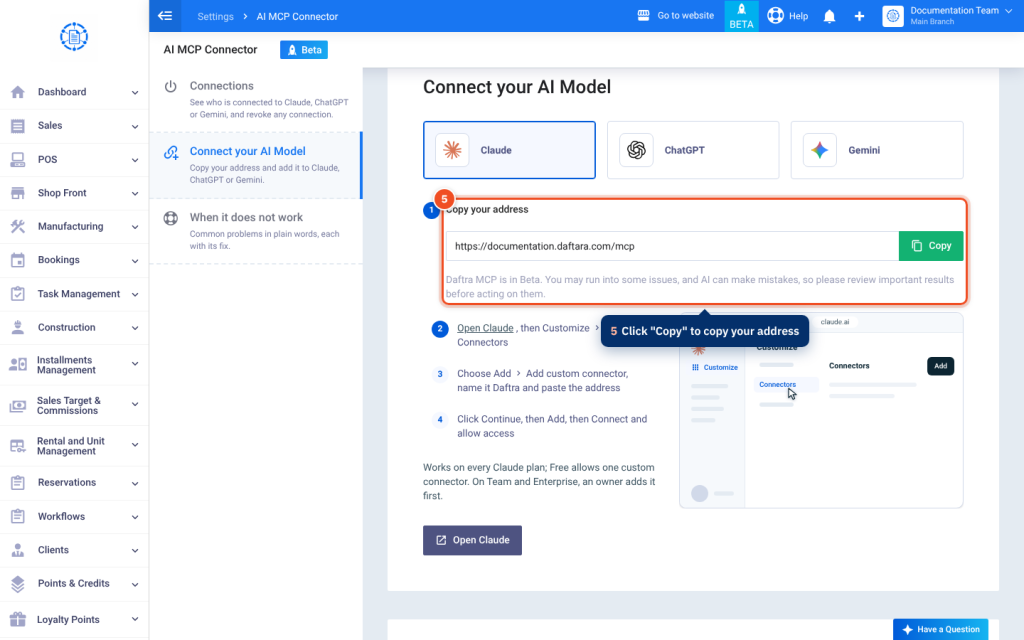
- Open Settings → AI MCP Connector.
- In Copy your address, click Copy; the address ends in /mcp. If your account has its own domain, copy the address exactly as the page shows it; it is not on your own domain.
Connect from Claude
- Open Claude, then Customize → Connectors, and choose Add.
- Choose Add custom connector, name it Enerpize and paste the Enerpize address, including /mcp.
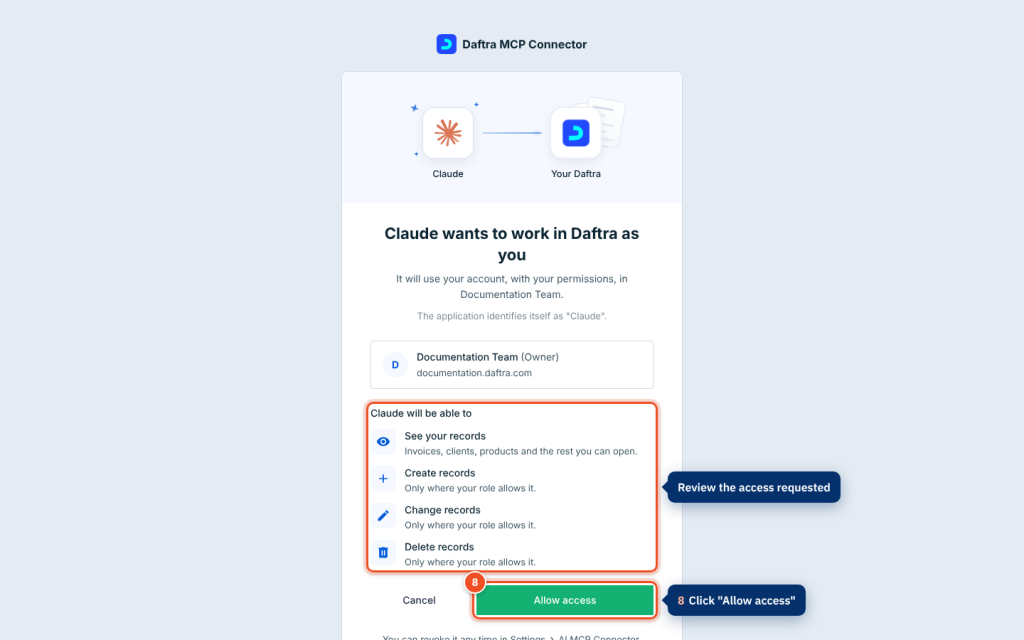
- Click Continue, Add, then Connect; sign in to Enerpize when asked and approve the access shown by clicking Allow access.
- Start a new chat and turn the Enerpize connector on for that chat.
Connect from ChatGPT
- An administrator enables developer mode for the workspace.
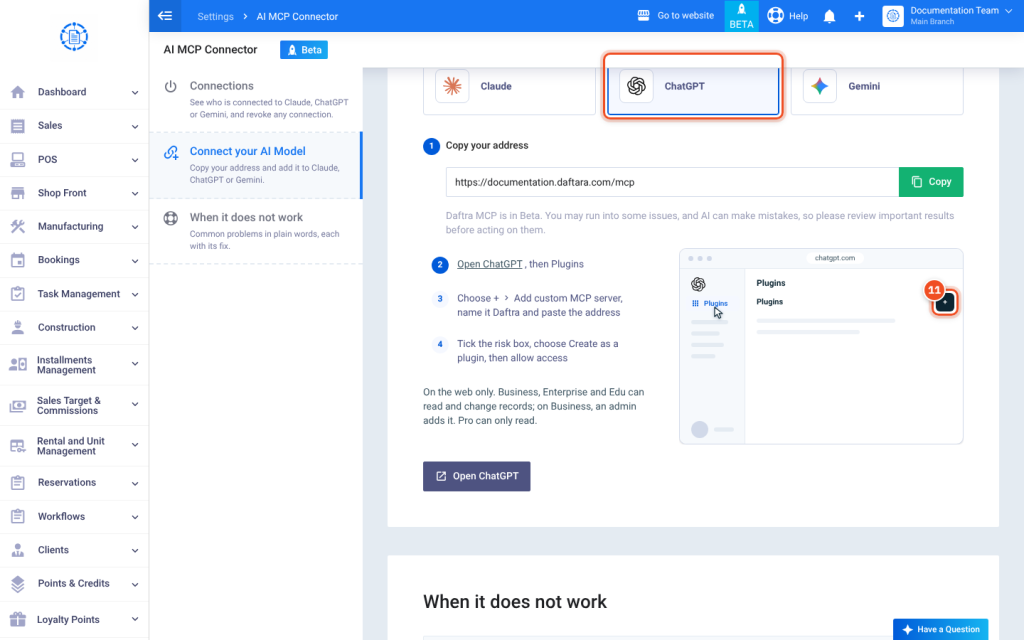
- Open ChatGPT on the web, then Plugins, choose + → add a custom MCP server and name it Enerpize.
- Paste the Enerpize address; it must include /mcp, otherwise the connection fails. Then tick the risk box and choose to create it as a plugin.
- Sign in to Enerpize and click Allow access, then start a new chat and select the Enerpize connector for it.
Connect from Gemini
- Open Gemini, then Settings → Connected apps.
- Under Custom apps, choose Add custom app and paste the Enerpize address.
- Click Next, sign in to Enerpize and click Allow access.
Check
- Ask the assistant, for example, to show your latest invoices.
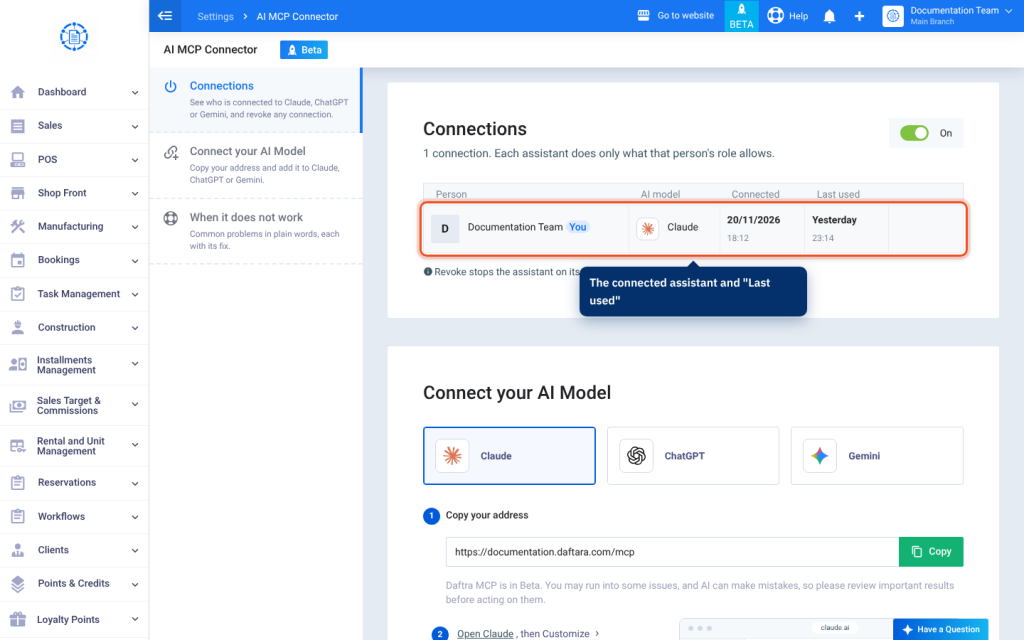
- Return to AI MCP Connector; the assistant appears under My connections with Last used. The account owner sees Connections instead, listing everyone’s connections.
Frequently asked questions
No sign-in window appears?
Allow pop-ups for the assistant and try again from a new chat.
ChatGPT scans the tools and finds nothing?
Developer mode is probably off: ask the administrator to turn it on, then create the connector again. Also check the address ends in /mcp.
ChatGPT refuses to change something?
Writing is not available on ChatGPT Pro; use Business or Enterprise/Edu.
Can Gemini be connected?
Yes. Follow the Gemini tab on the connector page: Settings → Connected apps → Add custom app. If Gemini answers without Enerpize data, mention @Enerpize in your message.
How do I switch off the connection?
On the AI MCP Connector page, click Revoke next to the assistant under My connections, or switch off the toggle next to the section title and confirm Switch off all connections? to stop them all. Nothing in Enerpize is deleted.