




Guide to Purchasing Contract Materials from Purchase Request to Purchase Invoice
You can purchase contract materials directly from the Work Items tab inside the contract, by selecting work items or materials and then choosing the purchase transaction from Purchase Options. The system opens the transaction form with the materials, their quantities, and units as they are in the work items, linked to the contract’s project, so you don’t need to enter them manually. This tutorial explains how to create a purchase request from the contract, and then create a purchase invoice the same way.
Table of Contents
Before you start
- You have an Active construction contract on a project, with work items that contain materials.
- The supplier you will buy from is added to the system if you will create a purchase invoice.
Steps to purchase contract materials
First: Select the contract materials and choose the purchase transaction
- From the main menu, click Construction, then Contracts, and open the contract.
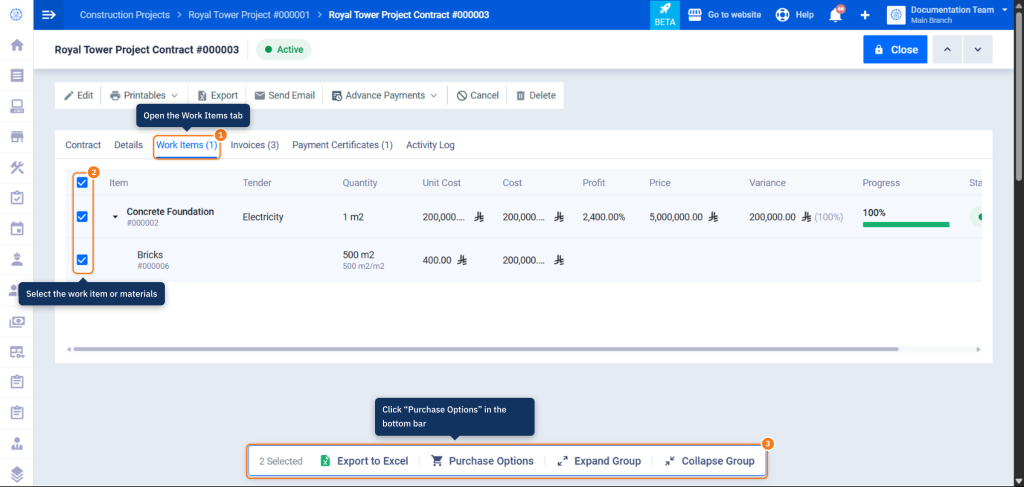
- Click the Work Items tab.
- Select the work items or materials you want to purchase using the checkboxes. To show the materials under a work item, click the arrow next to its name.
- A bar appears at the bottom of the screen with the number of selected items. Click Purchase Options.
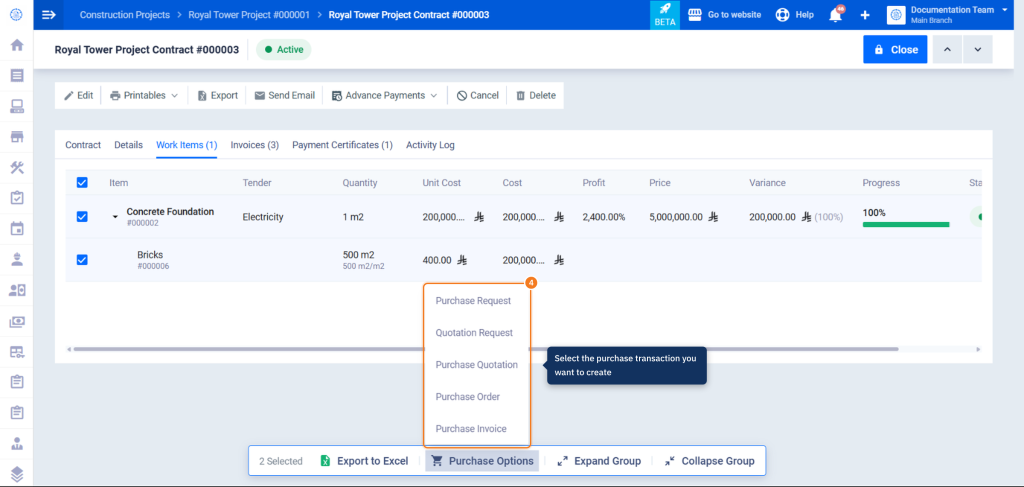
- Select the purchase transaction you want to create: Purchase Request, Quotation Request, Purchase Quotation, Purchase Order, or Purchase Invoice.
Second: Create the purchase request
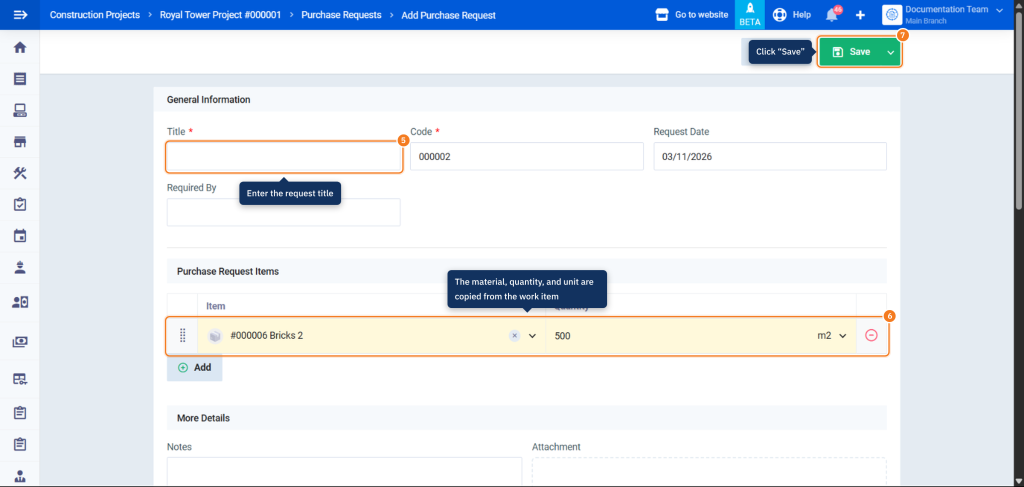
- When you select Purchase Request, the Add Purchase Request form opens with the selected materials in Purchase Request Items, with their quantities and units.
- Enter the Title, review the other details and edit them if needed, then click Save.
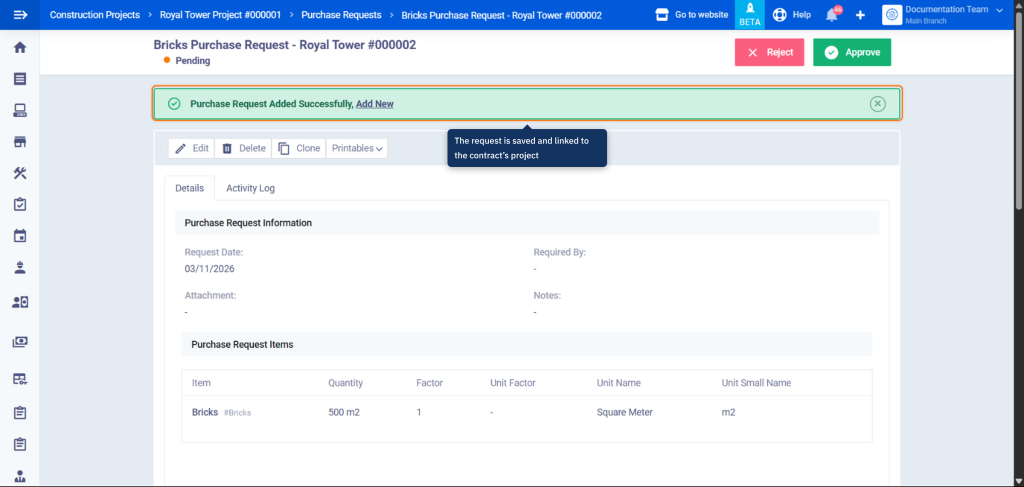
- The message Purchase Request Added Successfully appears, and the request page opens with the Pending status, along with the Approve and Reject buttons.
Third: Create the purchase invoice
- Go back to the Work Items tab in the contract, select the materials, then click Purchase Options and select Purchase Invoice.
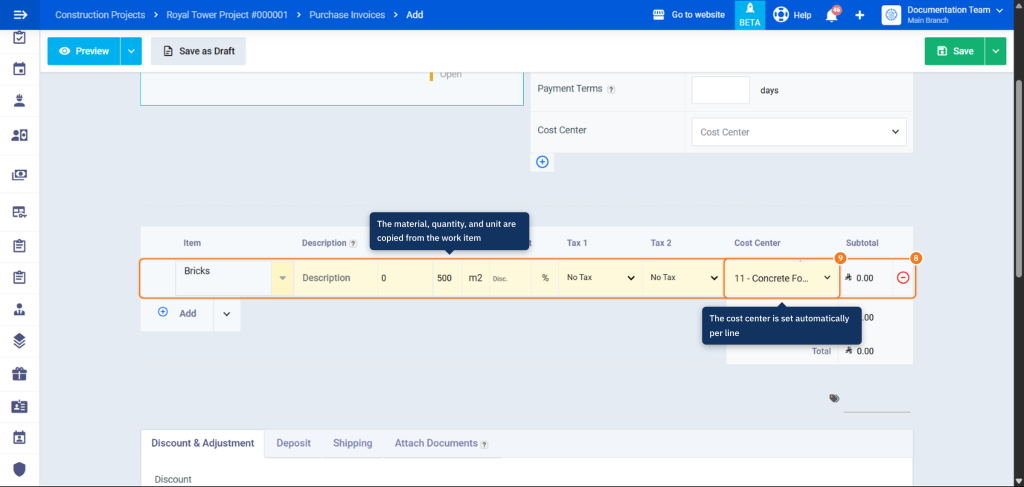
- The purchase invoice form opens with the materials, their quantities, and units, and the cost center set for each line. Select the Supplier, enter the Unit Price, review the other details, then click Save.
How it works
| What is copied to the form | Details |
|---|---|
| Items | The selected materials from the work items. |
| Quantity and unit | The quantity and unit as they are for the material in the work item. |
| Project | The transaction is linked to the contract’s project. |
| Cost center | Set automatically for each line in the purchase invoice. |
FAQs
Which purchase transactions can I create from the contract?
Purchase Request, Quotation Request, Purchase Quotation, Purchase Order, and Purchase Invoice.
Where do I start purchasing contract materials?
From the Work Items tab on the contract page, by selecting the materials and then clicking Purchase Options.
Do I need to enter the materials and their quantities manually?
No. The selected materials are copied to the form with their quantities and units, and you can edit them before saving.
Is the purchase transaction linked to the contract’s project?
Yes. The transaction is linked to the contract’s project, and the project name appears in the page path.