




Guide to Purchasing Contract Materials from Purchase Request to Purchase Invoice
You can purchase contract materials from the Work Items tab inside the contract, and then complete the full purchase cycle by converting each document to the next one: Purchase Request, then Quotation Request, then Purchase Quotation, then Purchase Order, and finally Purchase Invoice. The materials, their quantities, and units move from the work items to each document, and each document stays linked to the contract’s project and to the documents before it. This tutorial explains the full cycle step by step.
Table of Contents
Before you start
- You have an Active construction contract on a project, with work items that contain materials.
- The supplier you will request the quotation from and buy from is added to the system.
Steps of the contract materials purchase cycle
First: Select the contract materials and choose the purchase transaction
- From the main menu, click Construction, then Contracts, and open the contract.
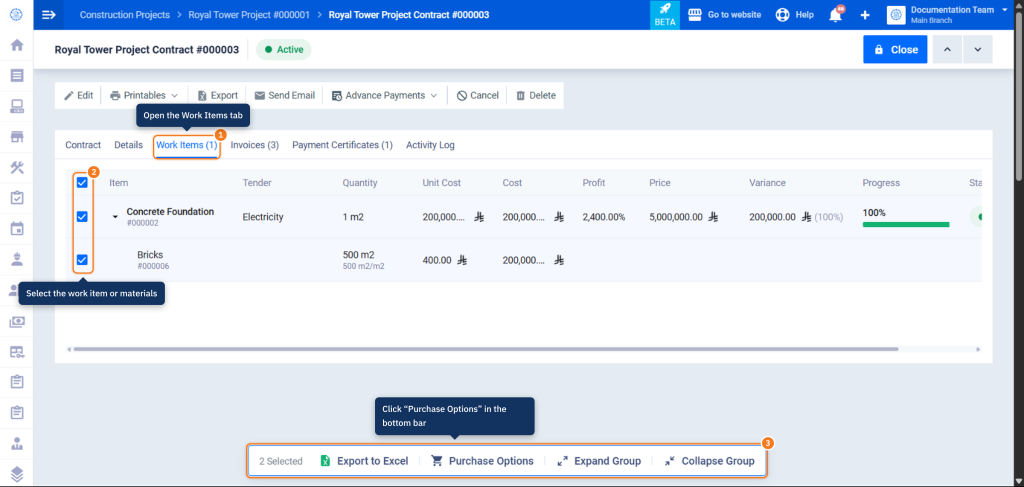
- Click the Work Items tab.
- Select the work items or materials you want to purchase using the checkboxes. To show the materials under a work item, click the arrow next to its name.
- A bar appears at the bottom of the screen with the number of selected items. Click Purchase Options.
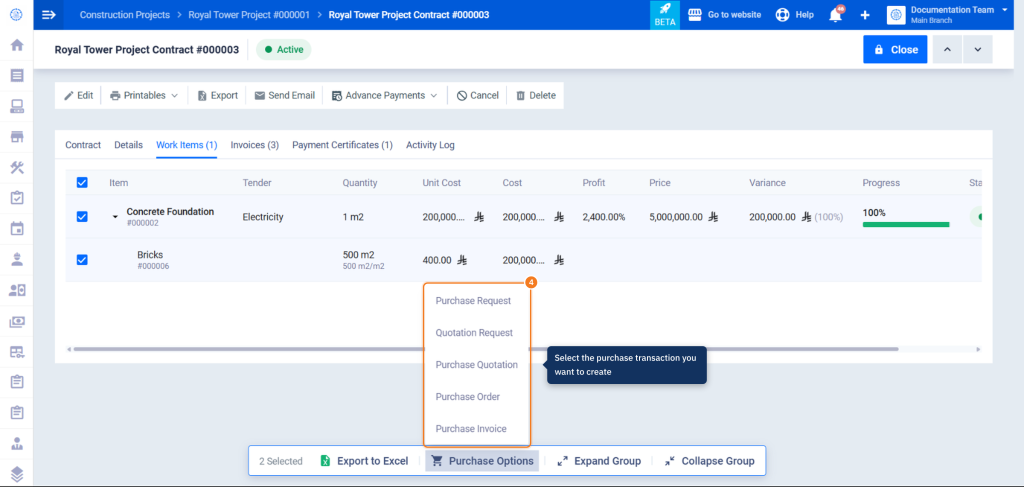
- Select Purchase Request to start the purchase cycle from the beginning. The list also includes Quotation Request, Purchase Quotation, Purchase Order, and Purchase Invoice if you want to start from a later stage.
Second: Create the purchase request and approve it
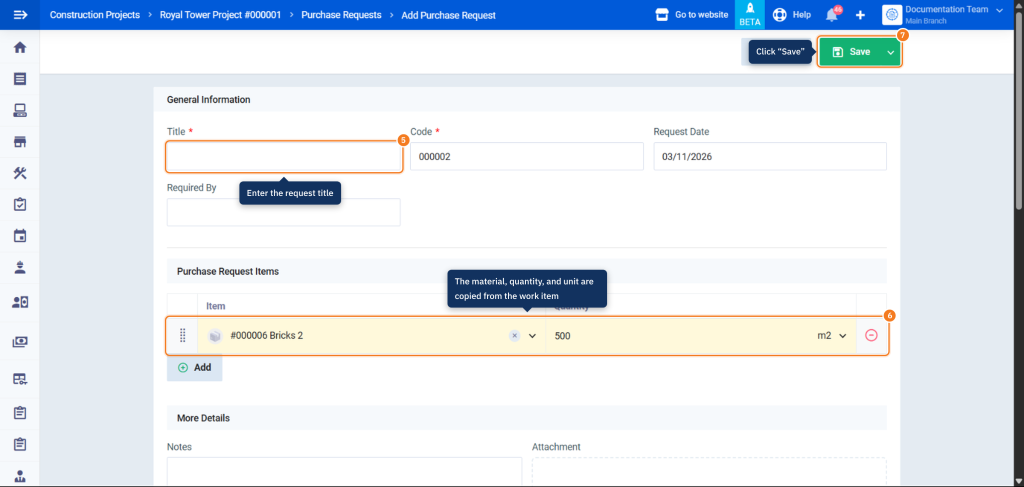
- The Add Purchase Request form opens with the selected materials in Purchase Request Items, with their quantities and units.
- Enter the Title, review the other details and edit them if needed, then click Save.
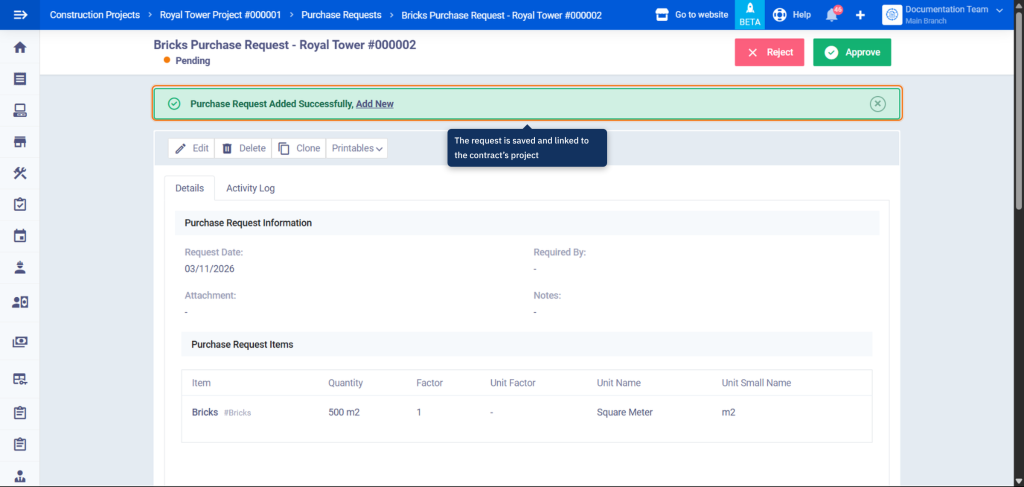
- The message Purchase Request Added Successfully appears, and the request page opens with the Pending status, along with the Approve and Reject buttons.
- Click Approve. The message Purchase Request has been updated successfully appears, the request status changes to Approved, and the Convert to Quotation Request button appears.
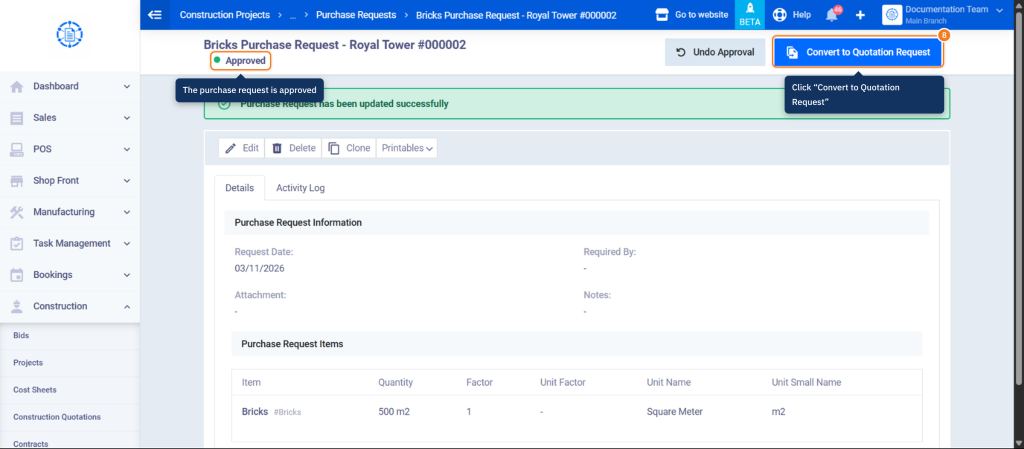
Third: Convert the purchase request to a quotation request
- Click Convert to Quotation Request. The form opens with the Quotation Request Items copied from the purchase request.
- Select one or more suppliers in the Suppliers field.
- Click Save.
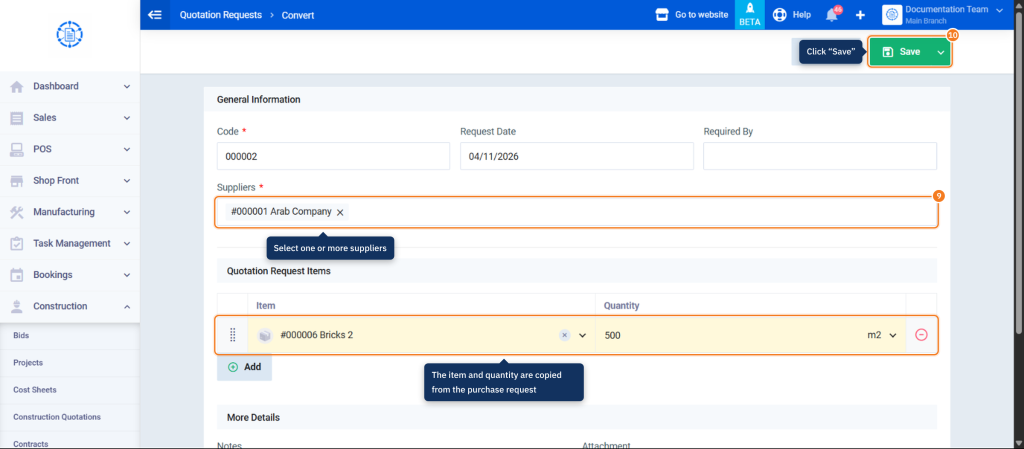
- The message Quotation Request Added Successfully appears, and the quotation request page shows its linked purchase request and the suppliers.
- Click Convert to Purchase Quotation and select the supplier from the list.
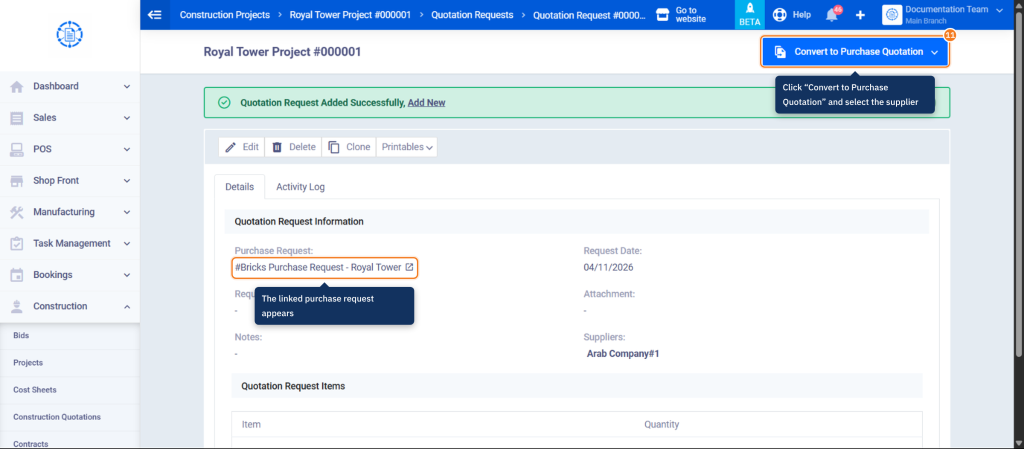
Fourth: Record the supplier’s quotation and approve it
- The purchase quotation form opens with the Supplier you selected and the items with their quantities.
- Enter the Unit Price the supplier offered for each item, and review the other details.
- Click Save.
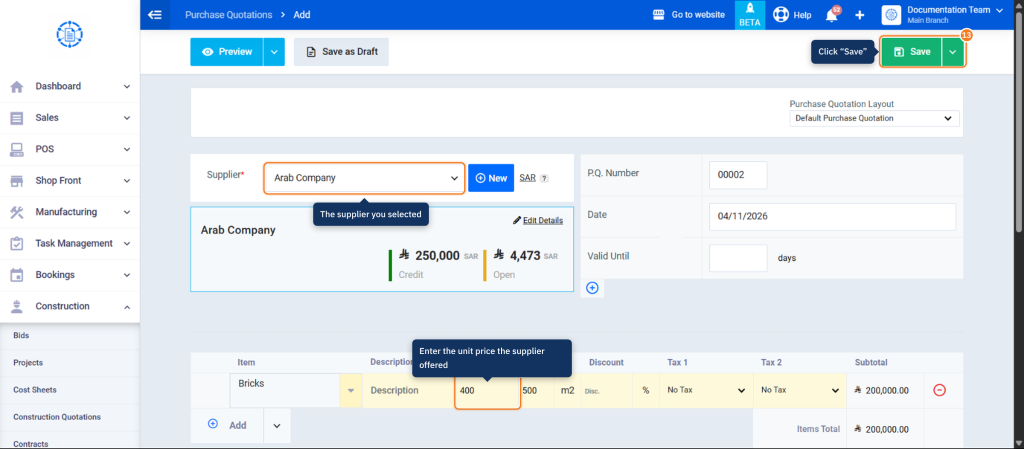
- The message Purchase Quotation has been saved appears. Click Approve.
- The message Purchase Quotation has been updated successfully appears, the status changes to Approved, and the page header shows the supplier, the quotation request, and the purchase request linked to it.
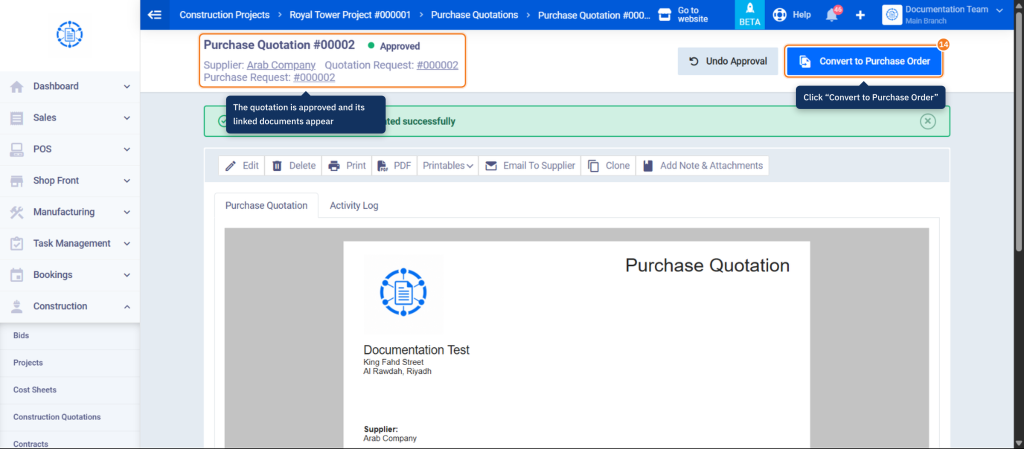
Fifth: Convert the quotation to a purchase order
- Click Convert to Purchase Order. The purchase order form opens with the supplier and the items with their prices from the quotation.
- Review the details, then click Save.
- The message Purchase Order has been saved appears, and the purchase order is saved with the Pending status, linked to the purchase quotation, the quotation request, and the purchase request.
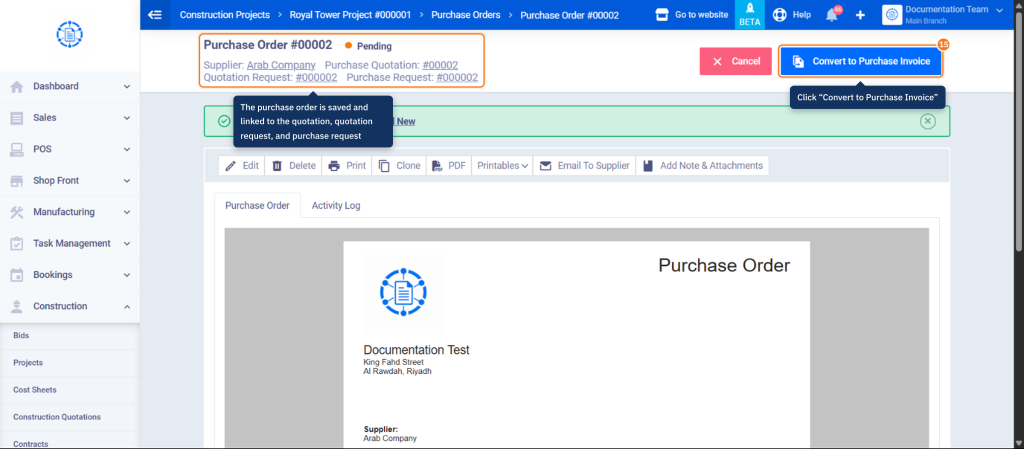
Sixth: Convert the purchase order to a purchase invoice
- Click Convert to Purchase Invoice. The purchase invoice form opens with the supplier and the items with their quantities and prices from the purchase order.
- Review the details, select the Cost Center if needed, then click Save.
- The message Purchase Invoice has been saved appears, and the invoice opens linked to the purchase order, with the Under Delivery and Unpaid statuses.
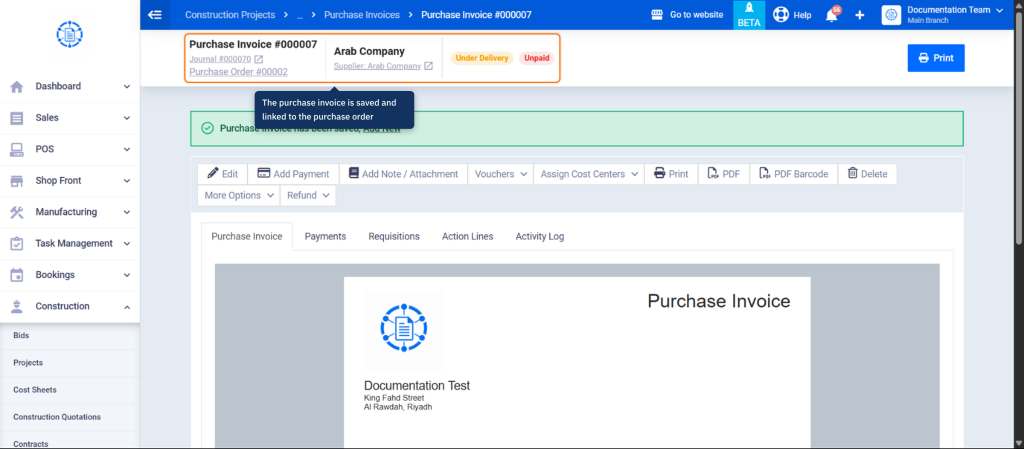
Create the purchase invoice directly from the contract
- If you don’t need a purchase request or a quotation, go back to the Work Items tab in the contract, select the materials, then click Purchase Options and select Purchase Invoice.
- The purchase invoice form opens with the materials, their quantities, and units, and the cost center set for each line. Select the Supplier, enter the Unit Price, then click Save.
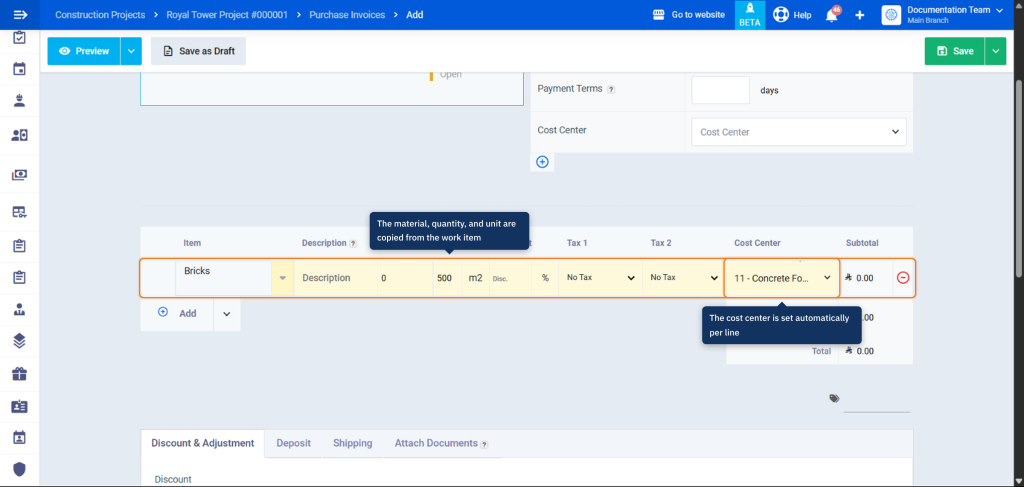
How it works
| Document | Converts to | Button |
|---|---|---|
| Purchase Request after approval | Quotation Request | Convert to Quotation Request |
| Quotation Request | Purchase Quotation for each supplier | Convert to Purchase Quotation |
| Purchase Quotation after approval | Purchase Order | Convert to Purchase Order |
| Purchase Order | Purchase Invoice | Convert to Purchase Invoice |
FAQs
What are the stages of the contract materials purchase cycle?
Purchase Request, then Quotation Request, then Purchase Quotation, then Purchase Order, then Purchase Invoice.
When does the button to convert the purchase request to a quotation request appear?
After the purchase request is approved. Before approval, the request page shows the Pending status with only the Approve and Reject buttons.
Where do I enter the supplier’s prices?
In Unit Price in the purchase quotation form. The prices then move to the purchase order and the purchase invoice.
Is the cost center set automatically in a purchase invoice converted from a purchase order?
No. The Cost Center field appears empty and you can select it. It’s set automatically only when you create the invoice directly from the contract.
Are the purchase documents linked to the contract’s project?
Yes. The contract’s project appears in the page path above each document, and each document shows the previous documents linked to it.