Selling the Same Product at Different Prices Using Multiple Barcodes
Managing your products efficiently sometimes requires selling the same item at different prices depending on the unit or size. The system allows you to link multiple units to a single product barcode, with a specific price for each unit. This simplifies sales operations and reduces errors at the point of sale. In this guide, we will walk you step by step through setting up this feature and creating products with multiple barcodes for different units.
Setting Up Unit Templates
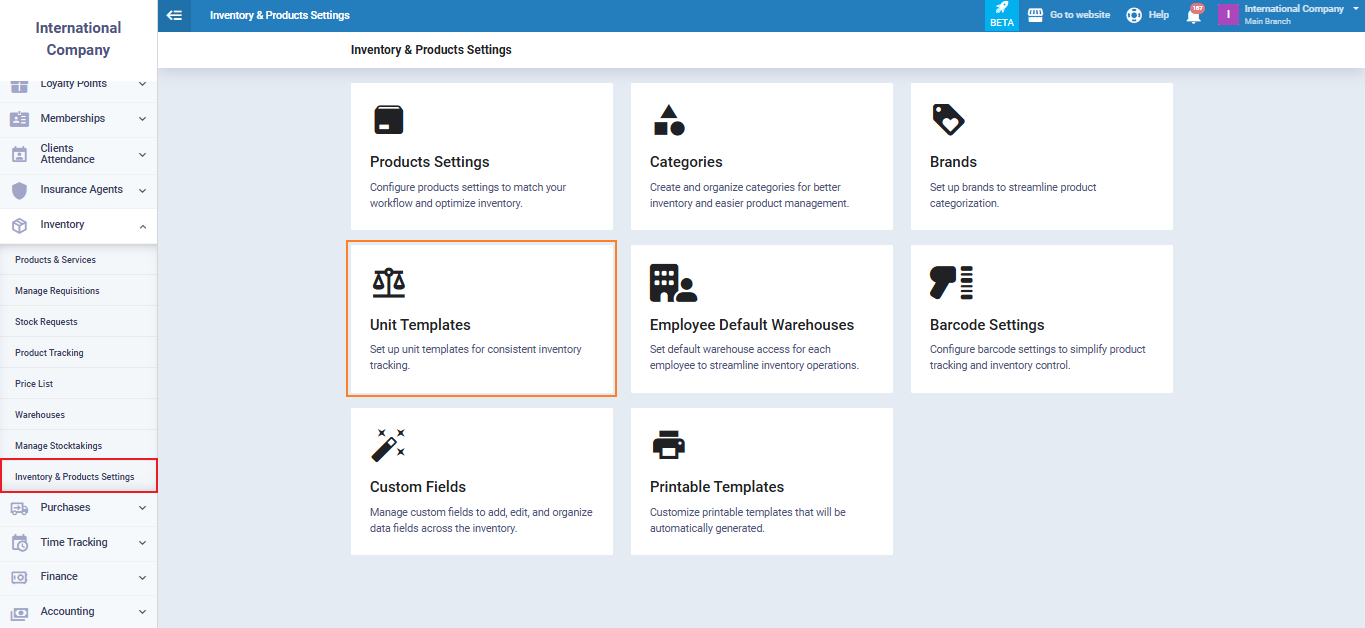
From the main menu, go to “Inventory & Products Settings” under the “Inventory” section.
Select “Unit Templates”.
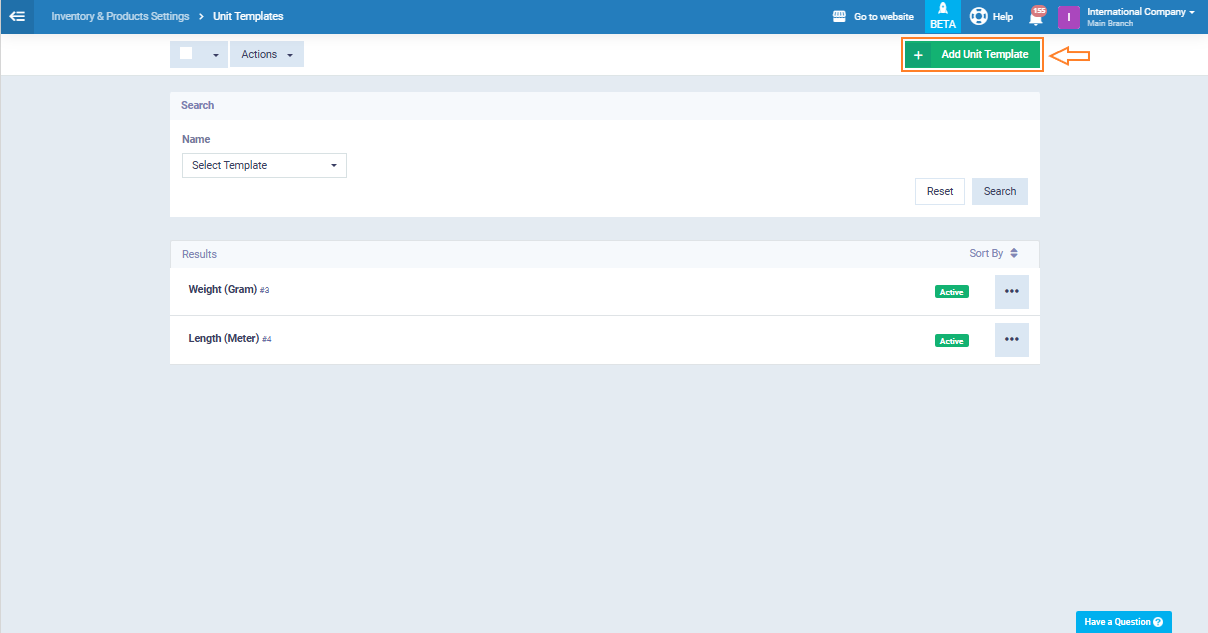
Click the “Add Unit Template” button.
For example, create a template where the basic unit is “Piece”, the smallest unit in which the product is sold or stored, then define the larger unit “Carton” and specify how many pieces it contains.
You can create multiple sizes for the larger unit, for example:
- Small Carton = 10 Pieces
- Medium Carton = 20 Pieces
- Large Carton = 30 Pieces
Enter all the template details.
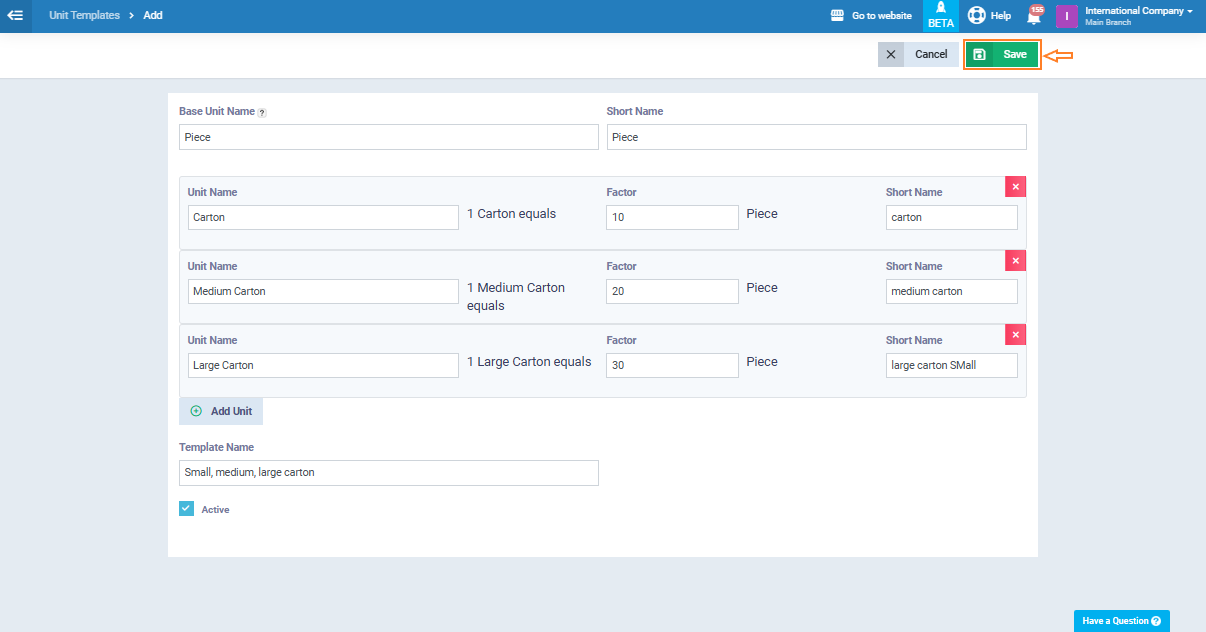
Save the template after entering all the required information.
Creating a New Product and Linking Multiple Barcodes
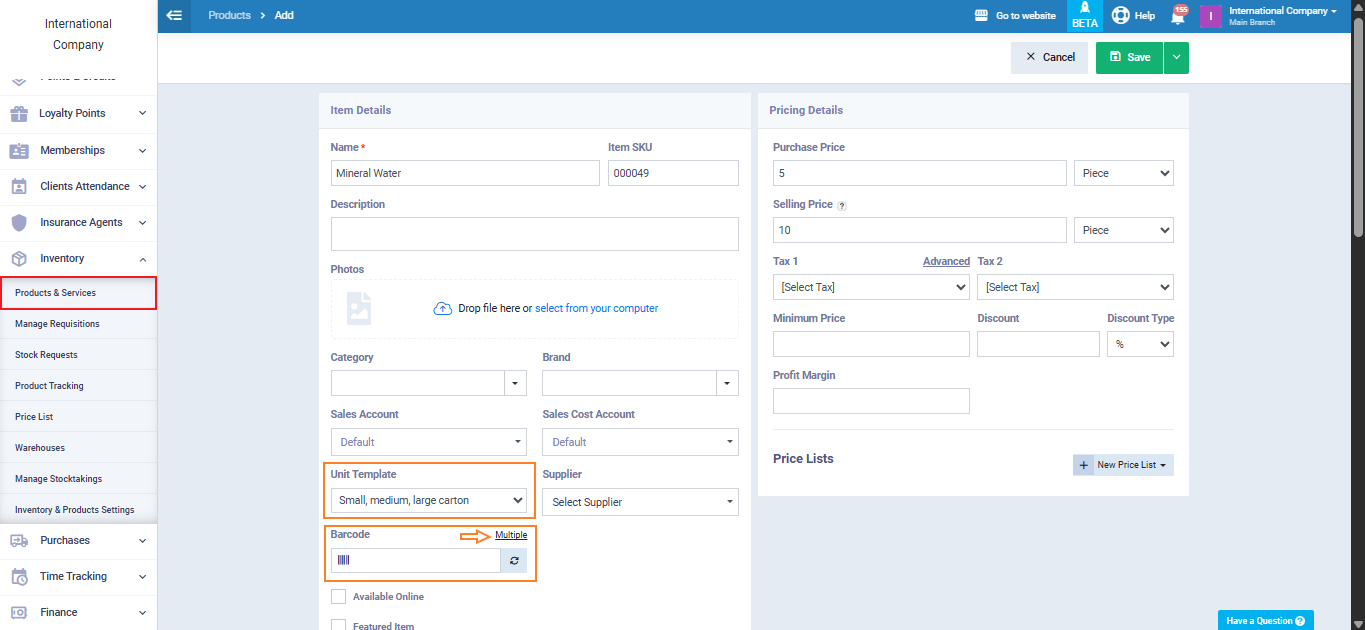
Go to “Products & Services” and click “Add New Product”.
Enter the basic product information:
- Name: Mineral Water
- Purchase Price: 5
- Selling Price: 10
- Unit Template: Large, Medium, and Small Carton
In the “Barcode” field, click “Multiple” to add multiple barcode details.
A table will appear where you can enter:
- Unit
- Barcode
- Quantity
- Selling Price for each unit
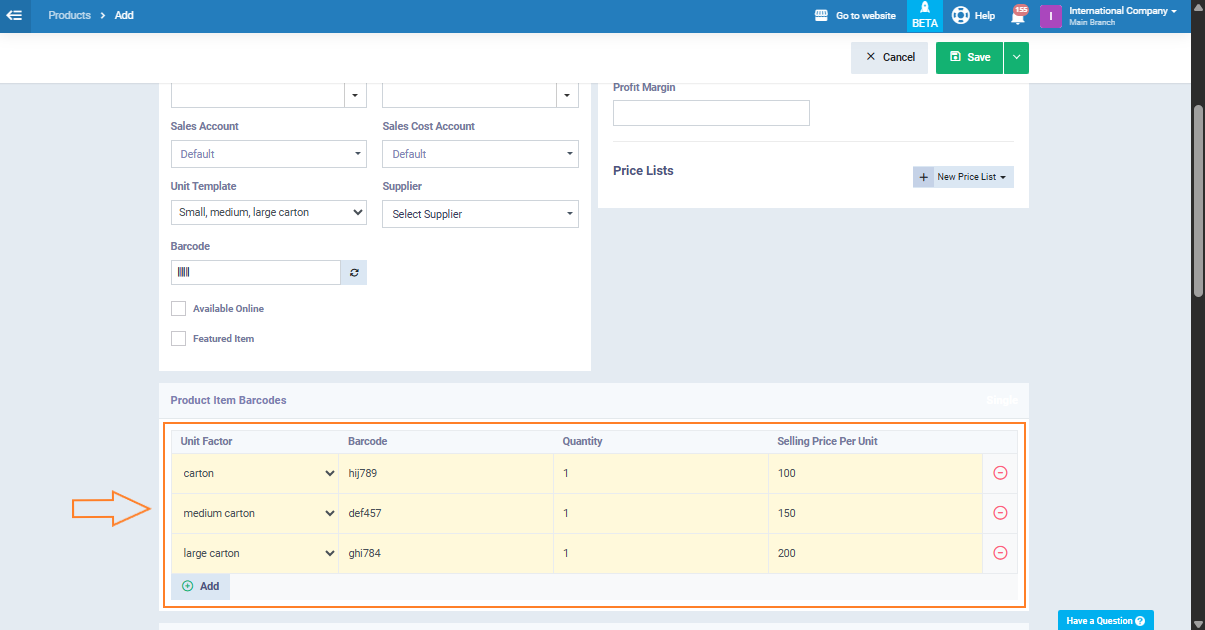
After entering the details, click “Save”.
Selling Through POS
From the main menu, go to “POS” and click “Start Selling”.
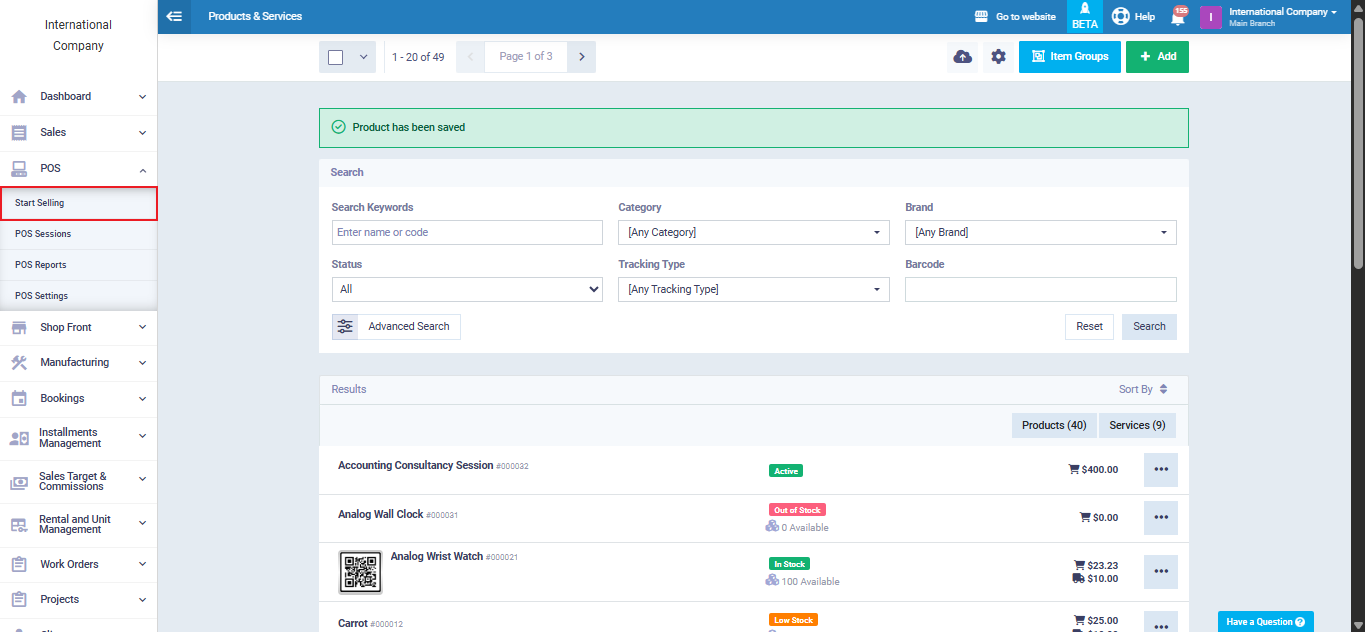
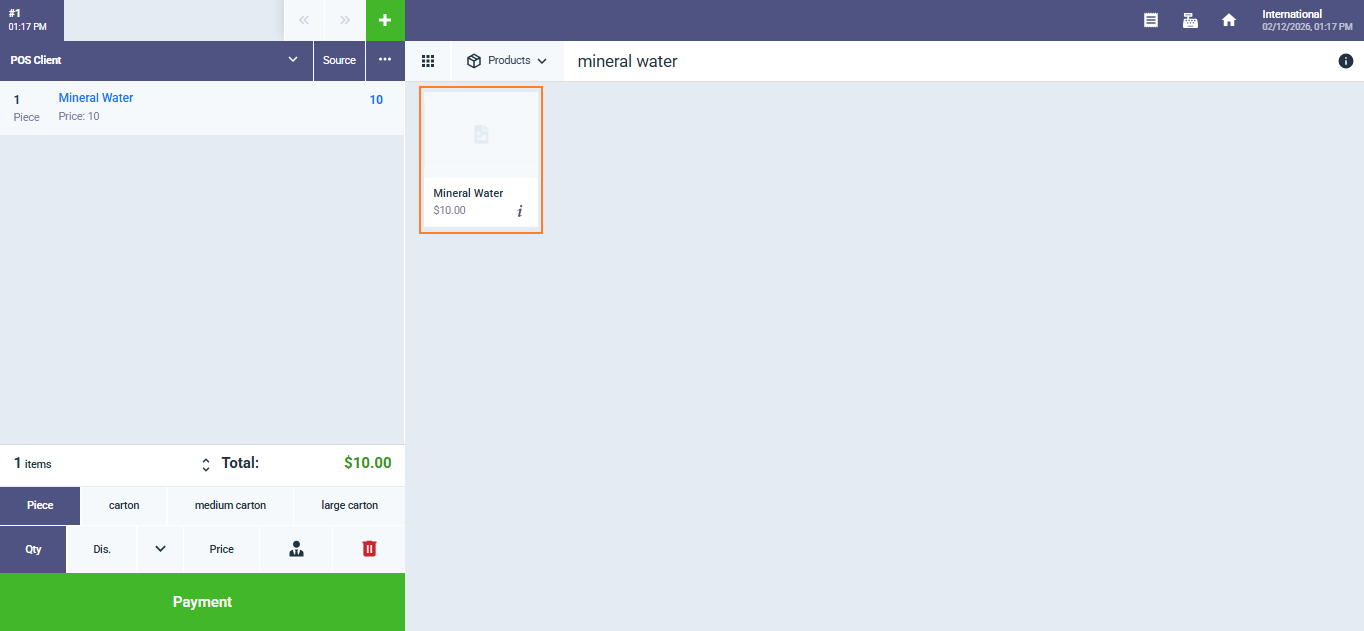
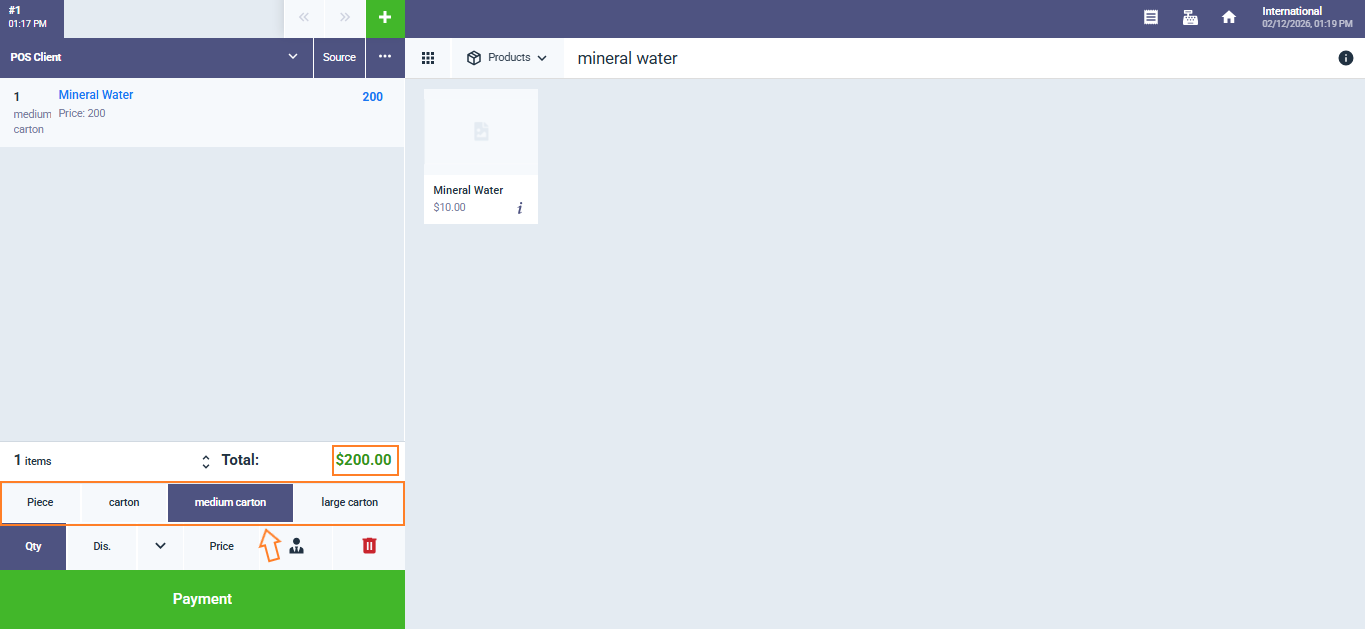
Search for the previously created product “Mineral Water” in the product list or via the search bar, then click to open it.
The product’s default selling price will appear.