How to Create a Sales Invoice for an Excise Product
Excise products such as tobacco, carbonated beverages, and energy drinks are subject to Excise Tax in the UAE. When creating an invoice for an excise product, the system automatically controls the available taxes and prevents selecting an incorrect tax type. This guide explains how to correctly create and export an invoice for an excise product in XML format.
Before You Begin
Ensure the following settings are complete before creating the invoice:
- The UAE E-Invoicing application is activated.
- Excise Tax is defined in the tax settings and linked to the Excise (T) code in the UAE E-Invoicing settings.
- The excise product is correctly classified by enabling the Is Excised Product checkbox in the product record.
Step 1: Create the Sales Invoice
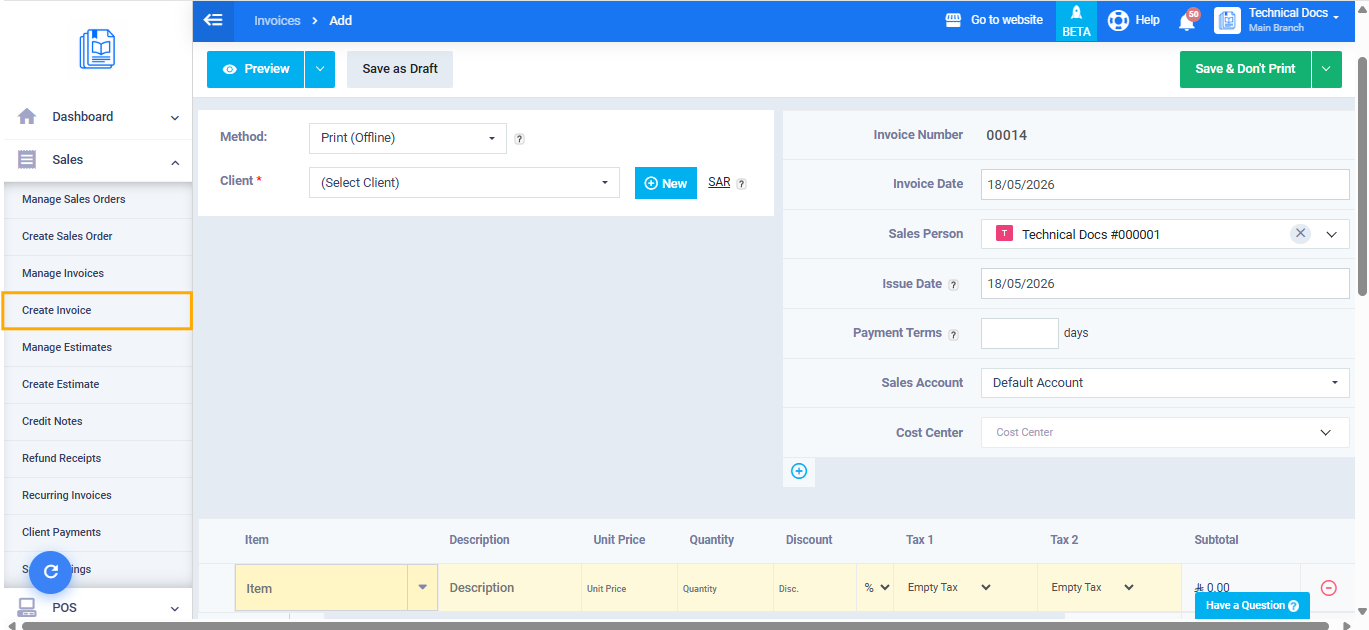
- From the main menu, click Sales, then select Create Invoice.
- Select the required customer.
- Enter the basic invoice details such as date and currency.
Step 2: Add the Excise Product to the Invoice Line
- In the Lines section, click Add Line.
- Search for and select the desired excise product.
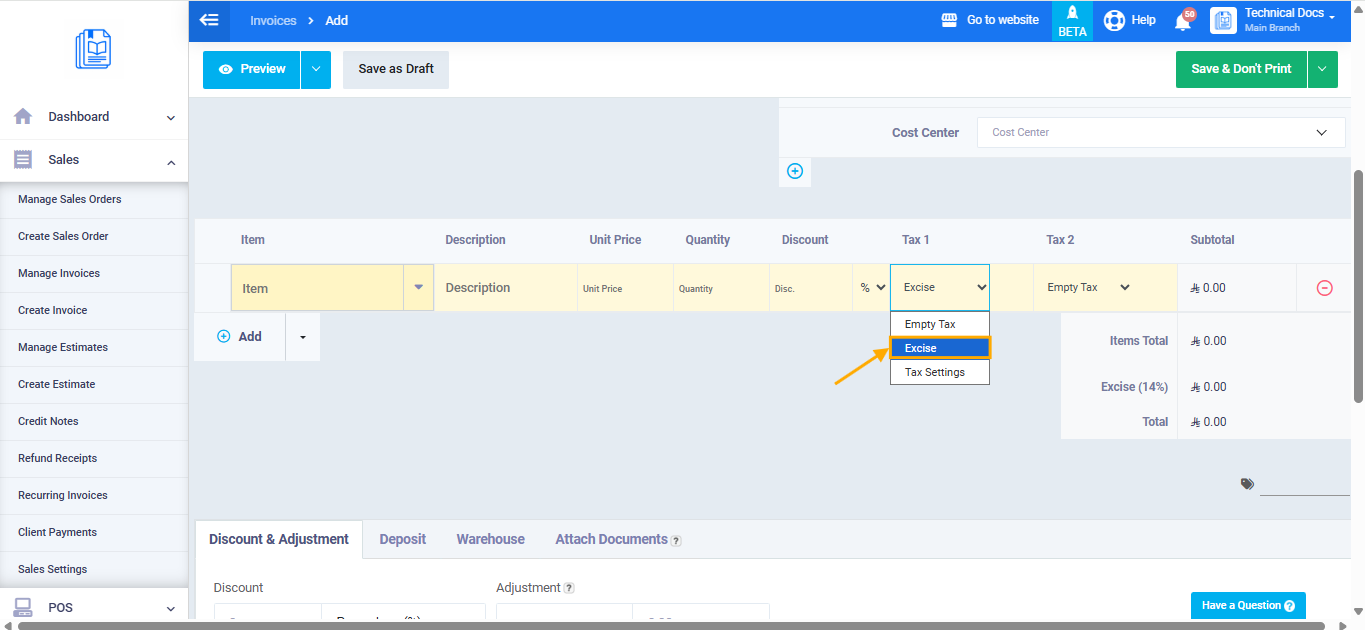
- Once the product is selected, the system will automatically:
- Populate the unit price from the product data.
- Populate the tax from the product data.
- Display only excise taxes in the available tax dropdown.
- Enter the required quantity.
Step 3: Add Non-Excise Products to the Same Invoice (Optional)
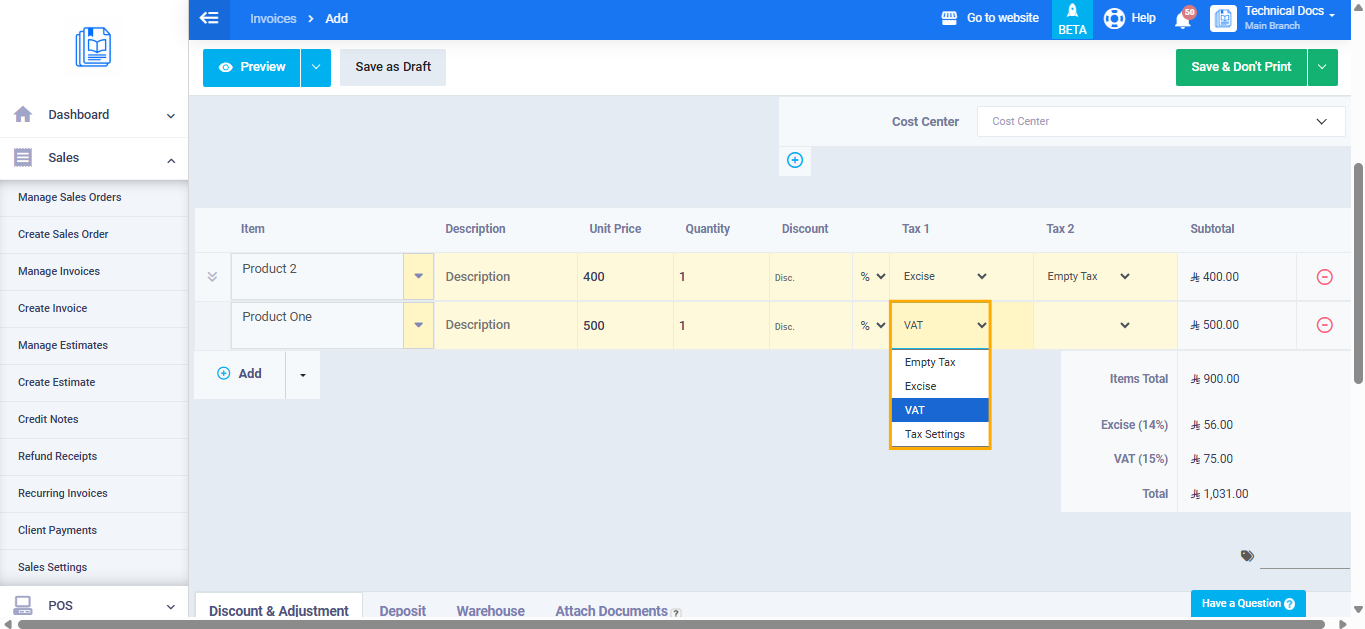
You can include non-excise products alongside excise products in the same invoice:
- Click Add Line to add a new line.
- Select the desired non-excise product.
- The system will automatically display only non-excise taxes in the tax dropdown for that line.
- Enter the quantity and required details.
Step 4: Save the Invoice
- After entering all lines, review the invoice total and the calculated taxes.
- Click Save.
The system validates all lines upon saving. If any line contains a tax that does not match the product’s classification, the system will block saving and display the appropriate validation message.
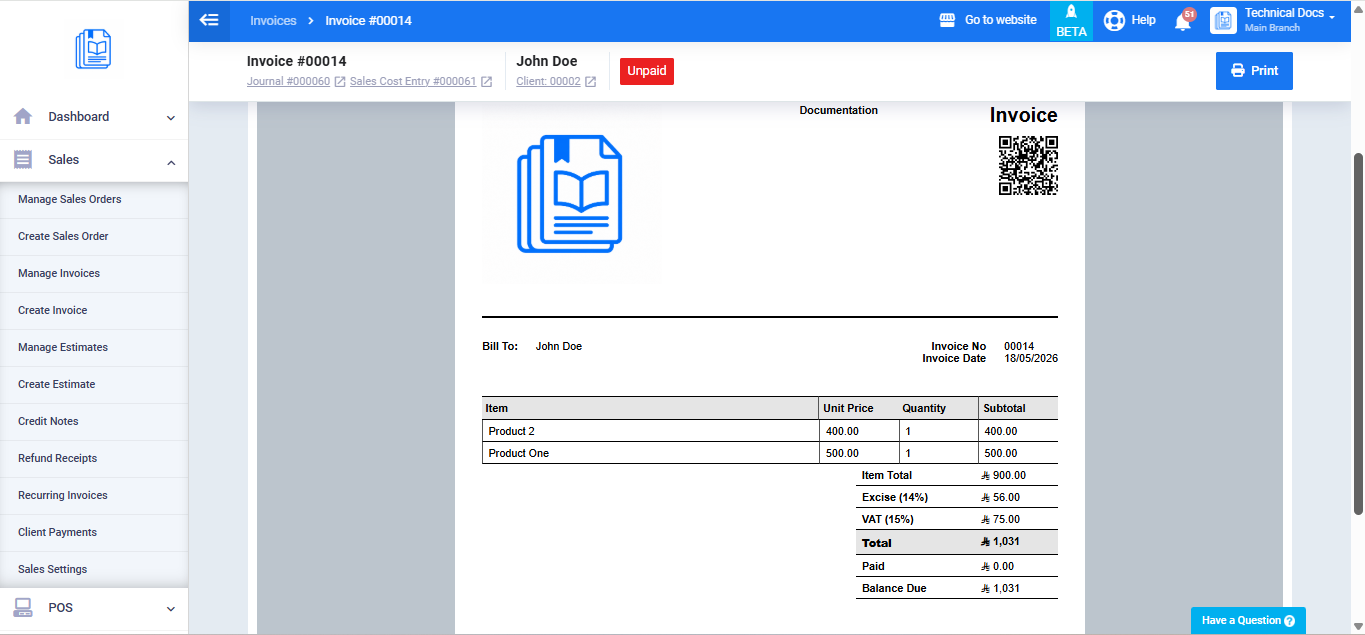
Step 5: Export the Invoice as XML
After saving, you can export the invoice in the XML format accepted by the Federal Tax Authority:
- From the invoice view page, click the Export XML button.
- The system will generate and automatically download the XML file to your device.
Generating Tax Audit Files
After recording your transactions, you can generate tax audit files to submit to the Federal Tax Authority:
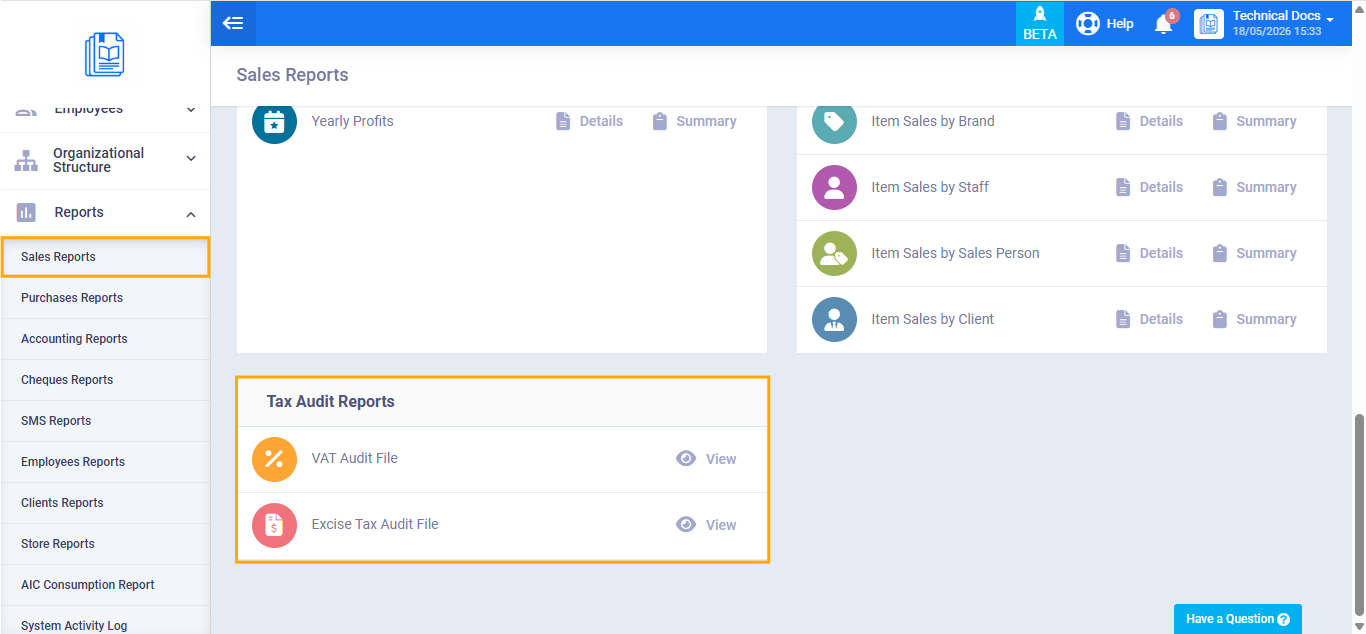
- From the main menu, click Reports.
- Navigate to the Sales Reports section.
- Open the Tax Audit Reports section.
- Select the required report:
- VAT Audit File — to export VAT transaction data.
- Excise Tax Audit File — to export excise goods transaction data and inventory movements.
- Set the Start Date and End Date for the required period.
- Click View Report.
- Click the Download FAF File button.