Item Notes Guide — From Setup to Printing and Sync
Item notes in Enerpize let you add special instructions to each item in a POS order, such as “Sandwich without tahini”, so they appear to the kitchen on the preparation ticket, print on the customer receipt, and carry over to the sales invoice. This guide walks you through the full journey of a note: enabling the feature and preparing pre-defined notes, adding them to items, then printing them and syncing them with the invoice.
Steps to Set Up Item Notes Through Printing and Sync
First: Enable Item Notes
Step 1: Open the Item Notes page
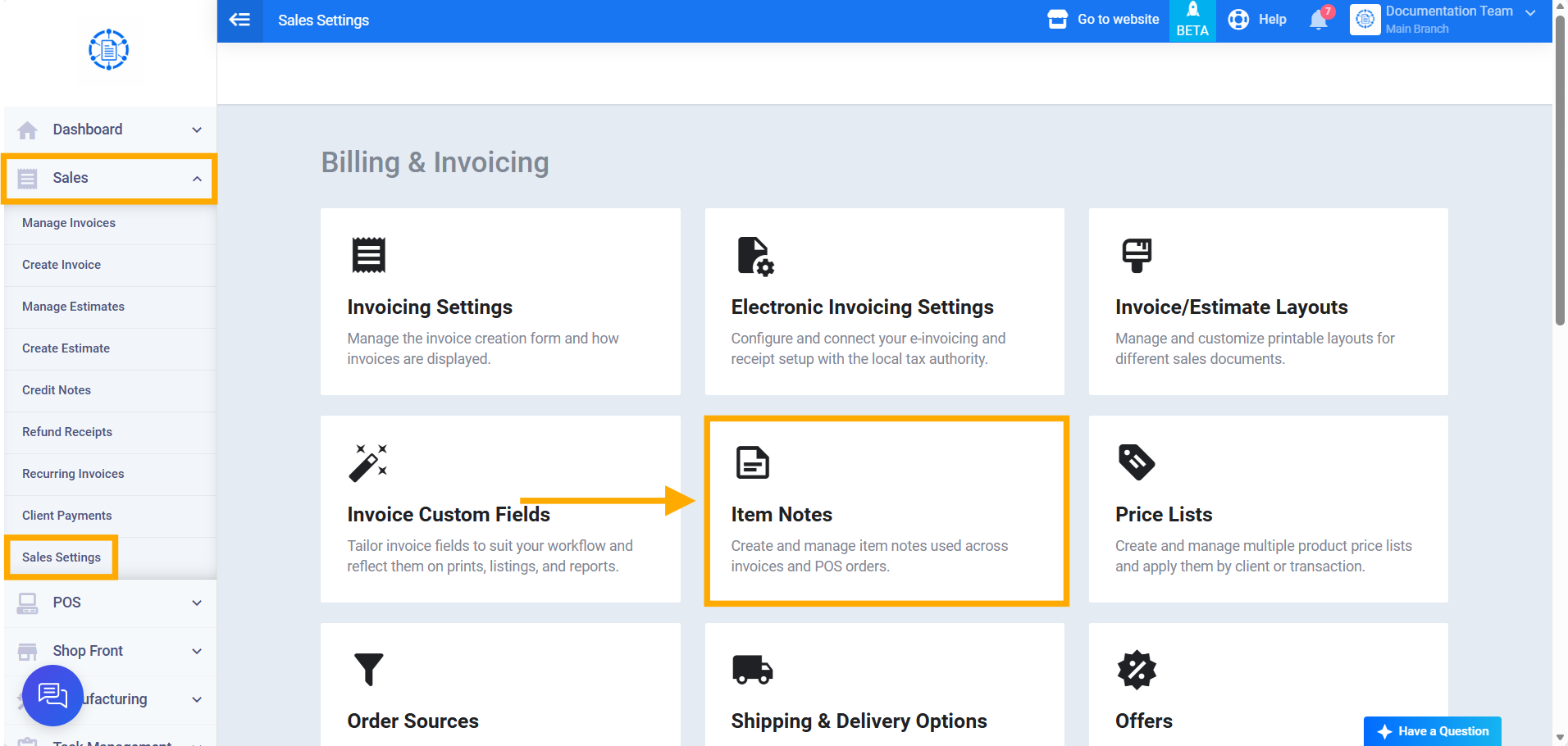
From the side menu, click Sales, then Sales Settings, and click the Item Notes card. You can also reach the same page from POS Settings → Item Notes.
Step 2: Enable the feature
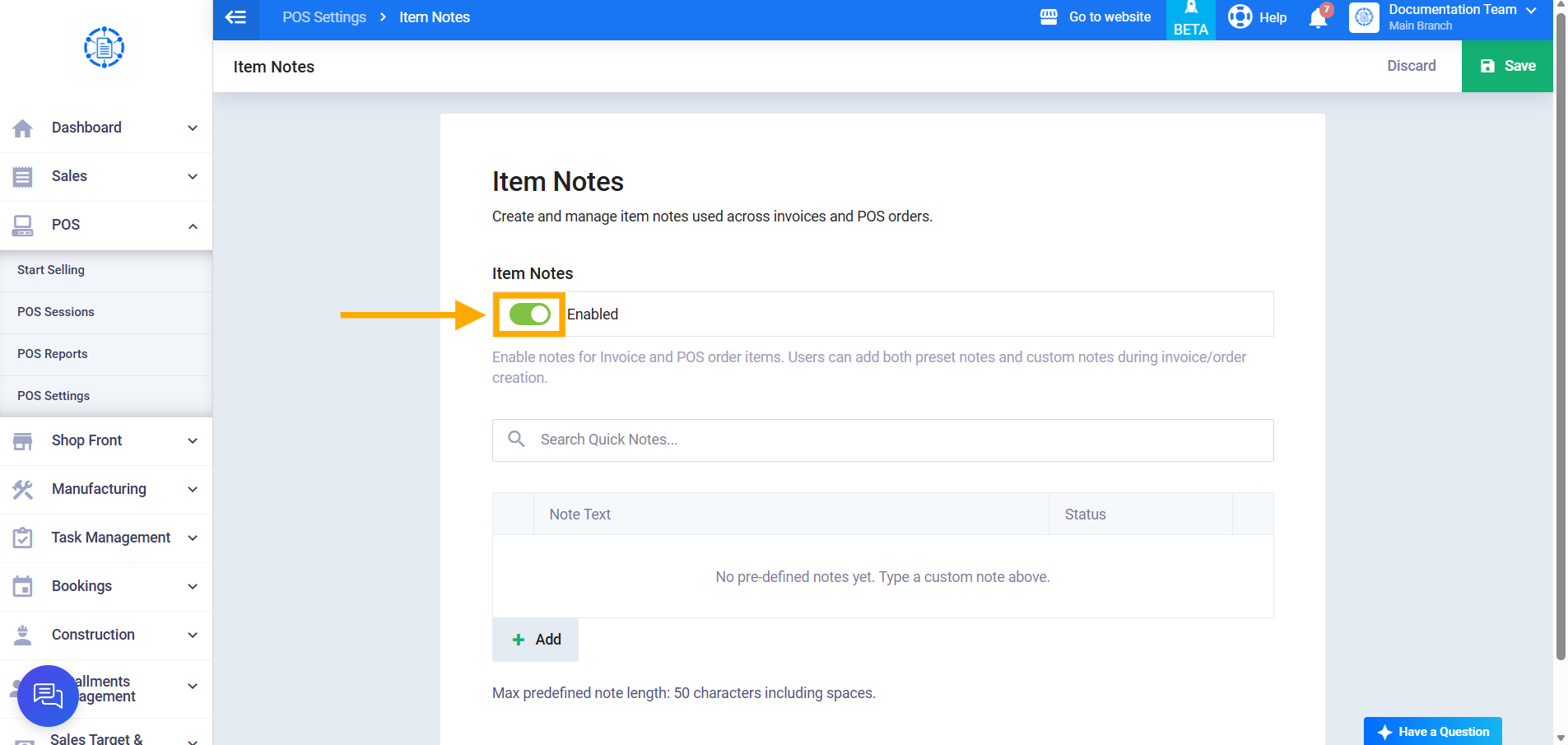
Turn on the Item Notes toggle, then click Save at the top of the page. Once enabled, the search field and the pre-defined notes table appear, and users can add notes to items while creating an invoice or a POS order.
Second: Prepare Pre-defined Notes
Step 3: Add your most-used notes
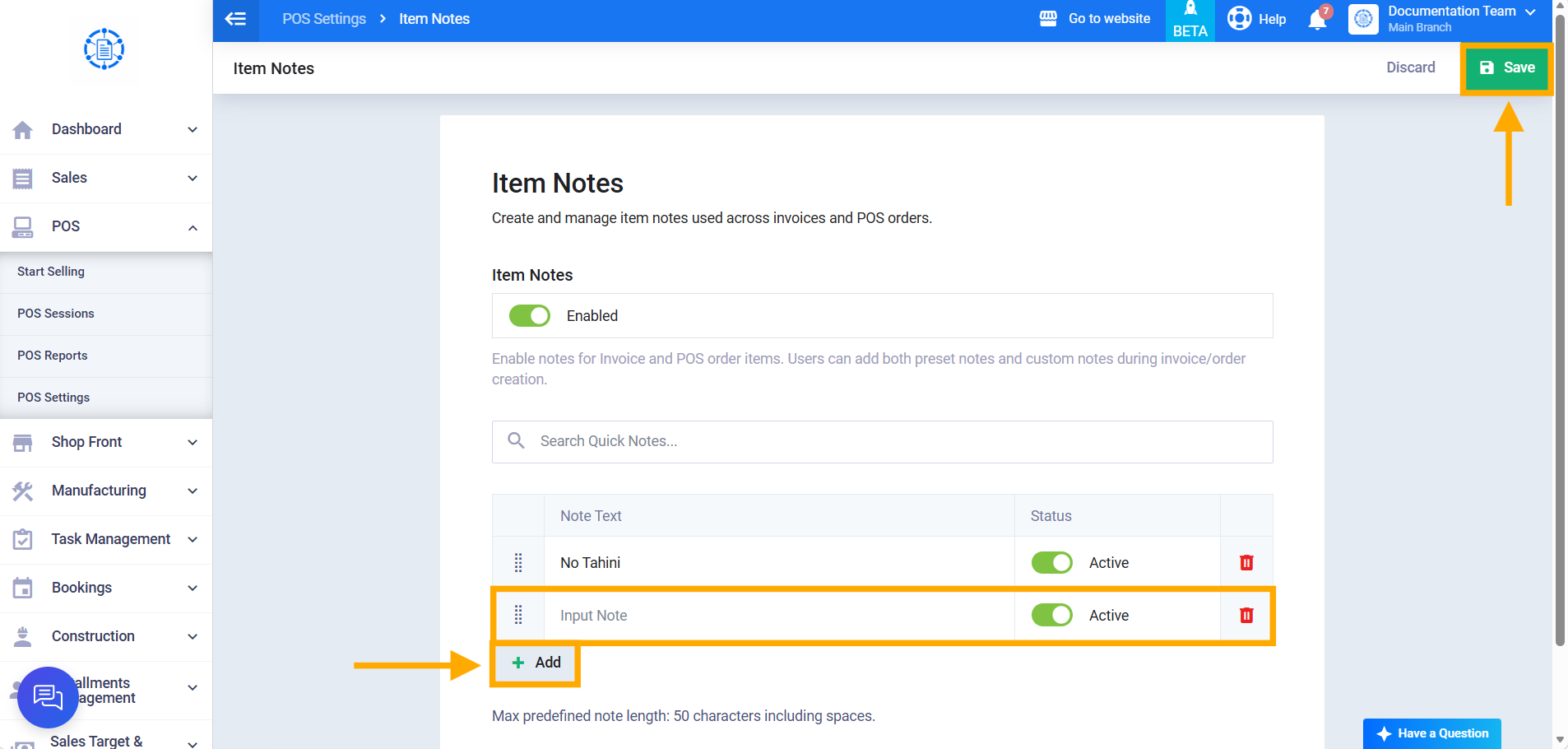
On the Item Notes page, click + Add below the table, type the note in the Note Text column (up to 50 characters including spaces), then click Save. Repeat for each note your team needs, such as “No tahini”, “Extra spicy”, and “Separate packaging”.
To learn how to edit, delete, or temporarily deactivate notes, see Adding, Editing, and Deleting Item Notes.
Third: Add a Note to an Item in a POS Order
Step 4: Open item notes
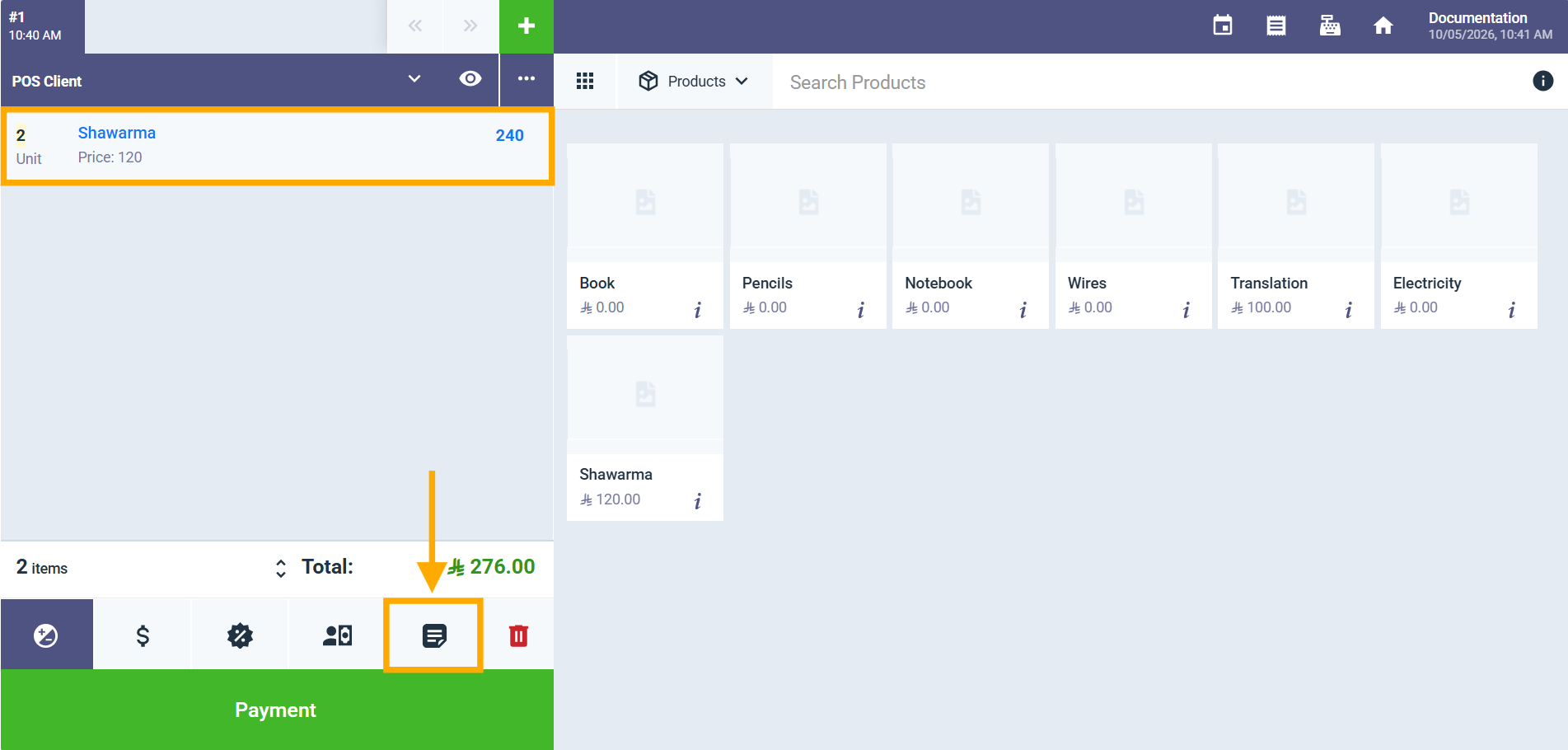
After adding the product to the order, click the item in the cart, then click the Item Notes icon in the action bar below the cart, or use the ALT + I shortcut. The active pre-defined notes appear in place of the product list, with a Search notes… field above them.
Step 5: Select one or more pre-defined notes
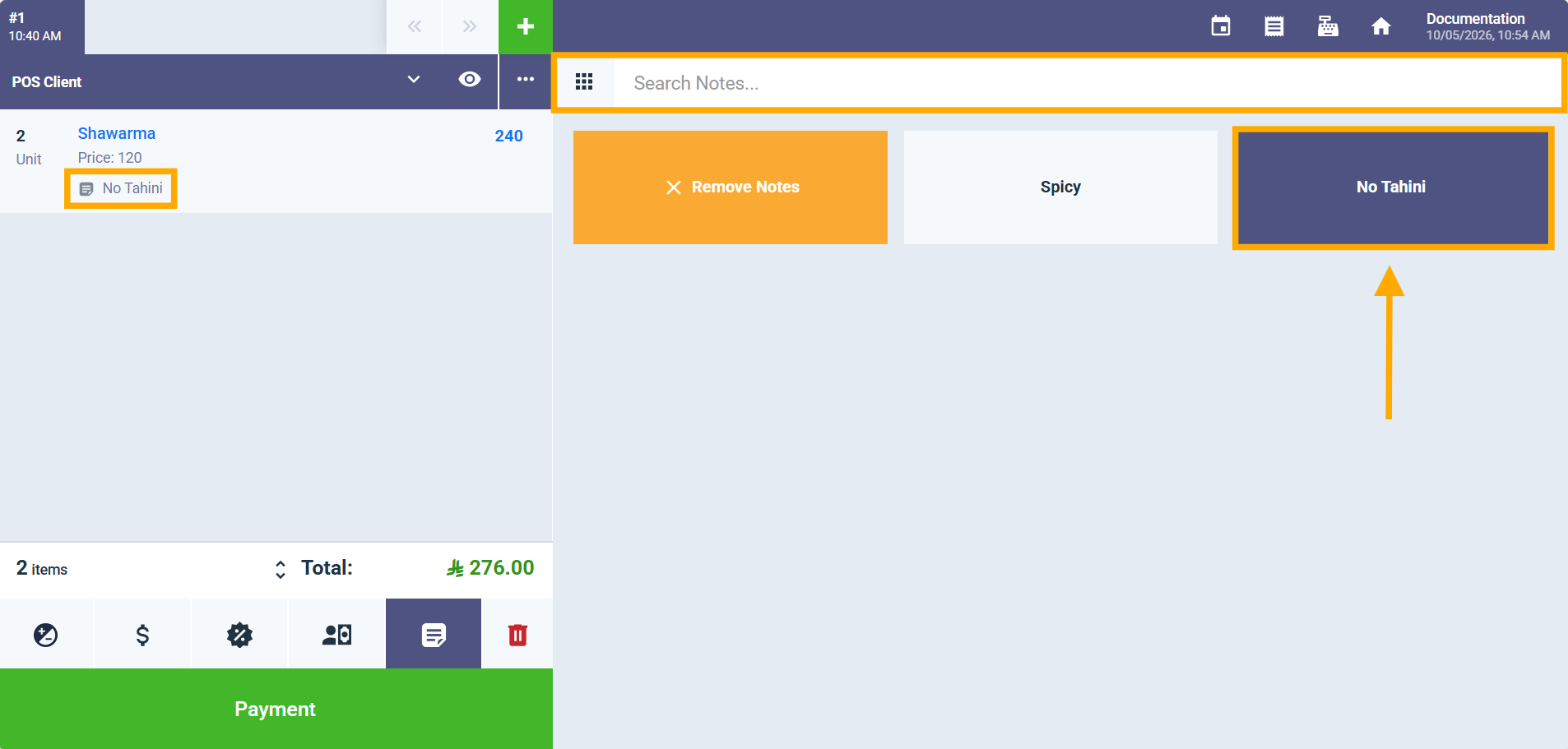
Click the note you need, such as “No tahini”; the note is highlighted, and its text appears under the product name in the cart. You can select more than one note for the same item, and each note appears on its own line under the product. To clear the item’s notes, click Remove Notes.
Step 6: Add a note that doesn’t exist
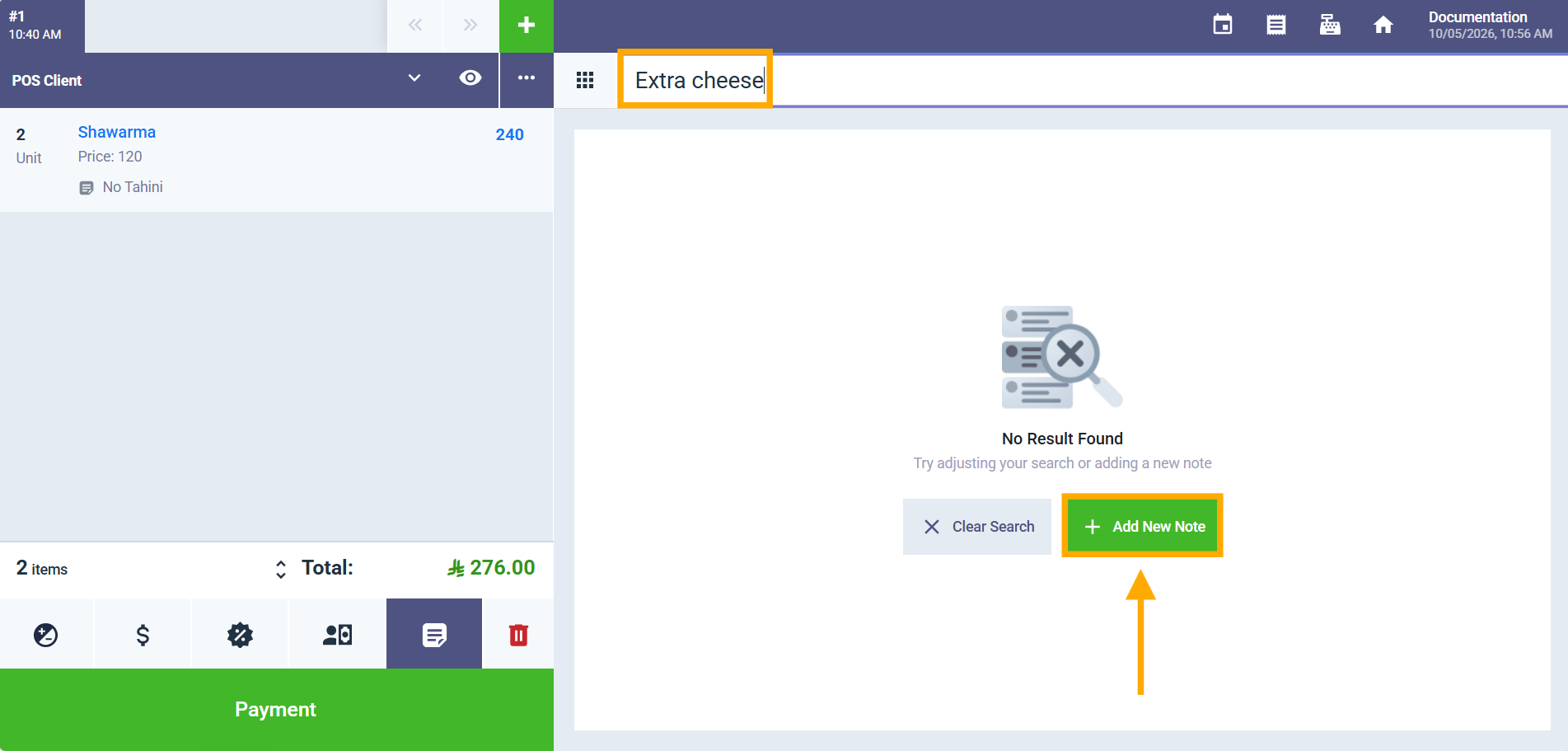
Type the note in the Search notes… field. If no matching note is found, the message No result found appears; click + Add New Note.
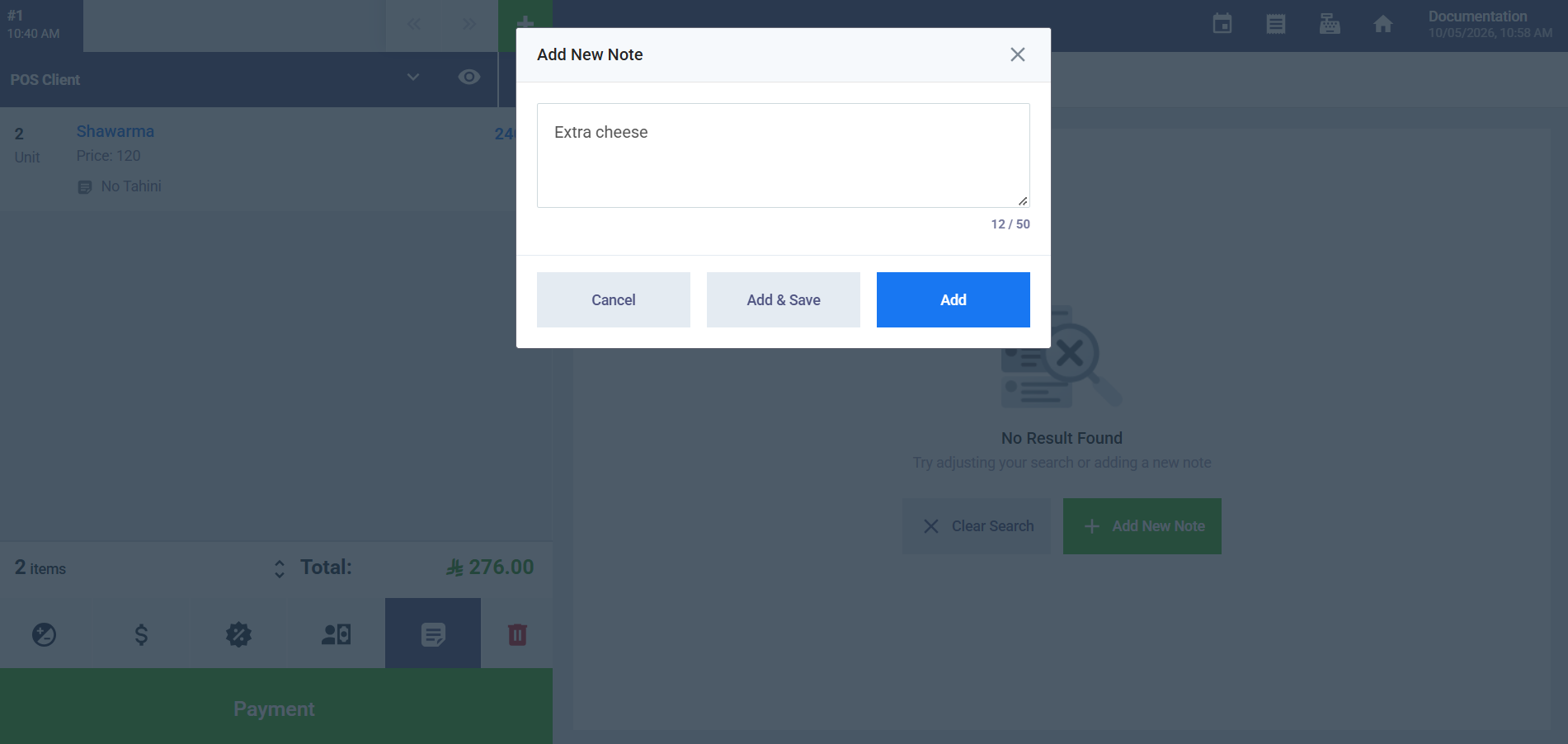
The Add New Note window opens with the text you typed, and you can edit it (up to 50 characters). Then choose:
- Add: Adds the note to this item only. The message “Note added” appears, the note shows under the product in the cart, and it appears among the notes with a delete icon to remove it. This note isn’t saved to the pre-defined notes, so it won’t appear in future orders.
- Add & Save: Adds the note to the item and saves it to the pre-defined notes, so it appears in future orders. This option requires the “Manage POS Line Notes Library” permission; without it, the message “You are not allowed to access this page” appears, so use Add instead.
Fourth: Print the Note on the Kitchen Ticket and Customer Invoice
Step 7: Kitchen ticket
If you use Multi Printing to send orders to a kitchen printer, the note prints under each item on the kitchen ticket, so the kitchen knows how to prepare the order. Items without notes print as usual.
Step 8: Print the invoice for the customer
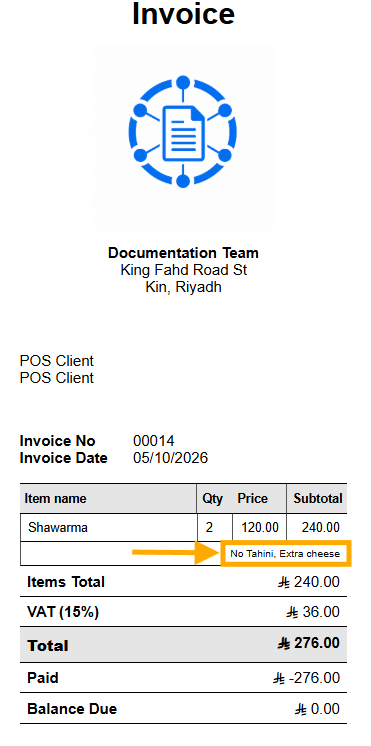
When you complete the order, the invoice preview window appears with each item’s notes under its line. If an item has more than one note, they print on one line separated by commas. Click Print to print the invoice.
Fifth: Sync the Note with the Sales Invoice
Step 9: Review the note on the invoice
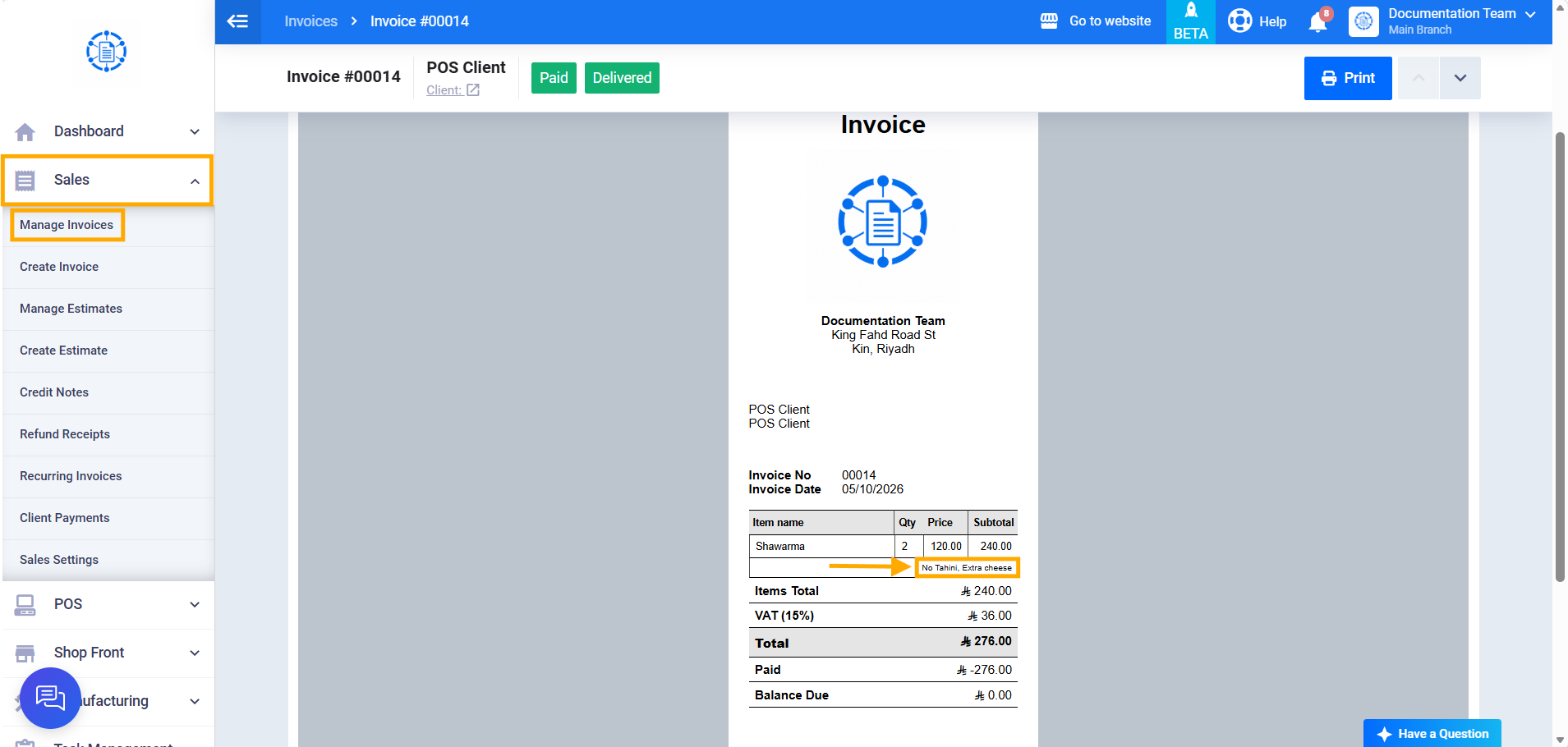
When you complete a POS order, item notes carry over to the order’s sales invoice. To review them, go to Sales → Manage Invoices and open the invoice; the notes appear under the item. Notes can’t be edited after the order is completed.
Sixth: Show the Note in Invoice Print Templates
Step 10: Add notes to the invoice print template
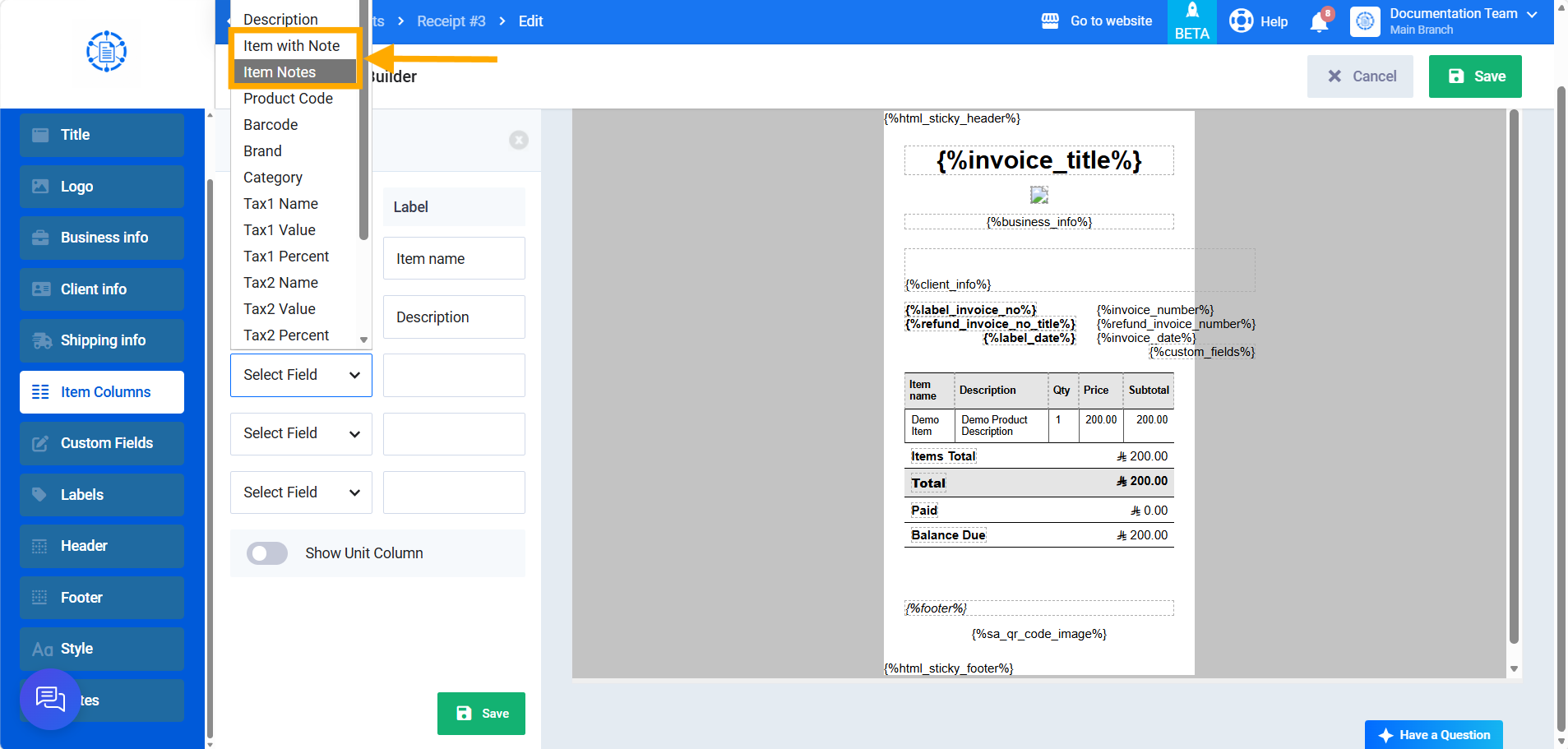
From the side menu, click Templates, then Printable Templates, and open the invoice template you want to edit. Then open the Item Columns tab and choose one of two columns:
- Item with Note: Replaces the item column and shows the item name with its notes below it.
- Item Notes: A separate column that shows the notes only, placed after the item name or after the description if there is one.
Then click Save.