Guide to Manual Sales Invoice Delivery Statuses and Their Impact on Inventory
The system allows you to control the date and time products sold to a client are delivered directly from the sales invoice, so that stock outbound transactions reflect the actual delivery date rather than necessarily the invoice’s creation date. In this article, we explain how to configure the setting, the different delivery statuses, and the impact of each action on stock transactions.
Manual Sales Invoice Delivery Statuses and Their Impact on Inventory
First: Configuring the Default Delivery Setting
Step 1: Accessing the Setting
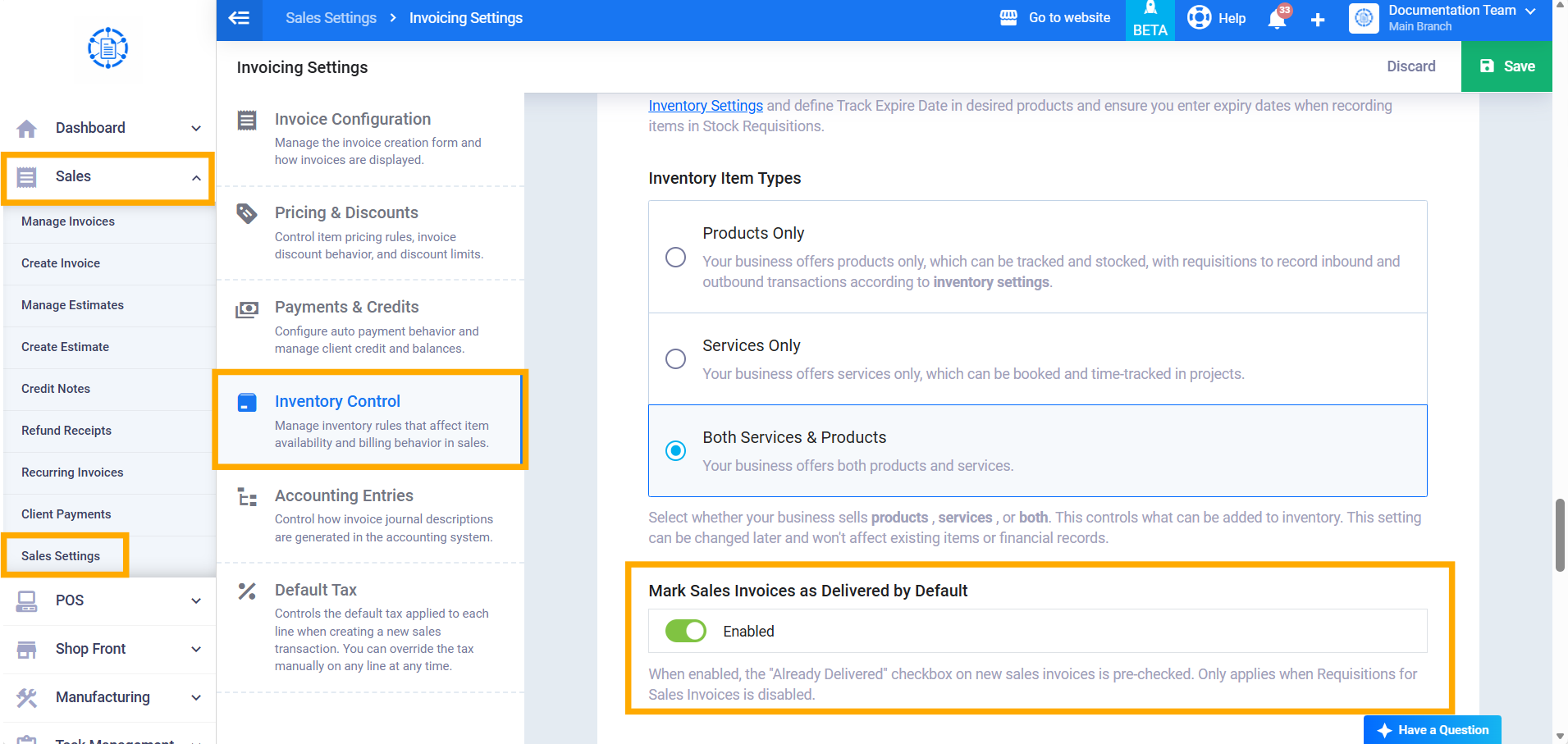
From the sidebar menu, click on “Sales,” then “Sales Settings,” and look for the new “Inventory Control” section.
Step 2: Enabling or Disabling the Setting
Enable or disable the “Mark Sales Invoices as Delivered by Default” toggle (enabled by default), then save. When enabled, the “Mark as Delivered” checkbox appears pre-checked on new invoice creation forms; when disabled, it appears unchecked.
Second: Save the Invoice as Delivered
Step 3: Enabling “Mark as Delivered”
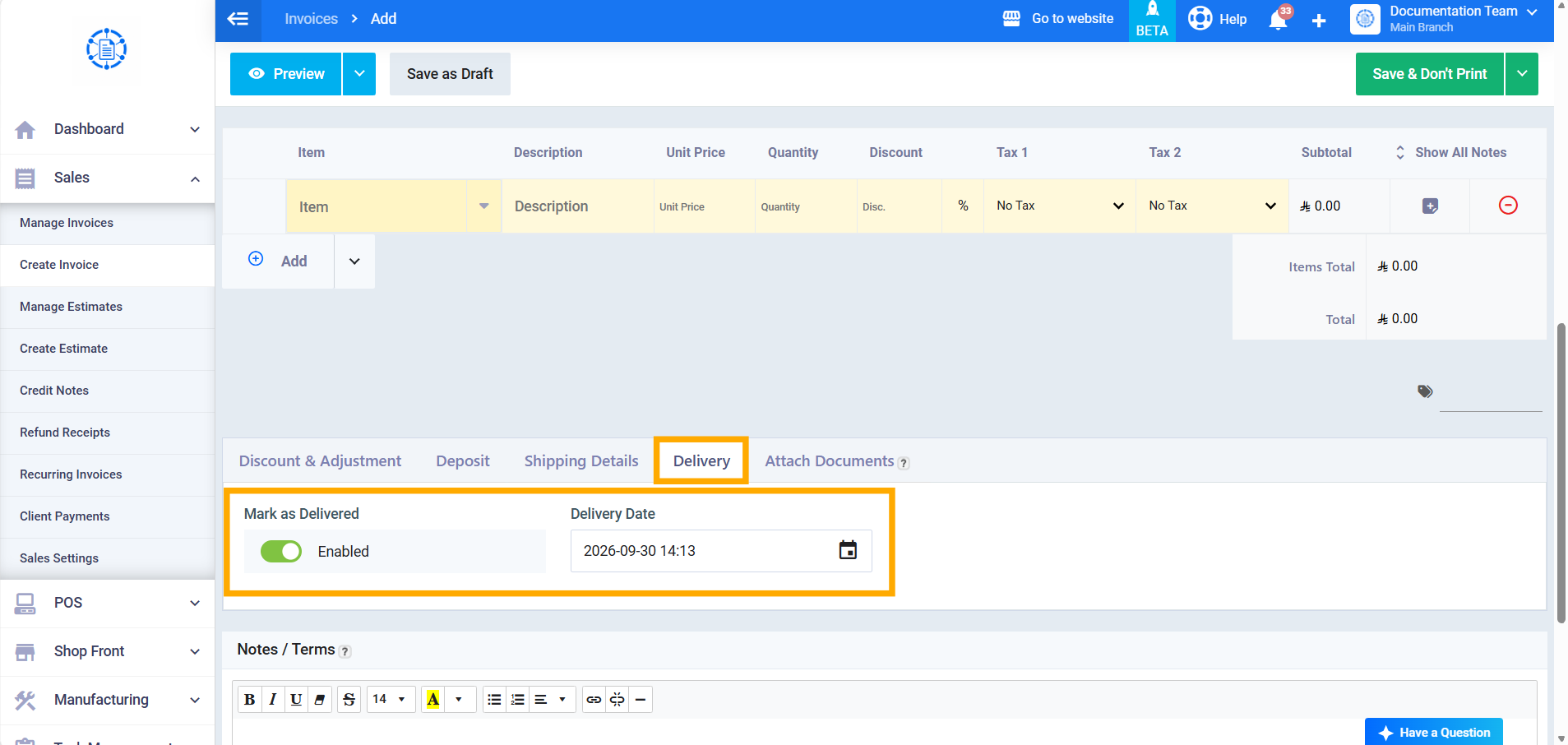
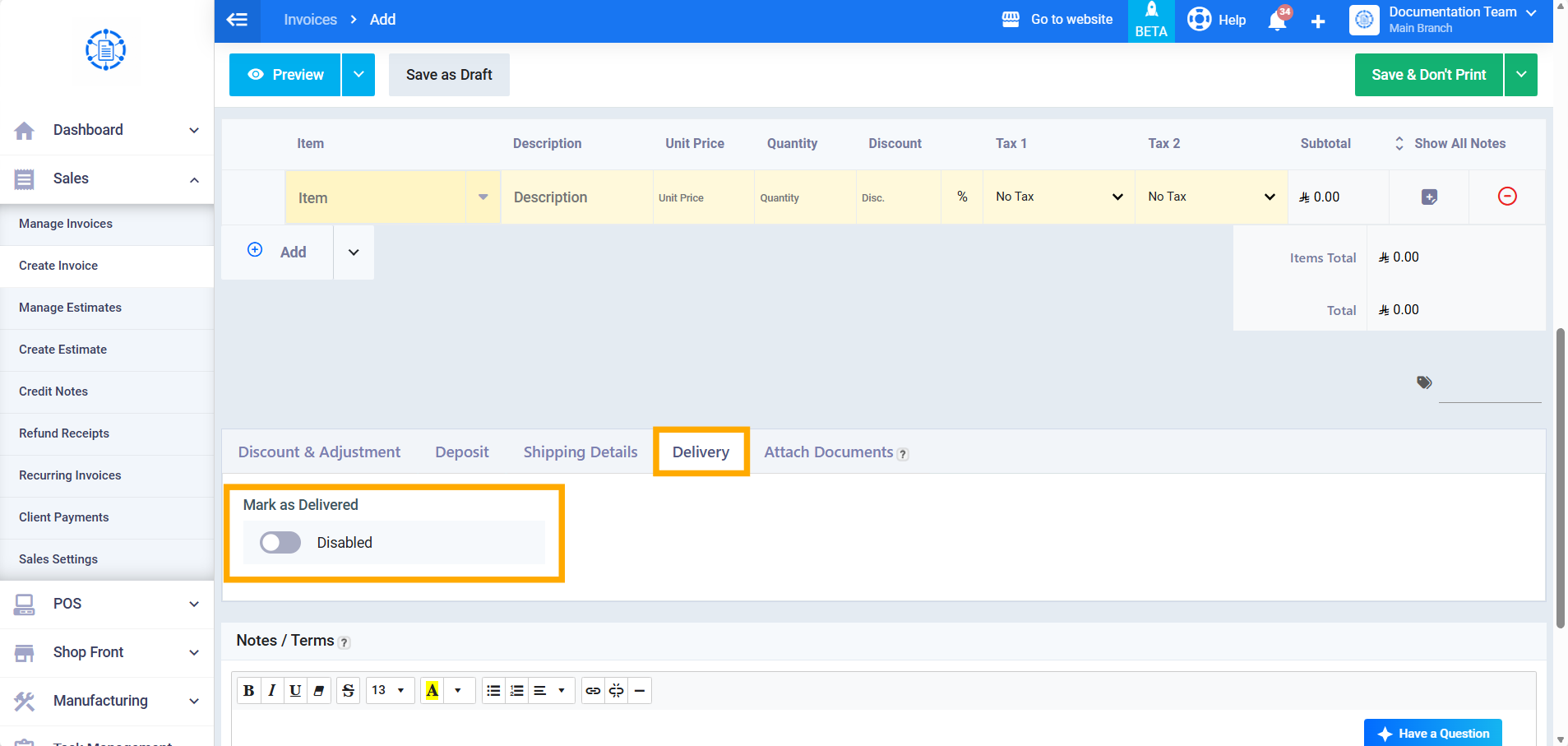
On the sales invoice creation form, the “Mark as Delivered” checkbox appears below the Notes/Terms field, right above the Save button. When enabled, the “Delivery Date” field appears immediately below it, defaulting to the current date and time, and can be edited.
Step 4: Saving
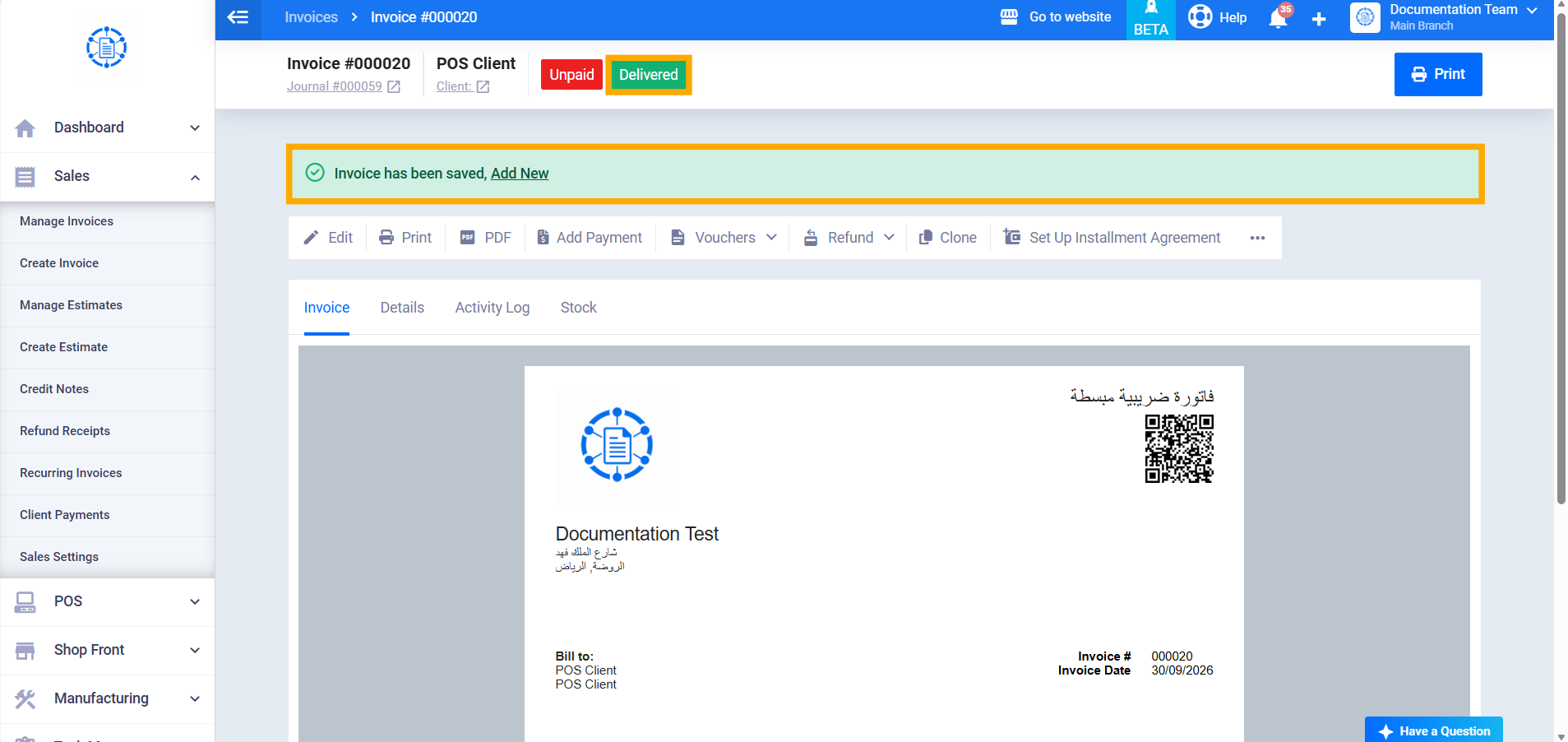
Click “Save” — the system records outbound stock transactions for all invoice lines using the specified “Delivery Date,” and the invoice is saved with a delivery status of “Delivered.”
Third: Save the Invoice as Undelivered and Deliver It Later
Step 5: Disabling “Mark as Delivered”
Disable the “Mark as Delivered” checkbox (the “Delivery Date” field then disappears), then save the invoice. No stock transaction is recorded at save time, and the invoice is saved with an “Undelivered” status.
Step 6: Marking the Invoice as Delivered Later (from the Header)
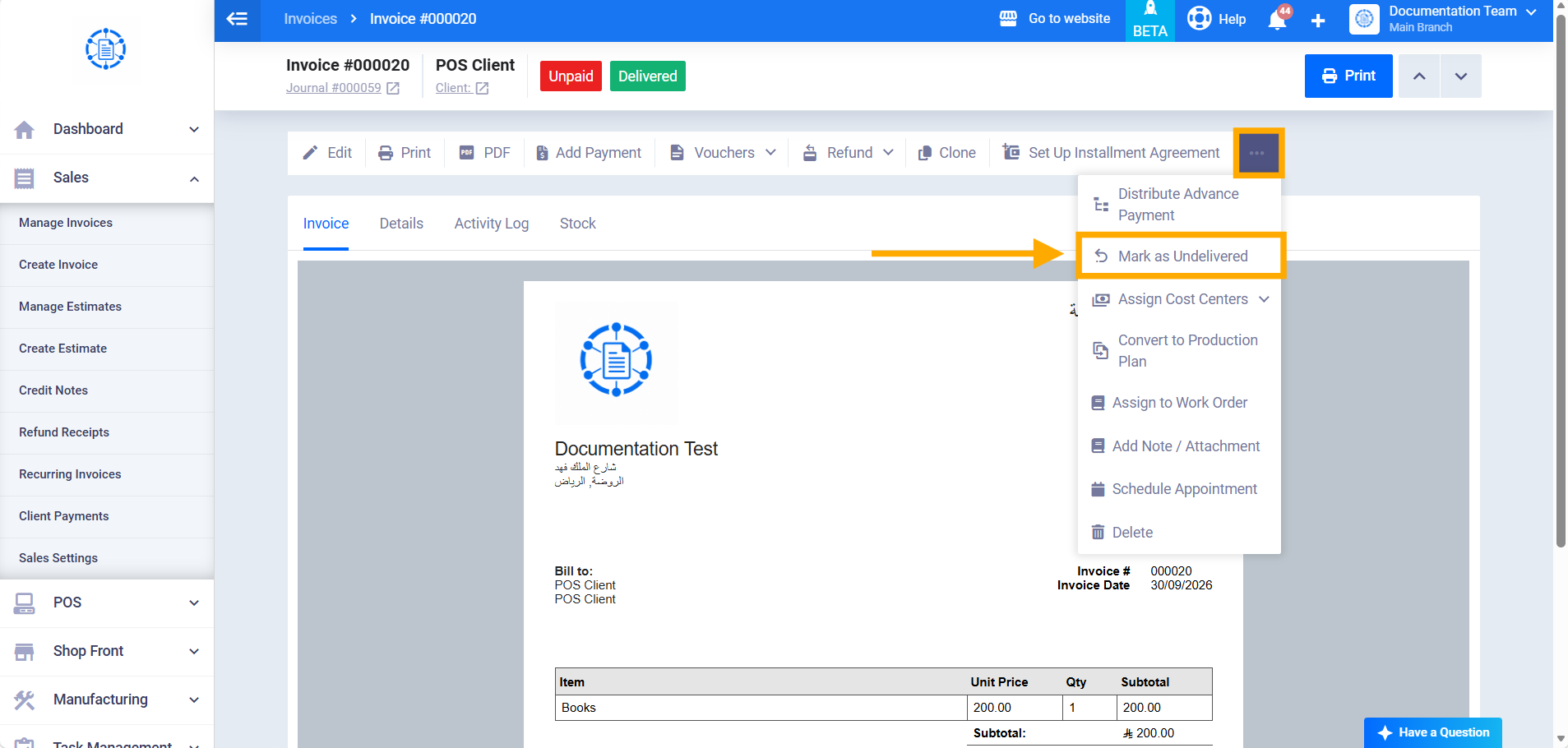
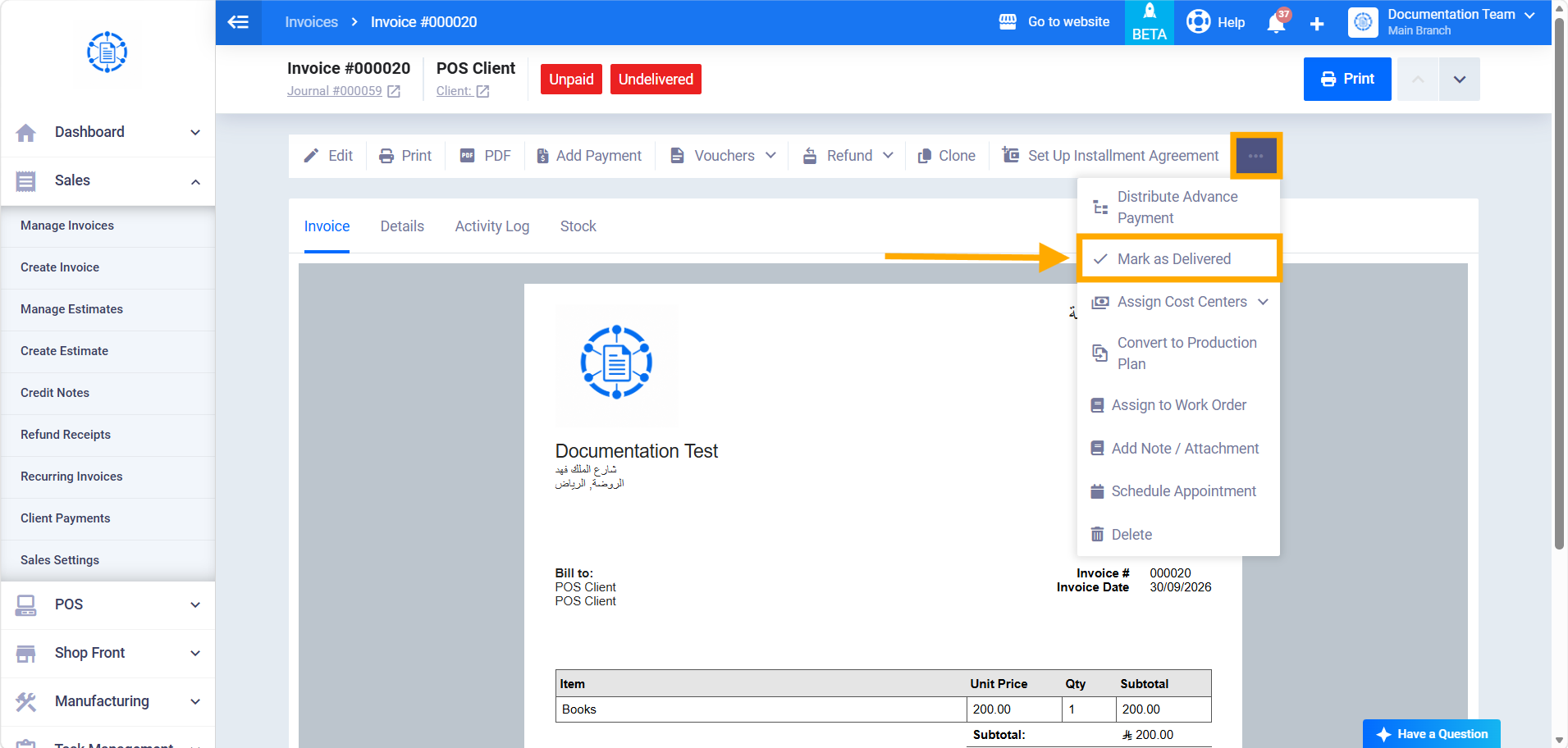
Open the saved invoice with the Undelivered status, shown in red next to the payment status. Click ⋯ in the actions bar, then choose Mark as Delivered. The system records outbound stock transactions for all invoice items at the current date and time, and the delivery status changes to Delivered in green. The same menu then shows Mark as Undelivered instead of Mark as Delivered.
Fourth: Controlling Delivery per Line (Stock Tab)
Step 7: Opening the Stock Tab
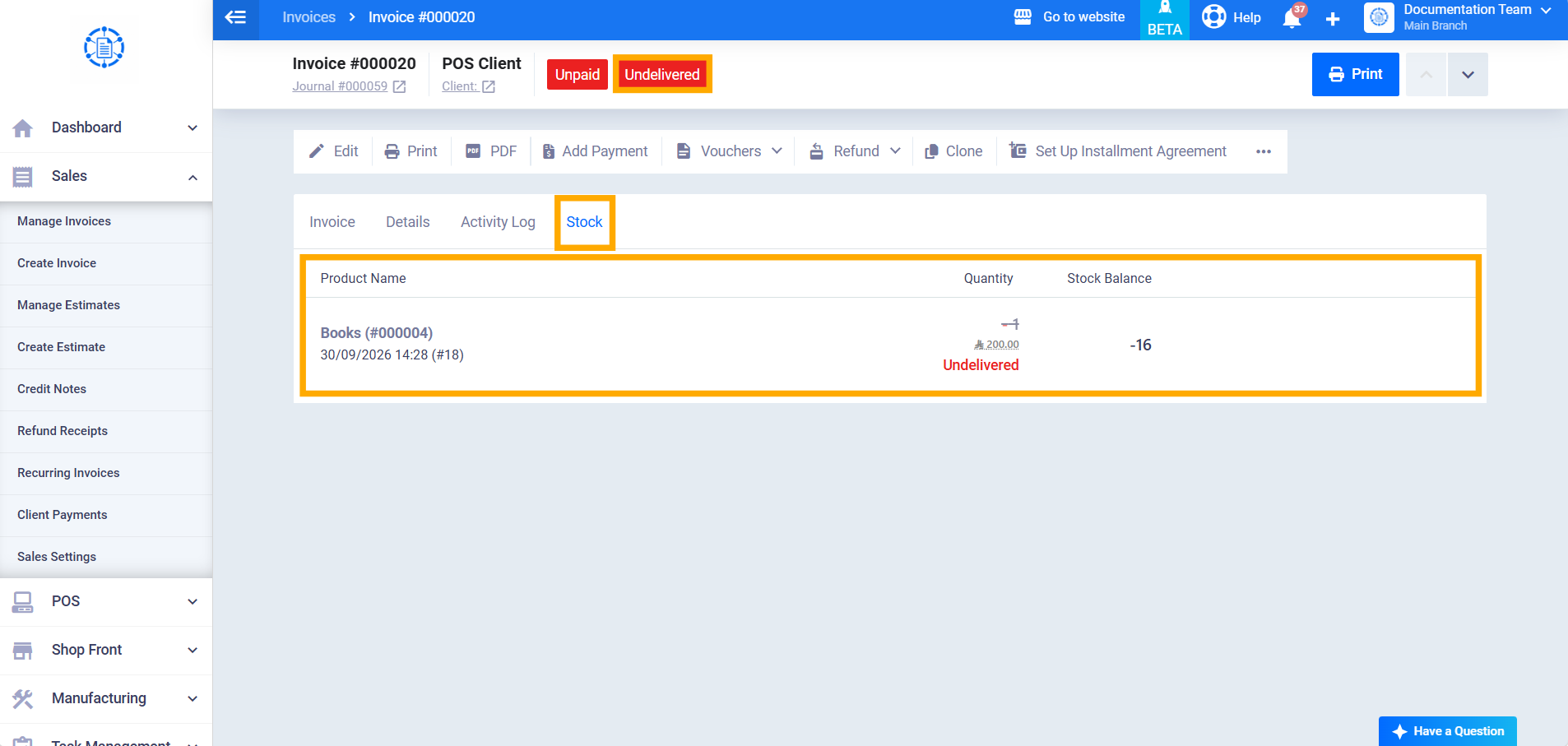
Open an invoice with the Undelivered status, then open the Stock tab. For each item, the tab shows three columns:
- Product Name: The product name and code, with the stock transaction date, time, and number below them.
- Quantity: The quantity, with the unit cost below it, followed by the item’s status. An undelivered item’s quantity is struck through, and its status shows Undelivered in red.
- Stock Balance: The product’s stock balance.
Step 8: Delivering a Single Line
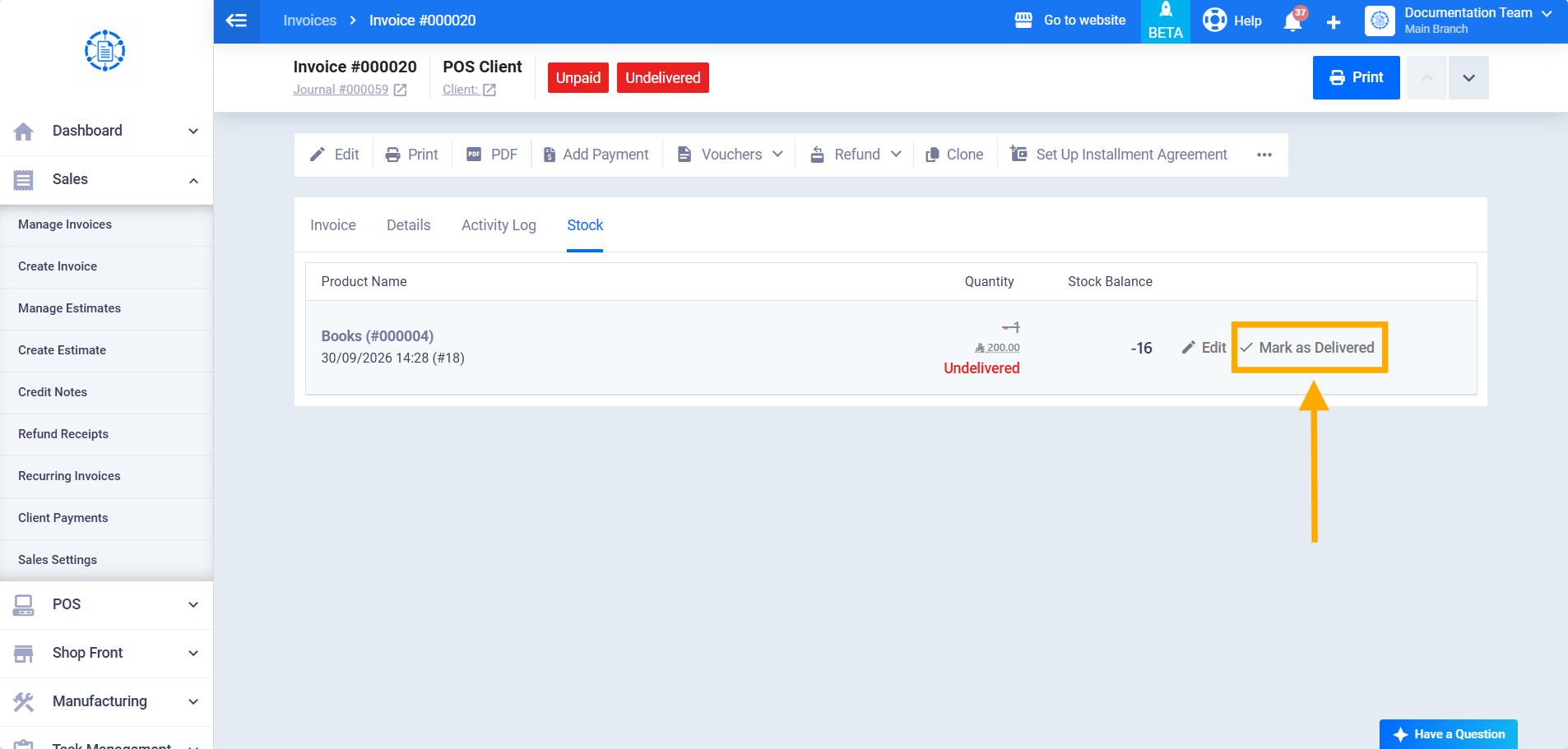
Hover over the item, then click ✓ Mark as Delivered next to it. The system records the outbound stock transaction for that item only: its status changes to Delivered in green, its quantity is no longer struck through, the stock balance is updated, and Mark as Undelivered appears next to it instead of Mark as Delivered. If other items are still undelivered, the invoice status changes to Partially Delivered in orange.
Fifth: Undo Delivery
Step 9: Undo Delivery for the Whole Invoice
Open the invoice with the Delivered status, click ⋯ in the actions bar, and choose Mark as Undelivered. The system reverses all outbound stock transactions recorded for the invoice items, its status returns to Undelivered in red, and Mark as Delivered returns to the menu. In the Stock tab, all items return to the Undelivered status, with a Mark as Delivered button next to each one.