A Complete Guide to the Deleted Transactions Recovery System
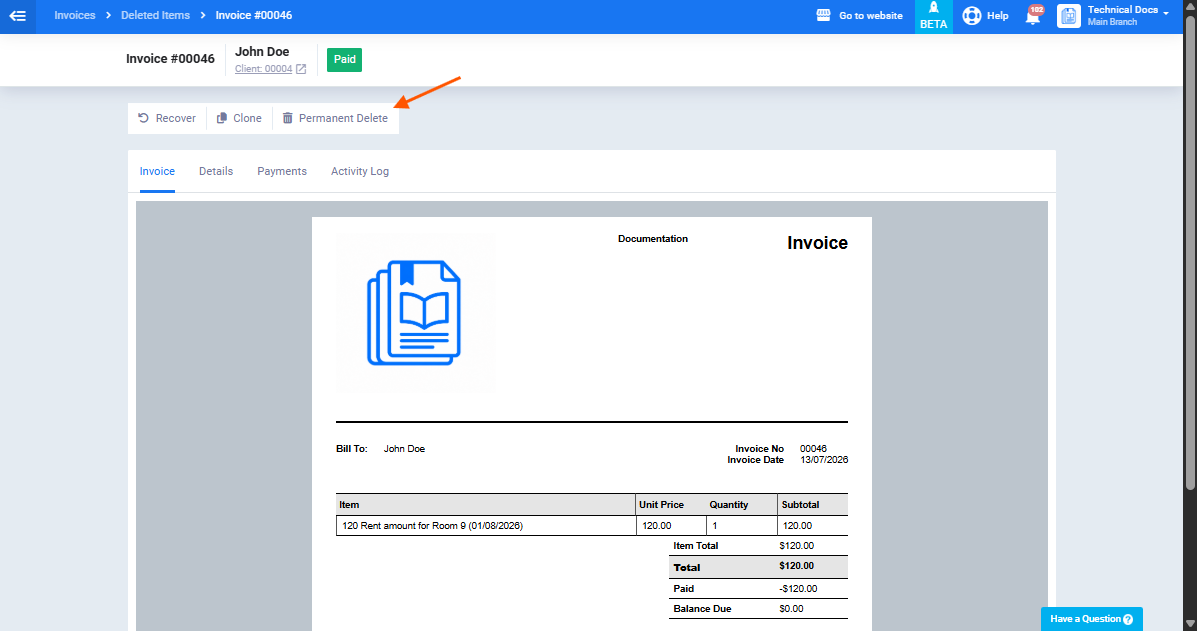
The transaction recovery system converts the deletion of sales and purchases transactions into a soft delete rather than a permanent one: the deleted transaction moves to the “Recycle Bin” and remains fully recoverable — with all its data and original number intact — for a period of 90 days. This guide covers the complete workflow, from the moment a transaction is deleted through browsing the Recycle Bin and performing any of the available actions: restoring, cloning, or permanently deleting.
Before You Begin
The system covers sales transactions (invoices, refunds, credit notes, and debit notes) and purchase transactions (purchase invoices, refunds, debit notes, and credit notes).
Accessing the Recycle Bin requires the “Manage Deleted Sales Transactions” or “Manage Deleted Purchase Transactions” permission from the employee role settings — both are disabled by default.
What Happens When a Transaction Is Deleted?
When a transaction is deleted from its view screen or from the list actions — using the same standard confirmation message — it moves to the Recycle Bin instead of being permanently deleted. The system automatically:
- Removes the transaction from the main list, client and supplier balances, cost centers, and all reports.
- Changes journal entries to “Draft” status, deletes inventory movements, and changes payments to “Suspended” status.
- Reserves the transaction’s sequential number so it is not reused for new transactions.
- Records the deletion in the activity log with the user, timestamp, and transaction number.
Existing deletion prevention conditions remain in effect (links to payments, stock entries, or notes), and transactions submitted to a tax authority (ZATCA / Egyptian Tax Authority) cannot be deleted either permanently or as a soft delete.
Accessing the Recycle Bin
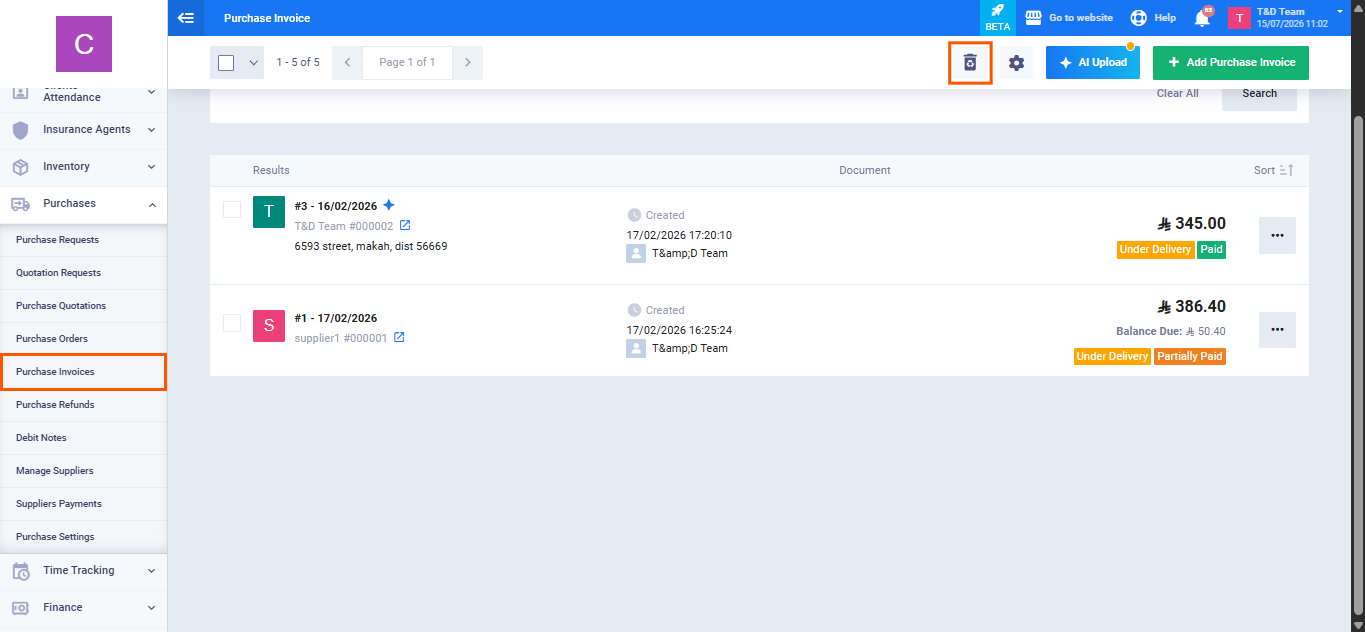
- Navigate to the desired transaction list — for example: “Sales” → “Manage Invoices” or “Purchases” → “Purchase Invoices.”
- Click the “Recycle Bin” icon at the top of the list next to the create button — the icon is always visible to users with the required permission, even if the bin is empty.
- The “Deleted Items” list displays transactions with the same columns and filters as the main list, plus two additional columns: “Deletion Date” and “Days Remaining” before automatic permanent deletion (out of 90 days).
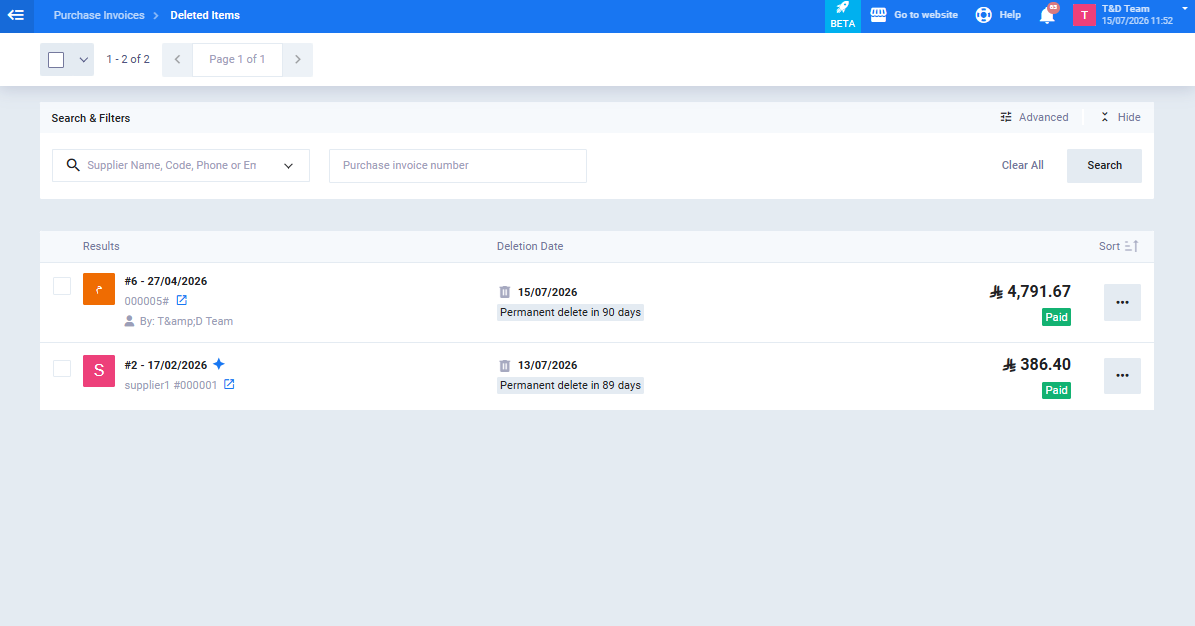
If the Branch feature is enabled, the Recycle Bin displays only the current branch’s transactions, consistent with the main list.
Restoring a Deleted Transaction
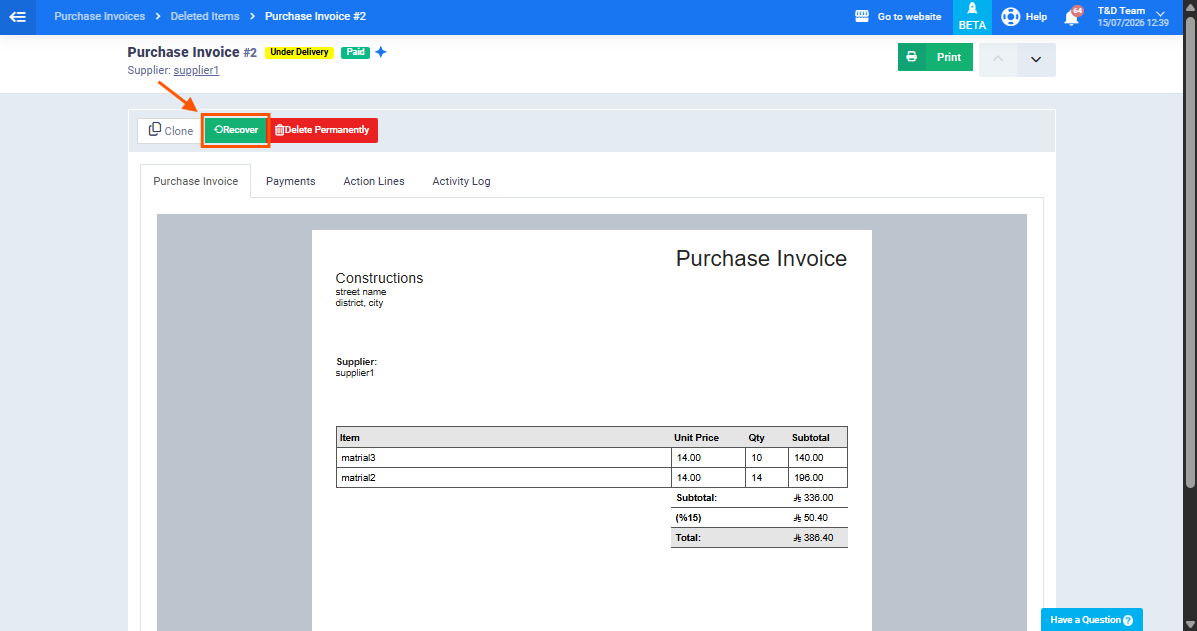
- Locate the required transaction in the bin, then click “Restore” from the list of actions or from the transaction view screen — which only shows three buttons: Restore, Clone, and Permanently Delete.
- The message appears: “Transaction restored successfully.” The transaction returns to its main list with its original number and complete data.
Upon restoration, journal entries are automatically regenerated, payments return from “Suspended” to their normal status, and the transaction immediately resumes its effect on reports and balances. You can also select multiple transactions and restore them in bulk at once.
Transactions in Closed Financial Periods — Cloning
If the transaction date falls within a closed financial period, restoration is blocked, and the following message appears: “You cannot add, edit, or delete a transaction on this date [dd/mm/yyyy] within a closed period.”
Cloning works the same as cloning any regular transaction — a new active transaction is created with a new sequential number using the same data, and it is not placed in the Recycle Bin. Cloning requires the “Add” permission for the transaction type in addition to the manage deleted transactions permission, and is available for one transaction at a time with no bulk action.
Permanently Deleting a Transaction
To permanently delete a transaction without waiting for the 90-day period to expire:
- From the bin, click “Permanently Delete” from the transaction’s actions or its view screen — also available as a bulk action for multiple transactions.
- Confirm from the message: “Are you sure you want to permanently delete [entity]? This action cannot be undone.”
Once the 90-day period expires, any remaining transactions in the bin are permanently and automatically deleted along with their journal entries and payments, with no prior notification.